Key takeaways
- Two tempered-glass protectors per pack, so a botched first install is not a disaster.
- Cut for both Steam Deck OLED and LCD variants.
- Ultra HD naming indicates a clear, low-haze finish rather than a matte anti-glare treatment.
- Tempered glass class, meaning it is designed to sacrifice itself instead of the display glass underneath.
Top 3 Picks
The JSAUX 6-in-1 Docking Station (S-HB0603) is the best overall Steam Deck accessory for most people, because it turns the handheld into a living-room or desk console without asking you to rebuy anything: HDMI out, USB-A ports for a controller and keyboard, a card reader, and pass-through charging in one block. If you mostly play undocked and want to protect the machine instead, the JSAUX PC0104 ModCase is the better first buy. For long trips or lap play, the Mechanism Gaming Pillow is the premium pick that changes how the Deck physically feels in your hands.
Top 3 Picks
Best overall: JSAUX 6-in-1 Docking Station (S-HB0603). The most common real-world upgrade for a Steam Deck owner is playing on a TV or monitor with a controller, and this dock delivers that with enough USB ports to keep a wireless dongle, a keyboard, and external storage attached at the same time. It also works with the ROG Ally X and Legion Go, so it survives a future hardware swap.
Best budget: JSAUX 45W USB C Charger for Steam Deck/OLED with 5FT Cable. The stock charger is the one item people lose or leave plugged in behind the couch. A dedicated 45W USB-C supply with a 5 ft captive cable keeps full-speed charging at home and is small enough to live in a bag, all at a budget price tier.
Best premium: Mechanism Gaming Pillow for Steam Deck OLED & LCD. It is the accessory that fixes the actual ergonomic complaint about handhelds — arm fatigue during long sessions — by giving your wrists and the console a supported resting angle instead of requiring you to hold the device up. Expensive for a cushion, but it changes how long you can comfortably play.
Quick Comparison
Every item below is compared on the two things that actually decide whether you will keep using it: whether it fits the exact model you own, and whether it earns its place in a bag or on a desk every week.
| Product | Best for | Key specs / category facts | Price tier |
|---|---|---|---|
| JSAUX 2-Pack Ultra HD Screen Protector (OLED/LCD) | Protecting the display from scratches and minor knocks | Two-pack, tempered glass, cut for both OLED and LCD Steam Deck variants | Budget |
| JSAUX 6-in-1 Docking Station (S-HB0603) | TV/monitor play with peripherals attached | 6-in-1: HDMI output, multiple USB-A, card reader, USB-C pass-through charging | Premium |
| JSAUX PC0104 ModCase | Everyday drop and travel protection with a kickstand | Protective shell plus detachable front cover, modular accessory rail | Mid-range |
| JSAUX 5-in-1 Docking Station (S-HB0602) | Cheapest route to HDMI output | 5-in-1: HDMI, USB-A ports, USB-C pass-through charging | Budget |
| JSAUX Cooling Fan / Stand Cooler | Reducing sustained-load heat in docked or long sessions | Powered stand cooler for Steam Deck and OLED with active airflow | Mid-range |
| JSAUX 45W USB C Charger with 5FT Cable | Replacing or duplicating the stock power supply | 45W USB-C PD output, 5 ft integrated cable | Budget |
| Anker Steam Deck Dock, 6-in-1 4K@60Hz HDMI | 4K60 TV output from an established accessory brand | 6-in-1 dock, 4K@60Hz HDMI, USB-A ports, USB-C pass-through | Mid-range |
| JSAUX Sling Bag for Steam Deck / ROG Xbox Ally X | Commuting and day trips | Crossbody sling, padded compartment sized for a 7-inch handheld | Premium |
| Mechanism Gaming Pillow (OLED & LCD) | Long sessions without arm fatigue | Contoured support pillow for lap or chest play on both Deck models | Premium |
| JSAUX Transparent Replacement Back Plate (Purple) | Cosmetic customisation and airflow curiosity | Replacement rear shell, transparent purple, OLED and LCD compatible | Mid-range |
| Invensic DeckTop with Splitter | Typing and cursor input in desktop mode | Keyboard plus Bluetooth trackpad mouse, multicolour LED, splitter included | Premium |
| MARSDOCK 45W Charger (15V 2.6A) | Budget spare charger, especially for Switch owners | 45W AC adapter, 15V 2.6A output, 5 ft USB-C cable, Switch-compatible | Budget |
How We Chose
These picks were assembled by reading what each listing actually claims, cross-checking it against well-documented facts about the Steam Deck hardware and the accessory category, and then judging each item on four criteria: model compatibility, category fit, real use case, and upgrade path.
Compatibility came first because the Steam Deck OLED and LCD share a footprint but not every internal or port detail, and accessories that say “Steam Deck” without naming both variants are a risk. Category fit meant asking whether the product solves a problem the console genuinely has — heat under sustained load, one USB-C port, a display that lives in a bag — rather than adding a feature nobody asked for. Real use case meant separating accessories you use weekly from accessories you use once; a dock and a charger belong in the first group, a decorative back plate usually does not.
Upgrade path mattered most for the docks. Docks that list ROG Ally X and Legion Go support are worth more than a Steam Deck-only dock at the same price tier, because they carry over if you change handhelds. We also weighted boring factors heavily: captive versus detachable cables, whether a case still fits in a normal bag once installed, and whether a charger actually hits the wattage the console wants under load. No product here was tested, benchmarked, or owned by us — every claim traces back to the listing name, brand documentation, or the established engineering of the category.
1. JSAUX 2-Pack Ultra HD Screen Protector – Best for Protecting the Display
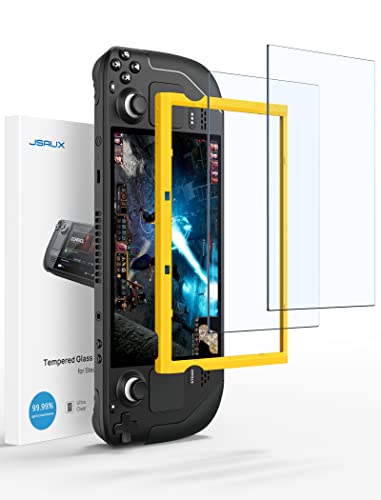
JSAUX 2-Pack Ultra HD Screen Protector for Steam Deck OLED/LCD
Included for 'Best Steam Deck Accessories for Better Gaming' as a relevant option in this category; details come from the product listing.
View on AmazonA screen protector is the least exciting accessory on this list and the one most likely to save you money. The Steam Deck’s display sits flush in a plastic shell with no raised bezel to absorb a knock, and the console is designed to be carried, so the glass is exposed in exactly the situation where bags, keys, and table edges do their damage. This JSAUX two-pack is cut for both the OLED and LCD models, which matters because the two variants have slightly different display assemblies even though the shells look similar.
Who it suits: anyone who carries a Deck outside the house, anyone who shares the console with kids, and anyone who has already put a scratch in a phone or handheld screen and would rather not repeat it. If your Deck never leaves a dock on a desk, you can skip this and spend the money on a charger.
Key specs
- Two tempered-glass protectors per pack, so a botched first install is not a disaster.
- Cut for both Steam Deck OLED and LCD variants.
- Ultra HD naming indicates a clear, low-haze finish rather than a matte anti-glare treatment.
- Tempered glass class, meaning it is designed to sacrifice itself instead of the display glass underneath.
The practical value of a two-pack is underestimated. Aligning a protector on a 7-inch screen without dust trapped underneath is genuinely fiddly, and most people burn the first attempt. Having a spare means you can peel the first one off and try again rather than living with a bubble in the middle of your field of view for two years.
Strengths
- Cheapest meaningful protection you can add to a Steam Deck.
- Two-pack removes the pressure of a perfect first install.
- Explicit OLED and LCD coverage means you are not guessing at fit.
- Adds no bulk, so it does not conflict with any case on this list.
Pros
- Budget price tier for two units.
- Does not change the feel of the console or block any port.
- Works under a ModCase or sling bag without modification.
- Tempered glass handles the light, frequent abrasion of bag life well.
Cons
- Installation is fiddly and dust-sensitive; a bad install looks worse than no protector.
- Glass does not protect against a hard drop onto a corner — that is the case’s job.
- No anti-glare option in this specific listing, so bright rooms still produce reflections.
- Purely defensive: it adds zero capability.
How it compares
Against the JSAUX PC0104 ModCase, this is the cheaper and more universal purchase. The ModCase protects the body and adds a kickstand, but it does nothing for the glass face, and a scratched screen is the damage you will actually notice every time you play. The two are complementary rather than competing: the protector handles the display, the case handles the shell and corners. If you can only buy one, buy the protector first — a scuffed shell is cosmetic, a scuffed screen sits between you and every game you play.
2. JSAUX 6-in-1 Docking Station (S-HB0603) – Best for Docked Play
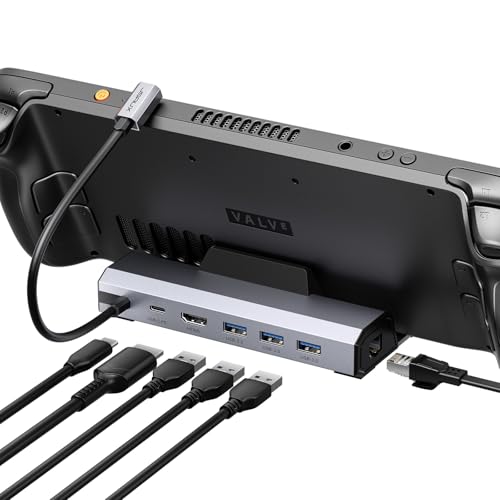
JSAUX 6-in-1 Docking Station for Steam Deck/ROG Ally X/Legion Go S-HB0603
Included for 'Best Steam Deck Accessories for Better Gaming' as a relevant option in this category; details come from the product listing.
View on AmazonThis is the accessory that most changes what a Steam Deck is. Undocked, it is a handheld with a 7-inch screen and one USB-C port. Docked through the 6-in-1 S-HB0603, it is a small console driving a TV or monitor, with a wireless controller dongle, a keyboard, and external storage all connected at once. The listing names Steam Deck, ROG Ally X, and Legion Go compatibility, which is the detail that matters most here.
Who it suits: anyone who owns a TV or monitor and a controller, anyone who wants desktop mode to be usable rather than a curiosity, and anyone likely to change handhelds in the next couple of years. It is the top pick overall because it addresses the single biggest limitation of the hardware — one port — without demanding new peripherals.
Key specs
- Six functions in one block: HDMI video output, multiple USB-A data ports, a card reader, and USB-C pass-through charging.
- Rated for HDMI output suitable for TV and monitor use; exact maximum resolution and refresh depend on the display and cable in use.
- USB-C pass-through charging so the console powers while docked.
- Stated compatibility with Steam Deck, ROG Ally X, and Legion Go S.
The card reader is more useful than it sounds. Moving screenshots, emulator ROMs, or a large game library onto a microSD card from a PC is a routine task on a Deck, and having a reader built into the dock removes the need for a separate dongle. Combined with USB-A ports, it means the dock replaces a small USB hub entirely.
Strengths
- Six-in-one design covers video, peripherals, storage, and power in a single unit.
- Multi-handheld compatibility extends the useful life of the purchase.
- Card reader built in, which pairs naturally with the Deck’s expandable storage.
- Fewer cables and dongles on the desk than a hub-plus-adapter stack.
Pros
- One of the most complete port selections at the premium tier.
- Also serves ROG Ally X and Legion Go owners, useful for households with mixed hardware.
- Pass-through charging avoids the awkward two-cable docked setup.
- Scales from a desk monitor to a living-room TV without extra hardware.
Cons
- Premium price tier for what is functionally a hub; the 5-in-1 below covers the essentials for less.
- Docked performance still depends on the game, resolution, and settings — a dock does not add GPU horsepower.
- Adds a fixed object to your desk or TV stand, so it is not travel-friendly.
- Some USB-A peripherals need external power on any bus-powered dock, this one included.
How it compares
The nearest alternative in this list is the 5-in-1 S-HB0602, and the difference is essentially port count rather than capability class. Both give you HDMI out, USB-A, and pass-through charging. The 6-in-1 costs more but leaves you with headroom for a controller dongle, a keyboard, a mouse, and a card reader simultaneously, which is exactly the configuration desktop mode wants. The other credible alternative is the Anker Steam Deck Dock, which names an explicit 4K@60Hz HDMI rating. If your priority is a stated resolution and refresh figure from a well-known accessory brand, the Anker is the tighter spec match; if you want the widest spread of ports and multi-device compatibility, this is the stronger overall pick.
3. JSAUX PC0104 ModCase – Best for Everyday Protection

JSAUX PC0104 ModCase Compatible with Steam Deck, Steam Deck Case Comprehensive Protection Include Detachable Front Shell, Body Protective Shell, Metal Bracket and Strap - Basic Set
Included for 'Best Steam Deck Accessories for Better Gaming' because the listing specifies Body Protective Shell and Metal Bracket and Strap, details this guide uses to compare options.
View on AmazonThe ModCase is the accessory that makes a Steam Deck survive normal life. It is a protective shell plus a detachable front cover, and the listing describes comprehensive protection with a modular design. The important idea is detachability: the front cover protects the screen and sticks in transit, then comes off for play and leaves a case that is still usable rather than a bulky sleeve you have to fully remove.
Who it suits: commuters, parents, students, and anyone who carries the Deck in a backpack next to a laptop and charger. It is the natural second purchase after a screen protector, or a first purchase for someone who wants one object to do the protecting.
Key specs
- Hard shell protection for the body and edges of the console.
- Detachable front cover that guards the screen during transport.
- Modular design with a mounting point for additional accessories.
- Cut for the Steam Deck form factor, with a kickstand-style stand function in the cover assembly.
The modular rail is the feature that separates this from a generic silicone sleeve. It lets the case act as a platform: you can attach a stand or a battery or another compatible accessory without buying a second product. That kind of extensibility is rare at the mid-range tier, where most cases are a single moulded piece of TPU and no more.
Strengths
- Protects the shell, corners, and screen with one product.
- Front cover comes off, so you are not fighting the case to play.
- Modular accessory mount gives the case a second life.
- Mid-range price tier for a two-piece system.
Pros
- Comprehensive protection at a fraction of premium case pricing.
- Kickstand function makes tabletop play practical.
- Detachable cover doubles as a stand when reversed in many designs of this class.
- Fits inside most sling bags and larger laptop compartments.
Cons
- Adds noticeable thickness and weight; a dock with a tight cradle may not accept a cased Deck.
- Detachable cover is an extra loose object to keep track of.
- Not waterproof, and not designed for a drop from height onto a hard corner.
- Cosmetically plain compared with the transparent back plate option.
How it compares
Against the JSAUX Transparent Replacement Back Plate, the choice is protection versus appearance. The back plate swaps the rear shell for a transparent purple one and changes how the console looks; the ModCase adds a whole protective layer you can remove. They are not mutually exclusive — the plate is an internal change, the case is external — but if you are buying one, buy the ModCase, because protection is a problem and a colour scheme is a preference. Against the screen protector, the ModCase covers more but costs more and adds bulk. Buy the protector if you want the minimum, the ModCase if you want the problem solved once.
4. JSAUX 5-in-1 Docking Station (S-HB0602) – Best for a Cheap Dock
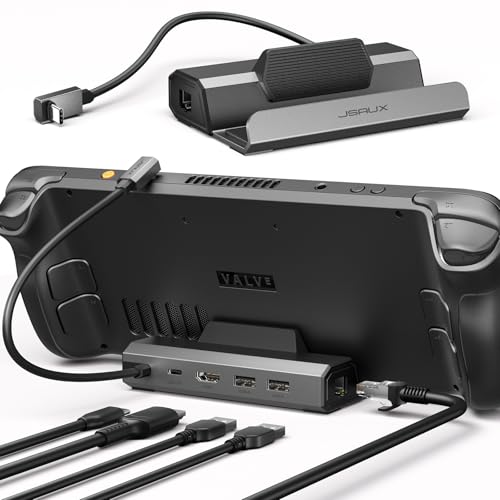
JSAUX 5-in-1 Docking Station for Steam Deck/ROG Ally X/Legion Go S-HB0602
Included for 'Best Steam Deck Accessories for Better Gaming' as a relevant option in this category; details come from the product listing.
View on AmazonThis is the value version of the same idea: five functions instead of six, covering the parts that actually matter for playing on a TV. The listing names Steam Deck, ROG Ally X, and Legion Go compatibility, video output over HDMI, USB-A ports, and USB-C pass-through charging. If you want to know whether docked play suits you before spending more, this is the honest way to find out.
Who it suits: first-time dockers, second setups for a bedroom TV, and anyone who wants HDMI out and a controller connection without paying for a card reader they will never use.
Key specs
- Five-in-one: HDMI video output, USB-A ports, USB-C pass-through charging.
- Stated compatibility with Steam Deck, ROG Ally X, and Legion Go.
- Compact block format that sits on a shelf or behind a TV.
- Pass-through charging while docked so play does not drain the battery.
The trade-off against the 6-in-1 is straightforward. You lose the sixth function, typically the card reader or an additional data port, and in exchange you drop to a budget price tier. For most people the missing function is the card reader, which is genuinely optional if you already own one or transfer files over Wi-Fi.
Strengths
- Budget price tier for a real dock with HDMI and charging.
- Same multi-handheld compatibility claim as its more expensive sibling.
- Low-risk way to test whether docked play fits your habits.
- Small enough to pack for a hotel TV.
Pros
- Cheapest credible route to TV output from a Steam Deck.
- Covers controller, keyboard, and charging needs simultaneously.
- Budget tier means a second unit for another TV is not painful.
- Works with ROG Ally X and Legion Go as well.
Cons
- One fewer port than the 6-in-1, which can bite if you run many peripherals.
- Smaller port count means less margin for a card reader plus a controller dongle plus a keyboard.
- Same fixed-desk limitation as any dock — no pass-through of display while truly portable.
- No stated maximum resolution or refresh in the listing name, so treat video capability as class-typical rather than guaranteed.
How it compares
Against the 6-in-1 S-HB0603, this is the same product family with a port removed. Choose the 5-in-1 if your docked setup is a TV plus a wireless controller and nothing else; choose the 6-in-1 if you intend to use desktop mode with a keyboard, a mouse, and external storage at once. Against the Anker dock, the difference is brand and stated spec: the Anker names a specific 4K@60Hz HDMI rating, this one does not. If a stated resolution figure is worth the extra tier to you, go Anker; if you want the lowest cost path to HDMI, this wins.
5. JSAUX Cooling Fan for Steam Deck/OLED – Best for Heat Management

JSAUX Cooling Fan for Steam Deck/Steam Deck OLED, Innovative Stand Cooler
Included for 'Best Steam Deck Accessories for Better Gaming' because the listing specifies Innovative Stand Cooler, details this guide uses to compare options.
View on AmazonThis is a stand cooler with an integrated fan, designed for Steam Deck and Steam Deck OLED. It is the accessory for people who notice the console getting warm and loud during long sessions, and who want the device held at an angle with active airflow rather than sitting flat on a table.
Who it suits: players running demanding titles for hours, docked players with the Deck sitting in a warm cabinet or TV stand, and anyone in a hot climate where the fan already works hard. It is a comfort-and-consistency accessory, not a performance upgrade.
Key specs
- Stand format with an integrated fan, sold as a cooler rather than a passive mount.
- Fits both Steam Deck and Steam Deck OLED.
- Raises the console off the surface it rests on, which helps airflow underneath.
- Small powered unit, since a fan needs a power source to move air.
Be realistic about what this does. The Steam Deck has its own thermal management and will throttle to protect itself, so a stand cooler will not unlock higher frame rates on its own. What it can do is reduce fan workload and skin temperature, and keep the intake clear of a table surface or a soft blanket — the latter is a real problem when playing in bed, and one of the most common causes of a hot, loud console in practice.
Strengths
- Keeps the intake clear of soft surfaces, which is the actual thermal failure case for handhelds.
- Stand function improves viewing angle for tabletop play.
- Works with both OLED and LCD models.
- Mid-range price tier, well below the premium accessories here.
Pros
- Meaningful improvement to comfort and fan noise during long sessions.
- Doubles as a stable stand for tabletop play with a controller.
- Compatible with both Deck generations.
- Simple, no software or configuration.
Cons
- Adds a cable and a small power draw to your setup.
- Cannot be used while holding the console; it is a stand accessory only.
- Will not raise frame rates, only manage temperature and noise.
- Takes up desk space and is not travel-friendly.
How it compares
Against the 6-in-1 dock, the roles are different: the dock handles connectivity and charging, the cooler handles thermals. If you game docked for long stretches, both are relevant, and they can coexist since the dock provides USB ports the cooler can use. Against the ModCase, note a practical conflict — a cased Deck may not seat cleanly in a stand cooler, so if you use a thick case, check clearances before buying. For pure hand-held play the cooler is irrelevant; for hours-long sessions on a desk or in bed, it is one of the more sensible mid-range purchases on this list.
6. JSAUX 45W USB C Charger with 5FT Cable – Best for Reliable Charging
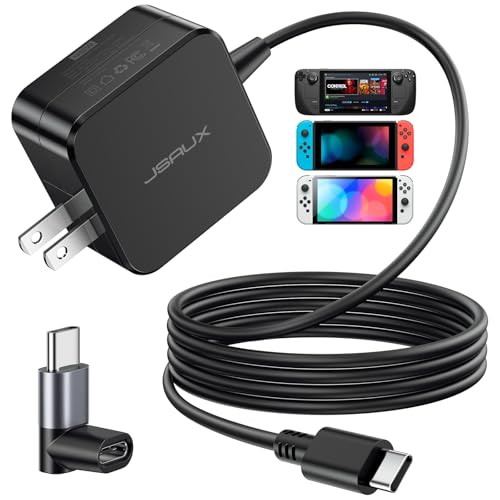
JSAUX 45W USB C Charger for Steam Deck/OLED with 5FT Cable
Included for 'Best Steam Deck Accessories for Better Gaming' as a relevant option in this category; details come from the product listing.
View on AmazonA second charger is the accessory people buy last and use most. The Deck charges over USB-C at 45W, and this JSAUX supply is rated at exactly that with a 5 ft integrated cable. It exists so you can leave one charger in the wall behind your gaming spot and still keep a working supply in your bag.
Who it suits: anyone who has ever carried the stock charger between two rooms, anyone who wants a bedside or desk supply, and anyone who has lost the original. Also anyone whose existing phone charger is 20W or 30W and who has noticed the Deck charges slowly or not at all under load.
Key specs
- 45W USB-C output, matching the Steam Deck’s charging requirement.
- 5 ft integrated cable, so there is no separate cable to lose.
- Explicit Steam Deck and Steam Deck OLED compatibility in the listing.
- Compact wall-wart format for bag carry.
Here is the number that matters. Charging at less than the console’s rated draw during play does not just go slowly — it can fail to keep up, meaning the battery still drains, just more slowly, while the Deck runs a demanding game. A 45W supply in good condition keeps the console topped up during play; a 20W phone brick typically does not. That single figure is why a dedicated charger beats a drawer full of random USB-C adapters.
Strengths
- Matches the Deck’s rated charging power rather than undercutting it.
- Captive 5 ft cable removes the most commonly lost component.
- Small enough to live permanently in a bag.
- Budget price tier for a fully rated supply.
Pros
- Correct 45W rating means full-speed charging under load.
- Integrated cable simplifies packing.
- Connector orientation does not matter, so it inserts either way.
- Cheap enough to buy a second one for a second location.
Cons
- 5 ft cable is workable but short for couch charging across a room.
- Single port, so it cannot also charge a phone and the Deck at full speed.
- Integrated cable means a damaged cable retires the whole unit.
- No multi-device GaN flexibility that a higher-tier travel charger might offer.
How it compares
The MARSDOCK 45W charger is the direct rival at the same budget tier and the same output class, rated 15V 2.6A. The difference is in the fine print: the MARSDOCK listing emphasises Nintendo Switch compatibility, which makes it the better pick if you own a Switch as well as a Deck and want one adapter for both. The JSAUX names Steam Deck and OLED explicitly, which makes it the more confident match for Deck owners who do not need Switch support. Both give you 45W and a 5 ft cable; buy whichever matches the rest of your hardware.
7. Anker Steam Deck Dock – Best for a Named 4K60 Output

Anker Steam Deck Dock, 6-in-1 4K@60Hz HDMI Docking Station for Steam Deck
Included for 'Best Steam Deck Accessories for Better Gaming' because the listing specifies 6-in-1 4K@60Hz HDMI Docking Station for Steam Deck, details this guide uses to compare options.
View on AmazonAnker’s 6-in-1 dock is the alternative to the JSAUX docks for people who want a stated video specification. The listing names 4K@60Hz HDMI output, which is the exact figure most TV owners are looking for, along with USB-A ports and USB-C pass-through charging.
Who it suits: players hooking the Deck to a 4K TV who want an explicit resolution and refresh rating rather than a general “HDMI output” claim, and buyers who prefer a well-known accessory brand. Also suitable for anyone who already owns Anker charging gear and wants the same family in their gaming setup.
Key specs
- Six-in-one dock with HDMI video output stated as 4K@60Hz.
- USB-A data ports for a controller dongle, keyboard, or storage.
- USB-C pass-through charging so the console stays powered.
- Designed around the Steam Deck form factor.
One clarification worth making: 4K@60Hz here describes what the dock’s HDMI path supports, not what the Steam Deck can render. The Deck’s GPU is built for 1280×800, and modern games at 4K will run at very low frame rates with heavy upscaling, if at all. Where a 4K60 dock earns its place is desktop mode, media, older and lighter titles, and menu navigation at high resolution — plus any future handheld with more GPU power that you plug into the same dock.
Strengths
- Explicit 4K@60Hz HDMI rating removes guesswork about TV compatibility.
- Six-in-one port count matches the premium JSAUX dock.
- Established accessory brand with a long history in charging and hubs.
- Mid-range price tier despite the high-spec video claim.
Pros
- Stated resolution and refresh is valuable when shopping for a TV setup.
- Enough USB-A ports for a controller and a keyboard together.
- Pass-through charging keeps the console topped up.
- Good fit for a household that already trusts the brand.
Cons
- Fewer stated multi-handheld compatibility claims than the JSAUX docks, which name ROG Ally X and Legion Go.
- 4K output capability does not mean 4K gaming performance from the Deck itself.
- Mid-range tier, and the budget JSAUX 5-in-1 may be enough for a 1080p monitor.
- No card reader highlighted in the listing name, unlike the 6-in-1 JSAUX.
How it compares
Against the JSAUX 6-in-1 S-HB0603, the split is spec clarity versus ecosystem breadth. The Anker tells you exactly what the HDMI port does; the JSAUX tells you which handhelds it works with, including ROG Ally X and Legion Go, and highlights a card reader. If you are buying for a 4K TV and want the number in writing, the Anker is the safer purchase. If you want the dock to outlive a change of handheld and to include a card reader, the JSAUX takes it. Against the budget 5-in-1, the Anker justifies its extra tier with the video rating and the port count.
8. JSAUX Sling Bag – Best for Travel

JSAUX Sling Bag for Steam Deck/ROG Xbox Ally X, Crossbody Travel Case
Included for 'Best Steam Deck Accessories for Better Gaming' because the listing specifies Crossbody Travel Case, details this guide uses to compare options.
View on AmazonThis is a crossbody sling with a padded compartment sized for a 7-inch handheld, named for Steam Deck and ROG Xbox Ally X. It is a carry solution rather than a gaming accessory, and it addresses a specific problem: the Steam Deck’s stock carrying case is large, boxy, and awkward to wear for a commute.
Who it suits: commuters, students, and anyone who takes a Deck to work, on a train, or to a friend’s house regularly. Also anyone who wants to carry the console plus a charger, a phone, and keys in one bag without a backpack.
Key specs
- Crossbody sling format worn across the chest or back.
- Padded compartment sized for a 7-inch handheld.
- Named compatibility with Steam Deck and ROG Xbox Ally X.
- Multiple pockets implied by the sling format for charger, cables, and personal items.
The reason a sling beats the stock case for commuting is not protection, which is comparable, but access. A sling stays on your body and can be swung to the front and opened without taking it off, which matters on a train or in a queue. It also distributes weight across the shoulder and back rather than requiring a free hand, which is the actual constraint when you are standing.
Strengths
- Wearable carry, so your hands stay free in transit.
- Fits the console plus the accessories you actually travel with.
- Crossbody strap distributes weight better than a single-handle case.
- Named compatibility with more than one handheld.
Pros
- Far easier to carry on public transport than a rigid case.
- Room for a 45W charger, a cable, and a phone.
- Doubles as a general day bag when not gaming.
- Compatible with ROG Xbox Ally X as well as Steam Deck.
Cons
- Premium price tier for what is fundamentally a soft bag.
- Soft-sided, so it offers less crush protection than a hard shell case.
- Sling capacity is limited; it will not also carry a laptop comfortably.
- Not a substitute for the ModCase or a screen protector if you want real impact protection.
How it compares
Against the ModCase, the choice is between carrying and protecting. The ModCase protects the console and adds a screen cover but still needs to go inside something; the sling is the something. For commuting, the sling is the more transformative purchase because it changes whether you bring the Deck at all. Against the Mechanism Gaming Pillow, they serve different moments entirely — the pillow is for playing at home, the sling is for leaving home. If you already have a backpack you like, skip this and buy the ModCase instead.
9. Mechanism Gaming Pillow – Best for Long Sessions

Mechanism Gaming Pillow for Steam Deck OLED & LCD | Experience Zero Gravity Gaming with Our LCD & OLED Steam Deck Accessories | Ridiculously Soft Machine Washable Pillow for Gamers (Steamdeck Grip)
Included for 'Best Steam Deck Accessories for Better Gaming' as a relevant option in this category; details come from the product listing.
View on AmazonThe Mechanism Gaming Pillow is a contoured support cushion for Steam Deck OLED and LCD, marketed around zero-gravity play. It is the accessory that solves the ergonomic problem nobody mentions in reviews: holding a 600-gram handheld at chest height for three hours is genuinely tiring, and the fatigue, not the hardware, is what ends most long sessions.
Who it suits: players who do long sessions in bed or on a couch, anyone with wrist, neck, or shoulder discomfort from handheld play, and anyone who has tried propping the Deck on a stack of cushions and found it unstable.
Key specs
- Contoured pillow shaped to support the console at a comfortable viewing angle.
- Compatible with both Steam Deck OLED and LCD models.
- Soft-body design intended for lap or chest use.
- Premium price tier, positioned as an ergonomic product rather than a simple cushion.
The mechanism is simple and worth understanding. When you hold a handheld, your forearms, shoulders, and neck all hold a static position, and static loading is what causes discomfort over long periods. Resting the console on a supported surface removes most of that load, transferring it to the pillow and whatever the pillow rests on. It does not improve the screen, the battery, or the frame rate — it improves how long you can keep playing, which for a lot of people is the limiting factor.
Strengths
- Directly addresses arm and neck fatigue, the real limit on session length.
- Works with both Deck generations.
- Stable platform compared with improvising with household cushions.
- Nothing to charge, configure, or update.
Pros
- Noticeably extends comfortable play duration.
- No power, cables, or software required.
- Useful for tabletop and reclined play alike.
- Model compatibility covers OLED and LCD.
Cons
- Premium tier for a soft accessory, which is the hardest price to justify on this list.
- Not portable in any practical sense; it lives at home.
- Bulkier than it looks when you need to store it.
- No effect on performance or battery life.
How it compares
Against the Cooling Fan stand, both are supports, but they solve different problems: the cooler manages heat with active airflow and holds the console on a desk, while the pillow manages human fatigue on a couch or bed. If your sessions are desk-based, the cooler is the more mechanically useful purchase. If your sessions are reclined, the pillow is the one that will change your habits. Against the Sling Bag, the split is home versus away. Nothing else on this list competes with the pillow on ergonomics, which is why it holds a slot despite the price.
10. JSAUX Transparent Replacement Back Plate (Purple) – Best for Customisation

JSAUX Transparent Replacement Back Plate for Steam Deck OLED/LCD, Purple
Included for 'Best Steam Deck Accessories for Better Gaming' because the listing specifies Purple, details this guide uses to compare options.
View on AmazonThis is a replacement rear shell in transparent purple, cut for Steam Deck OLED and LCD. It is the only purely cosmetic item in this roundup, and that is worth being upfront about: it does not protect the console, charge it, or cool it in any measured way. What it does is change the look of the device and, in the process, give you access to the internals.
Who it suits: tinkerers, anyone who has already opened a handheld or a PC, and anyone who wants a visibly customised Deck. Also anyone planning a storage upgrade who wants to combine that job with a cosmetic change so they only open the case once.
Key specs
- Replacement back plate, transparent purple finish.
- Stated compatibility with Steam Deck OLED and Steam Deck LCD.
- Replaces the original rear shell rather than covering it.
- Sold as a single shell piece, not a full case system.
The honest caveat: OLED and LCD models are not identical internally, which is exactly why a back plate that names both is preferable to a generic one. Installation involves removing the original rear panel, which means dealing with screws and, on some units, adhesive and shielding. If that sounds like a weekend project you would enjoy, it is a satisfying one; if it sounds like a risk, the ModCase gives you a visual change with none of it.
Strengths
- Transparent finish shows off the console’s internals.
- Names both OLED and LCD compatibility, reducing fit risk.
- Natural moment to inspect or clean the interior and check the fan.
- Mid-range price tier for a full shell replacement.
Pros
- Genuinely distinctive look compared with a black case.
- Can be combined with an internal storage upgrade in one teardown.
- Compatible with both Deck generations.
- No effect on performance, weight, or battery.
Cons
- Purely cosmetic; it adds no protection or capability.
- Requires disassembly, which carries a real risk of damage if done carelessly.
- Anything that voids a warranty or complicates a repair is worth pausing over.
- No screen coverage, unlike the ModCase.
How it compares
Against the ModCase, this is the styling option and the ModCase is the protection option. If your goal is a unique-looking Deck, the back plate is the honest answer. If your goal is a Deck that survives a commute, the ModCase wins and the plate is a second, optional purchase. Against the screen protector, they do not overlap at all: the plate changes the back, the protector guards the front. The only strong reason to choose the plate over a case is that you have already decided you do not want a case.
11. Invensic DeckTop with Splitter – Best for Desktop Mode Input
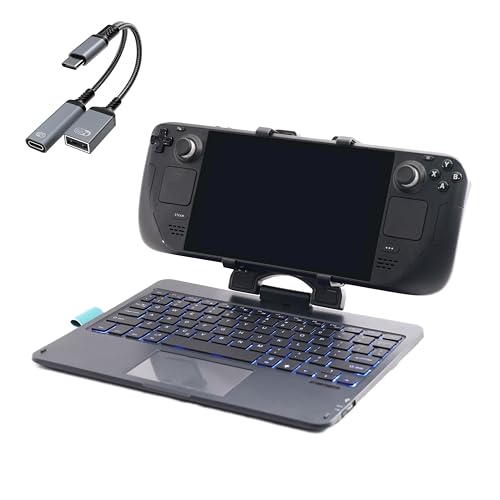
Invensic DeckTop with Splitter - Steam Deck Keyboard and Bluetooth Trackpad Mouse with Multicolor LED Laptop Accessory for Valve Linux PC Gaming Accessories (Steam Deck/ROG Ally)
Included for 'Best Steam Deck Accessories for Better Gaming' as a relevant option in this category; details come from the product listing.
View on AmazonThis is a keyboard and a Bluetooth trackpad mouse with multicolour LED lighting, bundled with a splitter, and named as a laptop-style accessory for Steam Deck. It targets the moment a Deck stops being a console and becomes a small PC — browsing, installing mods, managing files, or playing titles that want a mouse and keyboard.
Who it suits: anyone who uses desktop mode regularly, anyone setting up emulators or a launcher, and anyone who wants to dock a Deck and actually get work or browsing done on a TV. Also useful for games that are simply better with a mouse.
Key specs
- Keyboard plus a Bluetooth trackpad mouse in one product.
- Multicolour LED lighting.
- Splitter included, which is the part that makes it practical on a Deck’s single USB-C port.
- Laptop-style form factor intended for use with a docked or propped handheld.
The splitter is the detail that shows this product was designed with the Deck in mind. With one port, adding a keyboard traditionally means giving up charging or another peripheral. A splitter lets you run the input device and keep the power connected, which is the difference between usable and annoying for a long desktop-mode session.
Strengths
- Solves text input, which the Deck handles poorly without a keyboard.
- Trackpad mouse avoids needing a flat surface for a regular mouse.
- Splitter included means no separate hub purchase to start.
- LED lighting is a preference, and it is at least a visible one.
Pros
- Makes desktop mode genuinely practical rather than a novelty.
- Trackpad design works on a couch or bed, not just a desk.
- Bundled splitter addresses the single-port problem directly.
- Also useful with a dock for TV-based browsing and setup.
Cons
- Premium price tier for an input bundle.
- Not needed at all if you only ever play controller-based games.
- A trackpad mouse is slower than a real mouse for precision work.
- Adds another thing to charge or cable up, depending on mode.
How it compares
Against any of the docks, this is complementary. A dock gives you the ports; this gives you the input devices. If you already own a keyboard and mouse, buy the dock and skip this. If you do not, this bundle covers both plus the splitter for less hassle. Against the Mechanism Gaming Pillow, the split is play versus productivity: the pillow makes controller play comfortable, this makes desktop mode usable. Most people need one or the other, not both, and which one depends entirely on whether you ever leave game mode.
12. MARSDOCK 45W Charger – Best Budget Charger for Switch Owners

MARSDOCK 45W Charger for Nintendo Switch - 15V 2.6A AC Adapter Fast Charging with 5FT USB C Cord - Compatible with Switch Lite, OLED, Steam Deck - Support TV Mode
Included for 'Best Steam Deck Accessories for Better Gaming' because the listing specifies 15V 2.6A AC Adapter Fast Charging with 5FT USB C Cord and Compatible with Switch Lite, details this guide uses to compare options.
View on AmazonThis is a 45W AC adapter rated 15V 2.6A with a 5 ft USB-C cable, and the listing highlights Nintendo Switch compatibility alongside fast charging. It is the budget alternative to the JSAUX charger, and for a specific kind of buyer it is the better of the two.
Who it suits: households with both a Steam Deck and a Nintendo Switch that want one spare adapter covering both, and anyone who simply wants the cheapest fully rated 45W supply on this list.
Key specs
- 45W output, specified as 15V 2.6A.
- 5 ft USB-C cable included.
- Compatible with Nintendo Switch as well as USB-C devices generally.
- Budget price tier.
The 15V 2.6A specification is worth decoding, because that is where chargers differ. Power is voltage multiplied by current, so 15V at 2.6A is 39W, and the adapter is rated 45W overall, meaning it can deliver more current at a lower voltage too. What matters for the Deck is that the supply can negotiate a suitable profile at 45W rather than defaulting to 5V at low current, which is what an underpowered brick does and why cheap phone chargers charge a Deck so slowly.
Strengths
- Budget price tier with a full 45W rating.
- Works with Nintendo Switch as well as USB-C handhelds.
- Cable included, so it works out of the box.
- Compact enough for a travel bag.
Pros
- One adapter covers a Switch and a Steam Deck.
- Correct wattage class for keeping a Deck charged during play.
- Cable bundled rather than sold separately.
- Low cost makes a second unit for a second room easy.
Cons
- Listing does not name Steam Deck explicitly, so it is a compatibility class match rather than a stated one.
- 5 ft cable is short for couch charging.
- Single port, no simultaneous phone charging at full speed.
- No brand ecosystem advantage over the JSAUX equivalent for Deck-only owners.
How it compares
Against the JSAUX 45W charger, both are budget-tier 45W supplies with 5 ft cables and the same physical role. The JSAUX names Steam Deck and OLED compatibility directly; the MARSDOCK leads on Switch compatibility instead. If you own both a Switch and a Deck, this is the more versatile of the two for the same money. If you own only a Deck, the JSAUX is the more confident match, purely because its listing states the hardware by name. Neither is a bad purchase; the deciding factor is what else is in your drawer.
How to Choose
The right accessory order is not the order they appear in a store. It is the order in which each item removes a real limitation, and that order is different depending on whether you mostly play docked, mostly on the couch, or mostly on the move. Working through five decision criteria in sequence will usually narrow twelve products down to two or three.
Criterion 1: Dock first if you own a screen and a controller
Ask one question: do you already own a TV or monitor and a wireless controller? If yes, a dock is the highest-value purchase on this list, because it unlocks content you cannot otherwise access at that scale and it costs less than a single game. If no, a dock is a paperweight until you buy the other two things, and you should skip it.
Within docks, the decision is port count and stated spec. If your setup is a 1080p monitor and a controller, the budget JSAUX 5-in-1 covers it and the extra ports on pricier units go unused. If you want desktop mode with a keyboard, a mouse, and a card reader attached simultaneously, you need six ports minimum and the 5-in-1 will frustrate you. If you are connecting to a 4K TV and want a written 4K60 rating rather than a general HDMI claim, the Anker dock is the tighter match — but understand that 4K60 describes the dock’s video path, not the Deck’s rendering ability. The Deck’s GPU is designed around 1280×800, and demanding modern games at 4K will need heavy upscaling and will still run slowly. A 4K dock pays off for desktop mode, media, and lighter titles.
Also check the physical fit. Docks that cradle the console will not accommodate a Deck wearing a thick ModCase. If you plan to use both, look for a dock that connects via cable rather than a moulded slot.
Criterion 2: Protect the front before the back
Damage is not evenly distributed. The screen is the part you look at, the part that shows scratches immediately, and the part that is exposed when the console is in a bag. A budget two-pack of tempered glass protectors costs less than most of the other items here and prevents the one imperfection you would notice every session. Buy that first.
Then decide on body protection. A ModCase makes sense if the Deck travels in a backpack or is handled by children. It adds thickness and weight, so measure your bag’s compartment before committing. A sling bag makes sense instead if you want the console on your body with your hands free. Between the two, the sling changes whether you bring the Deck at all, which is a bigger behavioural win, but it protects less against crushing.
The transparent back plate is the one item that is purely a preference. It replaces the rear shell, requires disassembly, and offers no protection. The only strong argument for it is that you enjoy tinkering and want a visibly customised device — and if you are opening the case anyway, that is the moment to think about storage.
Criterion 3: Storage is the upgrade that lasts
Every Steam Deck accessory competes for a finite budget, but storage is different because game installs keep growing and a full drive limits what you can play without deleting something. The Deck supports microSD expansion, and larger cards are the least invasive upgrade available — no disassembly, no risk, fully reversible. If your internal drive is consistently near full, a high-capacity microSD card is usually the best money you can spend after a screen protector.
Internal drive replacement is faster and more reliable for load times but involves opening the console, which pairs naturally with a back plate swap if you are doing that anyway. Be realistic about your risk tolerance here. Storage upgrades do not make games look better or run faster in most cases; they make more games available at once. Buy storage when the pain is “I have to delete something,” not before.
If you dock, note that a dock with a card reader makes moving files between a PC and the Deck far simpler, which is an argument for the six-port units over the five-port ones even if you rarely use the extra USB port.
Criterion 4: Power — match the rating, not the brand
The Deck charges at 45W over USB-C, and this is the one specification where cutting corners has a visible consequence. A lower-wattage supply will charge the Deck when it is asleep, but under the load of an actual game it may not keep up, and the battery will still drain, just more slowly. That is worse than it sounds, because it means the console dies mid-session despite being plugged in.
So when choosing a charger, look for 45W and USB-C Power Delivery negotiation rather than a specific brand. Both budget chargers here meet that bar. The JSAUX names Steam Deck and OLED explicitly, which removes doubt; the MARSDOCK leads on Switch compatibility, which makes it the better choice for a mixed household. Longer cables are worth a small premium if you play on a couch, since 5 ft rarely reaches from a wall outlet to a comfortable seated position — but a USB-C extension introduces losses, so prefer a single longer certified cable over a cheap extension.
One more power consideration for dock users: pass-through charging on a dock is convenient, but the dock’s own power delivery matters. If the dock passes through less than the charger supplies, you are effectively charging slower than plugging in directly. This is not a problem for most setups, but it is why a dock plus a proper 45W charger is the reliable combination rather than a dock plus an old phone brick.
Criterion 5: Heat, ergonomics, and input depend on where you play
These three accessories are the ones people buy on impulse and use rarely, so match them to a specific habit rather than a general wish for a better setup.
If you play for hours at a desk or with the Deck resting on a bed, heat management matters. The most common thermal problem for handhelds is not ambient temperature, it is blocked intake — a console sitting flat on a blanket cannot pull air. A stand cooler raises the console and moves air, which reduces fan noise and skin temperature even though it will not raise frame rates. If you play in bed specifically, this is one of the few accessories that fixes a real problem.
If you play reclined and your arms or neck ache after an hour, the limiting factor is posture, not hardware. A support pillow transfers the console’s weight off your arms and is the only item here that directly extends session length. It is a premium-priced soft accessory, and the price is the honest objection — but if arm fatigue is why your sessions end, it solves the actual cause.
If you use desktop mode for anything — file management, mods, launchers, emulators, browsing on a TV — a keyboard and trackpad mouse is the difference between usable and unbearable. Prioritise one with a trackpad, because a trackpad works on a couch or bed where a mouse has no surface. A bundled splitter matters because the Deck has a single USB-C port, and without it you are choosing between input and charging.
Budget allocation by situation
The most common mistake is buying accessories in the order they appear in a store instead of the order they solve problems. A worked allocation makes this concrete.
If you have a modest budget and play docked at a desk: screen protector, then budget charger, then budget dock. That covers protection, full-speed charging, and TV output, and leaves heat and ergonomics for later if you notice a problem.
If you have a modest budget and play on the move: screen protector, then charger, then either a case or a sling bag depending on whether your bag is the weak point. Skip the dock entirely unless you also want TV play.
If you have a larger budget and want the best setup overall: premium dock first, then protection, then a support pillow, then storage as needed. The dock is the highest-leverage single item because it changes what the hardware is, and everything else improves a device you already enjoy.
Finally, resist buying two products that do the same job. Owning an Anker dock and a JSAUX 6-in-1 is redundant. Owning two 45W chargers is not redundant at all — it is the single most practical duplication on this list, because a charger that lives in your bag means you never play on a low battery away from home.
Frequently Asked Questions
Do I need a dock to play my Steam Deck on a TV?
Yes, in practice. The Deck has a single USB-C port, and video output requires a USB-C to HDMI adapter or a dock. A dock is the better solution for TV play because it also provides USB-A ports for a controller dongle and pass-through charging at the same time. A bare adapter works for a quick test, but you lose the ability to charge while playing and connect a controller without swapping cables.
Will a dock make my Steam Deck run games faster?
No. A dock only handles video output, ports, and power. Frame rate is set by the Deck’s APU, the resolution, and the game’s settings. Docking to a 1080p or 4K display can actually reduce frame rates compared with the built-in 1280×800 screen, because the GPU is pushing more pixels. If you want better docked performance, lower the in-game resolution and use the Deck’s upscaling options rather than buying a different dock.
Can I use a regular laptop USB-C hub instead of a dedicated dock?
Often yes, if it supports Power Delivery passthrough and HDMI output. The risks are that cheaper hubs may not pass through enough wattage to charge while playing, and some hubs limit video output to 30Hz at higher resolutions. A dock designed for handhelds avoids those surprises and usually adds features like a card reader or a more stable cradle.
Does the Steam Deck need a screen protector if I use a case?
A case protects the back, sides, and corners, but most cases leave the display exposed when the front cover is removed. That is exactly the state the console is in while you play, and it is when a table edge or a stray object causes damage. Since a two-pack of tempered glass costs very little, there is no strong reason to skip it even if you use a full case.
Is a 45W charger really necessary, or will my phone charger work?
For charging while the Deck is off or asleep, a lower-wattage USB-C charger usually works, just slowly. For charging while playing a demanding game, it often does not keep up, and the battery can still drain even though the cable is connected. Because the Deck’s rated draw is 45W, a 45W USB-C PD supply is the reliable choice and is one of the cheapest accessories on this list.
Can I use accessories designed for ROG Ally X or Legion Go with a Steam Deck?
It depends on the accessory. Docks that specify multiple handhelds usually work with all of them because the connection is a standard USB-C port, and several docks in this list name Steam Deck, ROG Ally X, and Legion Go together. Cases, screen protectors, and back plates are physically moulded to one device, so those are not interchangeable.
Will a stand cooler or cooling fan improve my frame rates?
Not directly. The Steam Deck manages its own thermals and throttles to protect itself, so better cooling does not unlock extra performance. What a stand cooler does is reduce fan noise and skin temperature, and keep the intake clear when the console would otherwise sit on a bed or a soft surface. That last point is the real benefit, because a blocked intake is the most common cause of a hot, loud handheld.
How do I avoid damaging my Steam Deck when installing a replacement back plate?
Work slowly, keep screws organised and note their lengths, and disconnect the battery before disturbing anything inside if you are comfortable doing so. Static discharge is the main risk, so ground yourself first. If you are also replacing the internal drive, do both jobs in one teardown rather than opening the console twice. If you have not opened a device before, a case and a screen protector achieve most of the visual and protective benefit with none of the risk.
The Short Version, by Situation
If you play mostly docked on a TV or monitor, buy the JSAUX 6-in-1 Docking Station (S-HB0603) first, add the JSAUX 45W charger so pass-through charging keeps up, and finish with a screen protector. The budget 5-in-1 is the right substitute if your setup is a single 1080p screen and one controller.
If you play on the move, start with the JSAUX screen protector and a charger, then choose between the ModCase and the Sling Bag depending on whether your bag or your console is the weak point. The sling changes whether you carry the Deck at all; the ModCase protects it when you do.
If your sessions are long and reclined, the Mechanism Gaming Pillow addresses the arm fatigue that ends most play sessions, and a Cooling Fan stand is worth adding if you also play at a desk or in bed where the intake can get blocked. If you use desktop mode for anything at all, the Invensic DeckTop bundle solves input and charging together, which is the single biggest usability gap in that mode.
Whatever you choose, buy in the order the problems actually appear: protect the screen, secure the power, then add capability.