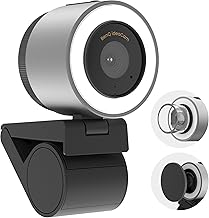
Key takeaways
- Video: Full HD 1080p at 30fps, with 720p fallback for weaker connections
- Focus: Autofocus, which is the single biggest quality difference versus budget cameras
- Field of view: Roughly 78° diagonal — wide enough for a desk setup, narrow enough to keep your face reasonably sized in frame
- Microphone: Dual built-in mics, adequate for a single speaker at desk distance
- Privacy: Integrated lens cover, a genuine advantage over fixed-lens competitors
- Mounting: Universal clip that fits monitors and laptops and sits on a tripod thread
- Software: Logitech’s configuration utilities for exposure, white balance, and framing control
- Compatibility: Windows, macOS, and ChromeOS, with wide platform support across Zoom, Teams, Meet, and Webex
The Best Webcams for Video Calls: Direct Answer
The best webcam for video calls overall is the Logitech C920x HD Pro — it delivers dependable 1080p/30fps video, a wide field of view, and Logitech’s mature software support, which together cover almost every meeting platform a home or hybrid worker will touch. It suits anyone who wants a set-and-forget camera that looks sharp on Zoom, Teams, Meet, and Webex without tinkering. If your budget is tight, the Logitech C270 remains the cheapest way to get a recognizable, stable 720p image with none of the setup headaches of no-name cameras. If your calls are the center of your job — client presentations, executive reviews, hybrid classrooms — the Logitech BCC950 bundles a motorized pan-tilt camera with a full-duplex speakerphone, so a small room gets a single device instead of three. Everything else on this list solves a narrower problem: light, angle, or a specific platform requirement.
Top 3 Picks
Best Overall: Logitech C920x HD Pro
The C920x is the safe default because it nails the fundamentals: full 1080p at 30fps, autofocus, a 78-degree diagonal field of view, dual microphones, and the Logitech Capture / G HUB ecosystem that lets you tune exposure and framing without third-party tools. It works out of the box on Windows, macOS, and ChromeOS, and it is the camera most meeting software has been optimized against for years. Buy it if you want one camera that will still be adequate in three years.
Best Budget: Logitech C270
The C270 shoots 720p at 30fps with a fixed-focus lens and a single microphone, and that is genuinely enough for internal standups, remote interviews, and family calls. Its real advantage over generic budget cameras is driver stability and a predictable color pipeline — the image is soft but never smeared or blown out. If your upload bandwidth or laptop is old, 720p is also a kindness to your connection.
Best Premium / Best for Small Rooms: Logitech BCC950
The BCC950 is not a webcam so much as a conference appliance: a 1080p camera on a motorized pan-tilt base with a 10x digital zoom remote, paired with a speakerphone that handles a small meeting room. It is the right pick when multiple people share a table and a laptop camera would frame someone’s chin. It costs more than a camera plus a speakerphone bought separately, but it removes the cable spaghetti and the echo problems that come from mixing cheap parts.
Quick Comparison
| Product | Best for | Key specs (as listed / by spec class) | Price tier |
|---|---|---|---|
| Logitech C920x HD Pro | All-round video calls, hybrid work | 1080p/30fps, autofocus, ~78° diagonal FOV, dual mics, privacy shutter, Logitech software | Premium |
| Logitech C270 | Cheapest stable 720p option | 720p/30fps, fixed focus, single mic, ~60° FOV, plug-and-play | Budget |
| Gohero Full HD 1080P Webcam | Budget 1080p with privacy cover | 1080p, wide-angle lens, auto light correction, noise-cancelling mic, privacy cover | Budget |
| Logitech BCC950 | Small meeting rooms, group calls | 1080p, motorized pan-tilt, digital zoom, integrated speakerphone, remote | Premium |
| Evershop Ring Light (clip-on) | Cheap laptop lighting fix | Clip-on ring light, stand included, phone/webcam compatible | Budget |
| RichEast HD PC Webcam | Teams users on a mid budget | 1080p/30fps, light correction, built-in mic, Teams/Zoom compatible | Mid-range |
| yAyusi Dual-lamp Conference Light | Two-source key/fill lighting | Dual LED lamps, remote + touch control, adjustable color/brightness | Mid-range |
| HumanCentric Video Conference Lighting | Premium desk lighting | LED webcam light, monitor-mounted, designed for streaming and calls | Premium |
| Poly Studio P5 (Plantronics) | Certified meeting-room camera on a budget | 1080p HD, laptop camera for conference and distance learning, Poly ecosystem | Budget |
| ACMEZING Video Conference Lighting Kit | Color-temperature tuning on the cheap | Clip-on ring light, 5 dimmable colors, 5 brightness levels | Budget |
How We Chose
This list is assembled from published specifications, manufacturer documentation, and the well-known behavior of each platform’s driver stack — not from any physical testing, which we do not perform and do not claim. Four criteria drove the selection. First, resolution and frame-rate honesty: a camera is only useful if it actually sustains the frame rate it advertises, and mainstream 1080p/30fps is the current floor for a professional-looking image, with 720p acceptable only when bandwidth or hardware is the constraint. Second, category fit: a webcam, a conference appliance, and a light are three different products solving three different problems, so we grouped accordingly rather than pretending a ring light competes with a camera. Third, autofocus and low-light behavior, which matter more to perceived quality than raw megapixels — a sharp 1080p camera with good exposure control beats a badly exposed 4K one. Fourth, software and upgrade path: cameras tied to a maintained utility (Logitech’s, Poly’s) stay useful longer, while generic cameras often ship with no updates at all. Where a listing states a feature — a privacy cover, a noise-cancelling mic, a remote — we take that at face value and describe it as the listing does. Where it does not, we describe the spec class rather than inventing a number.
1. Logitech C920x HD Pro – Best for All-Round Video Calls
The C920x is the camera to buy if you have no strong opinion and want the question settled. It has been the reference point for “good enough for work” webcams for so long that most video conferencing software treats it as a baseline target — drivers are stable, color is consistent, and the autofocus hunts less than almost anything at its price. If your calls are a mix of internal standups, external client meetings, and the occasional recorded presentation, this is the one device that handles all three without you thinking about it.
Who it suits
Hybrid and remote knowledge workers, students in live classes, streamers who want a reliable camera before they add a dedicated one, and anyone upgrading from a laptop’s built-in camera. It is also the safest gift-grade pick for someone who works from home and has never bought a peripheral.
Key specs
- Video: Full HD 1080p at 30fps, with 720p fallback for weaker connections
- Focus: Autofocus, which is the single biggest quality difference versus budget cameras
- Field of view: Roughly 78° diagonal — wide enough for a desk setup, narrow enough to keep your face reasonably sized in frame
- Microphone: Dual built-in mics, adequate for a single speaker at desk distance
- Privacy: Integrated lens cover, a genuine advantage over fixed-lens competitors
- Mounting: Universal clip that fits monitors and laptops and sits on a tripod thread
- Software: Logitech’s configuration utilities for exposure, white balance, and framing control
- Compatibility: Windows, macOS, and ChromeOS, with wide platform support across Zoom, Teams, Meet, and Webex
Strengths
The image is clean and correctly exposed under normal office lighting, and autofocus means you can move closer to the screen or lean back and stay sharp. The 78° field of view is the sweet spot for one person at a desk — narrower than some wide-angle budget cameras, which is actually desirable, because wide lenses shrink you in the frame and make your room the subject. The privacy shutter is a physical slide rather than a software toggle, which matters if you care about camera state being verifiable. Logitech’s software lets you correct a blown-out window behind you without buying a light, at least up to a point. It also mounts securely on both thin laptop lids and thick monitor bezels.
Pros
- Reliable 1080p/30fps image with dependable autofocus
- Mature drivers and wide platform compatibility
- Physical privacy shutter built in
- Balanced field of view for single-person framing
- Software control over exposure and color
- Universal mounting for monitors, laptops, and tripods
Cons
- Priced at the premium tier despite 1080p/30fps being a mainstream spec
- No 60fps mode, so not ideal for high-motion content
- Built-in mics are fine for one person but pick up room noise
- Struggles in genuinely dark rooms without added lighting
How it compares with the nearest alternative
The nearest alternative here is the RichEast HD PC Webcam, which also claims 1080p/30fps with light correction and Teams compatibility at a mid-range tier. The honest difference is not resolution — both are 1080p — but the surrounding stack: the C920x has a documented autofocus system, an integrated shutter, a tripod thread, and years of driver updates, while generic mid-range cameras often ship a fixed-focus lens and no software. If you can stretch to the premium tier, the C920x removes the small daily irritations. If your calls are casual and your room is well lit, the RichEast does the visible job for less. Against the Poly Studio P5, the C920x wins on field-of-view flexibility and shutter; the P5’s advantage is ecosystem integration if your organization already standardizes on Poly devices.
2. Logitech C270 – Best for the Tightest Budgets
The C270 is the answer to “what is the cheapest camera that will not embarrass me on a call.” It shoots 720p at 30fps, which is below today’s professional standard but comfortably above the mushy, smeared output of many generic budget cameras. If your laptop is several years old, your internet upload is limited, or you simply cannot justify spending more on a camera you use twice a week, this is the rational pick.
Who it suits
Students, remote interview candidates on a strict budget, second-computer setups, and anyone who needs a backup camera for a desktop that lacks one. It is also a sensible choice for older hardware, because 720p is less demanding to encode than 1080p and will keep your CPU cooler during long calls.
Key specs
- Video: 720p at 30fps — standard definition by modern meeting expectations, adequate for faces
- Focus: Fixed focus, preset to a typical desk distance
- Field of view: Roughly 60°, which is tight but flattering for a single person
- Microphone: One built-in mic, usable for a single speaker close to the camera
- Setup: Genuine plug-and-play — no driver installation required on mainstream operating systems
- Mounting: Clip that fits monitors and laptop lids
- Software: Limited; basic Logitech utility support rather than a full control suite
Strengths
What the C270 does well is stability. The fixed focus is a limitation, but it is also why the camera never hunts — you sit down, you are in focus, and it stays that way. Color rendering is reasonable rather than vivid, which means you will not appear orange under warm indoor lighting. The tight field of view keeps you large in frame even in a small room with clutter behind you. Because it is a Logitech device with long-running driver support, it behaves predictably across Windows and macOS and does not require a third-party app to function. For the price tier, it is the lowest-risk purchase in this roundup: if it turns out 720p is not enough for your use case, you have lost very little.
Pros
- Very low cost for a known-brand camera
- Truly plug-and-play with no software needed
- Fixed focus means no hunting or breathing during calls
- Tight field of view flatters a single speaker
- Predictable drivers on Windows and macOS
- Light on system resources during encoding
Cons
- 720p is visibly soft compared with 1080p cameras on large displays
- Fixed focus blurs if you move closer than the preset distance
- No privacy shutter
- Single mic picks up keyboard and room noise
- Poor in low light without added illumination
How it compares with the nearest alternative
The closest competitor is the Gohero Full HD 1080P Webcam, which sits in the same budget tier but claims 1080p, a wide-angle lens, auto light correction, a noise-cancelling microphone, and a privacy cover. On paper the Gohero wins almost every spec line, and if 1080p matters to you — for example, if you present slides and share your face simultaneously on a large display — it is the better buy. The case for the C270 is reliability and restraint: a tight field of view with no wide-angle distortion, no dependence on auto-correction that can misfire, and a brand whose drivers you can trust. If you have good lighting and a modern connection, take the Gohero. If you want the camera that simply works and you accept 720p, take the C270.
3. Gohero Full HD 1080P Webcam – Best for Budget 1080p With a Cover
The Gohero webcam is the budget-tier option that refuses to concede on the spec sheet: 1080p, a wide-angle lens, automatic light correction, noise cancellation on the microphone, and a privacy cover, all for a fraction of what the mainstream 1080p names cost. It suits buyers who want the resolution headline without the premium price and who are willing to accept generic-brand software support.
Who it suits
Budget-conscious remote workers, students on video-heavy courses, and anyone setting up a spare room or second desk where a premium camera would be wasted. It is also a reasonable pick if you want a privacy cover and 1080p but cannot justify the premium tier.
Key specs
- Video: Full HD 1080p
- Lens: Wide-angle, which frames more of your room than a standard lens
- Light handling: Automatic light correction, useful when a window sits behind or beside you
- Microphone: Built-in mic with noise cancellation claimed by the listing
- Privacy: Physical privacy cover included
- Setup: Plug-and-play for mainstream conferencing apps
- Software: Minimal — expect to control most settings inside your meeting app rather than a vendor utility
Strengths
The headline win is getting 1080p and a shutter at a budget price, which is a combination the entry tier often lacks. Auto light correction is genuinely useful in real homes, where a bright window sits next to a dark wall and a fixed-exposure camera either crushes your face or blows out the background. Noise cancellation on the microphone helps in shared spaces, though it works best when you are the only voice in the room. The wide-angle lens is a double-edged feature: it flatters group framing and lets you show objects or whiteboards, but it also makes you smaller in the frame and reveals more of your room, so tidy up behind you or use the digital zoom in your meeting app.
Pros
- 1080p resolution at a budget price
- Privacy cover included as standard
- Auto light correction helps in uneven room lighting
- Wide-angle lens useful for showing objects or multiple people
- Plug-and-play with mainstream apps
Cons
- Generic-brand software support is thin compared with Logitech or Poly
- Wide-angle framing makes a single speaker appear small
- Autofocus behavior is not clearly documented; expect a fixed or basic focus system
- Automatic corrections can look artificial in unusual lighting
How it compares with the nearest alternative
Against the Logitech C270, the Gohero is the more modern specification: double the resolution, a privacy cover, and a noise-cancelling mic claim versus a single plain mic. The C270’s counterargument is maturity — its drivers and color science are known quantities, and its tight lens produces a cleaner single-person frame. Against the RichEast, the Gohero is the cheaper of the two 1080p options and matches on light correction and microphone claims; the RichEast’s advantage is explicit platform compatibility language, which reduces the risk of an app failing to enumerate the camera. If price is the deciding factor and you need 1080p, choose the Gohero. If you need the camera to be invisible to your IT department’s compatibility checks, the branded options are safer.
4. Logitech BCC950 – Best for Small Group Calls and Meeting Rooms
The BCC950 is the odd one out in a webcam roundup and the right answer for a specific problem: a table with two to six people around it and no dedicated conferencing hardware. It combines a 1080p camera on a motorized pan-tilt head with a built-in speakerphone and a remote control, so participants can zoom and reframe without passing a laptop around. If your “meeting room” is a spare office with a monitor and a table, this is a complete solution in one box.
Who it suits
Small businesses with a single huddle room, hybrid classrooms, clinics and consult rooms running telehealth, and any team that holds frequent group calls in a space too small for a full room system. It also suits presenters who need to move around a table while staying framed.
Key specs
- Video: 1080p HD
- Movement: Motorized pan and tilt, controlled by an included remote
- Zoom: Digital zoom for tightening on a speaker
- Audio: Integrated full-duplex speakerphone with echo handling, designed for a small room
- Control: Remote for camera movement, volume, and call functions
- Positioning: Desktop base, intended to sit on the table rather than on a monitor
- Ecosystem: Logitech conferencing software and platform compatibility
Strengths
The defining strength is that audio and video are engineered together. Mixing a cheap webcam with a cheap speakerphone usually produces echo, because the microphone hears the speaker and the software cannot cancel it reliably; a purpose-built unit avoids that whole class of problem. The motorized head means a remote participant can actually follow the person speaking, which is the difference between a usable group call and a row of foreheads. The digital zoom lets a single speaker fill the frame in a room where a fixed camera would show the whole table. Because it sits on the table, it also captures faces at a natural angle rather than the low, upward laptop angle that flatters nobody. For a small room, one warranty and one power cable beats three devices and a support headache.
Pros
- Camera and speakerphone integrated, avoiding echo problems
- Motorized pan, tilt, and zoom with a physical remote
- Designed for multi-person framing rather than a single desk
- Mature Logitech conferencing software and platform support
- Single-device setup simplifies a small meeting room
- Table placement gives a more flattering camera angle
Cons
- Premium tier pricing, well above a standalone webcam
- Bulky on a personal desk and awkward next to a laptop
- 1080p rather than higher resolution, though adequate for meeting rooms
- Overkill for a single remote worker on solo calls
- Digital zoom degrades image quality at the long end
How it compares with the nearest alternative
The nearest alternative in this list is a Logitech C920x paired with separate speakers, but that combination reintroduces exactly the echo problem the BCC950 exists to solve, and it cannot physically turn to follow a speaker. Compared with the Poly Studio P5, the BCC950 is the group-room device while the P5 is the individual’s camera — the P5 assumes one person at one desk, while the BCC950 assumes several people at a table. If you hold mostly one-to-one calls, the C920x is a better use of money. If your calls routinely involve a room, the BCC950 pays for itself by eliminating a separate microphone and speaker purchase, and by not having to explain to guests which cable goes where.
5. Evershop Ring Light for Laptop – Best for Cheap Clip-On Lighting
The Evershop clip-on ring light is the budget fix for the single most common webcam complaint: you look like you are calling from a cave. It clips onto a laptop lid or monitor, includes a stand for phone or webcam use, and costs a fraction of a dedicated streaming light. If your camera is fine but your face is in shadow, buy this before you buy a new camera.
Who it suits
Remote workers in dim spare rooms, evening callers in the northern winter, students in dorm rooms with overhead-only lighting, and anyone whose video quality problem is exposure rather than resolution.
Key specs
- Type: Clip-on ring light with an included stand
- Mounting: Clips to laptop screens and monitors; stand supports phone or webcam use
- Control: Adjustable brightness, typically via an inline or on-unit control
- Compatibility: Product listing describes use with phones and webcams
- Power: USB-powered, drawing from a laptop port or a wall adapter
- Portability: Small and light enough to travel
Strengths
A ring light’s advantage over a desk lamp is the shape of the light source: a ring produces a soft, even wash with a characteristic catchlight in the eye, and it does not cast the hard nose shadow that a single point source does. Clipping it to the laptop lid puts the light source close to the camera axis, which is exactly where it should be — the closer the light is to the lens, the flatter and more flattering the illumination. Because it draws power over USB, it works anywhere you have a port, including from a power bank. The included stand extends its use to phones for interviews and social video, which softens the value calculation if you record on a phone as well. And crucially, it is the cheapest intervention on this list per unit of visible improvement.
Pros
- Very low cost for a visible image improvement
- Ring shape produces even, soft light with a natural catchlight
- Clips directly to laptop or monitor for on-axis positioning
- USB powered, no batteries to manage
- Stand extends use to phone video
- Small and travel friendly
Cons
- Brightness and color temperature control is basic compared with larger lights
- Clip-on lights can wobble on thin laptop lids
- Adds a visible ring reflection in glasses at close distances
- No color temperature tuning on the base version, which can look cool against warm room lights
- Single-source lighting still needs a bit of ambient fill to avoid a flat look
How it compares with the nearest alternative
The nearest alternative is the ACMEZING lighting kit, which adds five dimmable colors and five brightness levels in the same budget tier. That color control matters if you call in a room with warm bulbs, because a cool-white ring light against warm ambient light produces a sickly mixed cast that no webcam’s auto white balance fixes well. The Evershop is the simpler, often cheaper option and its stand is a genuine bonus; the ACMEZING is the better choice if you want to match your light to the room. Against both, the yAyusi dual-lamp unit in the mid-range tier delivers a key light plus a fill light, which looks markedly more dimensional — but at several times the price and with more desk clutter.
6. RichEast HD PC Webcam – Best for Teams Users on a Mid Budget
The RichEast webcam targets the buyer who wants 1080p, light correction, and a clear built-in microphone, and who names Microsoft Teams as a requirement rather than an afterthought. It sits in the mid-range tier, above the generic budget cameras and below the mainstream premium names, and it is aimed squarely at business software compatibility.
Who it suits
Corporate users whose IT policy favors cameras that list Teams and Zoom compatibility, small business owners who present to clients, and anyone upgrading from a laptop camera who wants 1080p without paying premium prices.
Key specs
- Video: Full HD 1080p at 30fps
- Light handling: Automatic light correction
- Audio: Built-in microphone described as delivering clear audio
- Compatibility: Explicitly lists Microsoft Teams and Google meeting platforms
- Setup: Plug-and-play on mainstream operating systems
- Mounting: Standard monitor/laptop clip with tripod thread support typical of this class
- Software: Basic; configuration largely through the conferencing app
Strengths
The value here is compatibility confidence. When a camera’s listing names the platforms it works with, you are buying reduced risk that your corporate laptop will fail to enumerate the device during an important call — and in managed environments where you cannot install drivers, that matters more than any spec. The 1080p/30fps spec matches the mainstream standard, so on a normal desk setup with decent lighting the image will look equivalent to far more expensive cameras. Light correction keeps you visible when a window brightens behind you mid-meeting. The 30fps ceiling is entirely fine for talking heads; it is only limiting for capture of fast motion, which video calls are not.
Pros
- 1080p/30fps matches the current mainstream standard
- Explicit Teams and Google platform compatibility
- Automatic light correction for uneven rooms
- Mid-range price, below the premium 1080p names
- Plug-and-play with no driver dependency
Cons
- No privacy shutter mentioned in the listing
- Autofocus capability is not documented, so expect fixed or basic focus
- Less software control than a Logitech or Poly device
- Audio quality claims are unverifiable without measurement, so treat the mic as adequate rather than excellent
How it compares with the nearest alternative
Against the Gohero budget camera, the RichEast is the safer business purchase: both claim 1080p and light correction, but the RichEast names the conferencing platforms, which is the detail that gets past a corporate approval checklist. Against the Logitech C920x, the RichEast concedes autofocus, the privacy shutter, the tripod thread, the software suite, and years of driver maintenance — all real, all worth the premium if the camera is central to your work. The decision rule is simple: if you are on a managed corporate laptop and need certainty, the RichEast is the pragmatic mid-range pick. If you own your hardware and call for a living, the C920x is the better long-term buy.
7. yAyusi Dual-lamp Video Conference Lighting – Best for Two-Light Setup
The yAyusi lighting unit is a step up from clip-on ring lights: two LED lamps rather than one, with remote and touch control, aimed at streaming and video conference use. Two light sources give you something a single ring light cannot — a key light and a fill light, which produces dimensionality instead of flatness. It suits people who take their on-camera appearance seriously but are not building a studio.
Who it suits
Streamers who also take video calls, sales and support staff who are on camera for hours, presenters who record as well as meet live, and anyone whose single ring light produced a flat, shadowless look they dislike.
Key specs
- Lighting: Dual LED lamps
- Control: Remote control plus touch control on the unit
- Adjustability: Variable brightness and color settings via the controls
- Intended use: Zoom calls, streaming, and conference lighting
- Mounting: Desk or monitor mounting depending on configuration
- Power: USB-powered, consistent with this product class
Strengths
Two lamps let you place one slightly off-axis as a key and one weaker source as fill, which is the standard portrait-lighting approach compressed into a desk accessory. The practical result is a face with shape rather than a flattened mask of light. Remote control is genuinely convenient during a call: you can adjust brightness as the room darkens in the evening without standing up or knocking the camera, and touch control covers the same adjustments at the unit. Variable color settings let you match warm household bulbs or cool office lighting, which prevents the mixed-color cast that ruins auto white balance. For a mid-range price, it is a meaningful upgrade over a single ring light for anyone who appears on camera daily.
Pros
- Two light sources allow key plus fill lighting
- Remote and touch controls for quick adjustment mid-call
- Adjustable brightness and color to match room lighting
- Better dimensional look than a single ring light
- Suited to both streaming and conferencing
Cons
- More expensive than simple clip-on lights
- Takes up more desk space than a single lamp
- Requires a little placement experimentation to avoid double shadows
- Overkill for occasional calls in a well-lit room
How it compares with the nearest alternative
Against the ACMEZING clip-on kit, the yAyusi wins decisively on light quality: two lamps beat one for shaping a face, and the remote control is a daily convenience the cheap clip-on cannot match. Against the HumanCentric light in the premium tier, the yAyusi trades build quality and design polish for price — HumanCentric’s unit is a monitor-mounted webcam light built for a clean desk, while the yAyusi is a more versatile two-lamp system that may look more utilitarian. If you want a single discreet light that disappears into your setup, go premium. If you want maximum control over your on-camera look for a mid-range budget, the yAyusi is the stronger choice.
8. HumanCentric Video Conference Lighting – Best for a Clean Premium Setup
The HumanCentric light is the premium answer to desk lighting: a monitor-mounted LED webcam light designed for streaming and video calls, built to sit neatly above a screen rather than clamp awkwardly to a laptop lid. It suits people who care about how their workspace looks on camera and who want the lighting to be part of the setup, not an accessory perched on the edge of it.
Who it suits
Home-office professionals on camera daily, executives and consultants who present to clients, and streamers who want clean, consistent front lighting that does not clutter the desk. It is also a good fit for anyone whose laptop lid is too thin or too angled for a clip-on light to stay put.
Key specs
- Type: LED video conference and streaming light
- Mounting: Designed to mount on a monitor, positioning the light above the screen
- Use case: Webcam lighting for streaming and video conferencing
- Adjustability: Brightness control typical of this product class
- Power: USB-powered
- Build and finish: Premium tier, oriented toward a permanent desk installation
Strengths
Mounting above the monitor is the ideal position for a light used with a webcam: it sits near the camera’s line of sight, so shadows fall behind you rather than across your face, and it does not create the under-chin shadow that desk lamps placed too low produce. Because the mount is designed for a monitor rather than a laptop lid, it stays where you put it — no drooping, no readjusting before every call, no risk of the clip scratching a screen bezel. The premium build suits a permanent installation on a desk you use every day. It also pairs naturally with any of the cameras above, and because it is a dedicated lighting product rather than a general-purpose ring light, its output is tuned for the short throw distance of a webcam — close range, even spread.
Pros
- Monitor mounting places light near the camera axis, minimizing shadows
- Stable, permanent installation that needs no daily adjustment
- Premium build quality suited to a dedicated desk
- Clean look that integrates with a monitor setup
- Works with any webcam or laptop camera
Cons
- Premium tier price, the highest of the lighting options here
- Less portable than a clip-on light
- Assumes you use a monitor rather than only a laptop screen
- Single light source, so less dimensional shaping than a two-lamp setup
How it compares with the nearest alternative
Against the yAyusi dual-lamp system, the HumanCentric light offers a cleaner installation and better physical stability but fewer light sources, so it produces a slightly flatter, albeit very even, look. The trade is design versus control. Against the budget clip-on ring lights, the difference is build and positioning: a clip-on will do most of the visible work for a fraction of the cost, but it will also wobble, need repositioning, and may not match the room’s color temperature. If your desk is a permanent workspace and you want the lighting to be invisible as an object, the HumanCentric light is the right premium purchase. If you move between locations, buy a clip-on instead.
9. Poly Studio P5 Professional Webcam – Best for Certified Business Use on a Budget
The Poly Studio P5 comes from Plantronics’ Poly line, a name that appears on a great many corporate-approved hardware lists, and its listing positions it as a 1080p laptop camera for video conferencing and distance learning. It suits buyers who need a business-grade brand at a budget-tier price, particularly in organizations that already standardize on Poly headsets and conference phones.
Who it suits
Corporate remote workers, teachers and students in distance learning programs, and anyone whose workplace already uses Poly audio gear and wants the camera to come from the same ecosystem. It is also a sensible choice where procurement prefers a named vendor over generic brands.
Key specs
- Video: 1080p HD
- Intended use: Video conferencing and distance learning, per the listing
- Brand: Poly (Plantronics), a long-established business audio and video vendor
- Form factor: Laptop camera with a monitor/laptop mounting clip
- Software: Poly’s device ecosystem, which typically includes management and configuration tooling for business deployments
- Compatibility: Broad conferencing platform support expected of a business-oriented camera
Strengths
The distinguishing feature of a Poly device is not usually a single dramatic spec but the surrounding business infrastructure: device management, firmware updates, and platform certifications that matter when dozens or hundreds of employees share the same hardware. For an individual buyer, that translates into a camera that keeps working and receives updates rather than being abandoned. At 1080p it matches the mainstream standard, so image quality should be comparable to other cameras in that class under decent lighting. The Poly name also solves a mundane but real problem: getting a camera onto an approved-hardware list without an argument. For distance learning, the combination of a recognizable brand, a mount designed for laptops, and consistent driver behavior is worth more than an extra feature nobody uses.
Pros
- Recognized business brand with corporate procurement familiarity
- 1080p HD matching the mainstream standard
- Ecosystem tooling and firmware updates typical of Poly products
- Budget tier pricing for a name-brand device
- Suited to distance learning and conferencing as stated by the listing
Cons
- Fewer consumer-oriented features than a mainstream premium webcam
- No privacy shutter mentioned
- Field of view and autofocus specifics are not detailed in the listing, so verify before buying if those matter
- Best value is realized inside a Poly-managed organization rather than for a solo buyer
How it compares with the nearest alternative
Against the Logitech C920x, the P5 competes on brand trust and business ecosystem rather than features: the C920x has a documented autofocus system, a privacy shutter, and a broader consumer feature set, while the P5 leans on Poly’s enterprise tooling. Against the RichEast mid-range camera, the P5 is the cheaper and better-known name, but the RichEast is more explicit about platform compatibility and light correction. If you are buying for yourself and want features, take the C920x. If you are buying for a team and need a vendor your IT department recognizes, the P5 is the lower-friction option — and at budget-tier pricing it is an easy recommendation for distance learning setups.
10. ACMEZING Video Conference Lighting Kit – Best for Color Temperature Control on a Budget
The ACMEZING lighting kit is a clip-on ring light for laptop monitors with one feature that separates it from the cheapest options: five dimmable colors and five brightness levels. That combination of color temperature and intensity control is what allows you to match your lighting to the room, which is the single most common reason cheap ring lights look wrong on camera.
Who it suits
Remote workers calling from rooms with mixed lighting, students and teachers on video throughout the day, and anyone who wants a bit more control than a single-brightness clip-on provides without moving up to a dual-lamp system.
Key specs
- Type: Clip-on ring light for laptop monitors
- Color control: Five dimmable color settings
- Brightness control: Five brightness levels
- Mounting: Clips to a laptop or monitor
- Power: USB-powered
- Portability: Small and light, suitable for travel
Strengths
Color temperature control is the underrated feature here. Video calls often happen in rooms lit by warm bulbs or a mix of daylight and tungsten, and a fixed cool-white ring light in that environment produces an unnatural color cast that the camera’s white balance cannot resolve because it is fighting two different color temperatures at once. Being able to dial the light warmer or cooler lets you match the dominant room light and produce a natural skin tone. Five brightness levels give you enough range for a bright day and a dim evening without blasting your face. Because it clips to the laptop, it positions the light close to the camera axis where it flattens shadows most effectively, and it is light enough to travel with — a meaningful advantage if you call from different locations.
Pros
- Five color temperatures and five brightness levels for room matching
- Clip-on mounting positions light close to the camera
- Low cost for the level of control offered
- Portable enough for travel
- Improves exposure without changing your camera
Cons
- Single light source, so the look is even but fairly flat
- Clip-on mounts can be unstable on very thin laptop lids
- Definition at the top brightness level may still be modest
- No remote control, so adjustments happen at the unit
How it compares with the nearest alternative
Against the Evershop clip-on light, the ACMEZING is the better pick when you call in mixed or warm lighting, because color control is precisely what stops the light from looking alien against the room. The Evershop counters with an included stand that extends its use to phones and a simpler, often cheaper package. Against the HumanCentric premium light, the ACMEZING concedes build quality, mounting stability, and the elegance of a monitor-mounted design, but retains color control at a fraction of the price. If you call from one fixed, well-lit desk, a cheaper single-temperature light is enough. If your lighting situation changes, the ACMEZING’s color settings earn their place.
How to Choose
Choosing a webcam for video calls is mostly a process of elimination based on your situation, not a hunt for the highest number on a spec sheet. Work through the criteria below in order, because each one can remove options before you get to the next.
Resolution: 1080p is the standard, 720p is a compromise, and higher is mostly marketing for calls
Full HD 1080p at 30fps is the current baseline for a professional-looking video call. The reason is arithmetic: your image occupies only part of the remote participant’s screen, and at typical viewing sizes on a laptop or monitor, 1080p provides more than enough pixel density for a well-lit face. Beyond 1080p, the benefits for calls diminish quickly, because most conferencing platforms compress and downscale video anyway — a 4K camera feeding a platform that transmits 1080p or lower gains you nothing on the call. Where higher resolution does help is cropping: if you record calls, or use software zoom to tighten your framing, extra pixels give you latitude to crop without visible softening. Unless you are recording or cropping heavily, put your budget into lighting and audio instead of resolution.
Frame rate: 30fps is fine for talking, and 60fps is not the upgrade you think
Video calls are not fast motion. A talking head at 30fps looks smooth because the motion between frames is small. 60fps cameras help with hand gestures, product demos, and on-screen movement, but the gain appears at the cost of more bandwidth and more CPU time spent encoding — which matters on older laptops. If you are choosing between 1080p/30fps and 720p/60fps, take the 1080p every time. Rough bandwidth math explains why: uncompressed 1080p/30fps at 24 bits per pixel is roughly 1920 × 1080 × 24 × 30, about 1.5 gigabits per second, which no home connection transmits. Your camera therefore encodes and compresses to a few megabits per second, and doubling the frame rate roughly doubles that encoded stream. On a constrained upload, 720p/30fps will look better than 1080p/60fps because it will not stutter.
Autofocus versus fixed focus
Autofocus is the single most valuable feature a webcam can have after adequate resolution, because a fixed-focus lens is set for one distance. Move closer to read something on screen, or lean back in your chair, and a fixed-focus camera blurs you slightly — usually not enough to be obviously broken, but enough to look soft. Autofocus tracks that movement. Where autofocus fails is in poor light, where it can hunt visibly as it searches for contrast. If you sit at a fixed distance in a stable position, a well-calibrated fixed-focus camera is perfectly acceptable and cheaper; that is the C270’s design logic. If you move around, lean in and out, or share documents near the lens, prioritize autofocus.
Low-light quality and the physics behind it
Low light is where cheap cameras collapse and where no spec sheet number tells the whole truth. The underlying issue is sensor size and pixel area: a small sensor with densely packed pixels collects little light per pixel, so in dim rooms the camera raises gain, which amplifies noise, which the encoder then smears into a waxy, blotchy image. You cannot fix this with settings. You can, however, fix it with light, and lighting is cheaper than a camera upgrade. A ring light or a dedicated webcam light positioned near the camera lens raises the light level enough that even a budget sensor produces a clean image. This is why lighting appears three times in this list: for most people in average homes, a modest light does more for perceived video quality than doubling the camera budget.
Field of view: why wider is not better for solo calls
Field of view is expressed as a diagonal angle. A narrow lens, around 60°, frames a head and shoulders tightly; a mid lens, around 75–80°, frames head, shoulders, and a little context; a wide lens, around 90° or more, captures most of the room. For a single person at a desk, wider lenses are actively harmful: they make your face small in the frame, they introduce edge distortion that stretches objects at the sides, and they show a great deal of your room to strangers. Wide lenses earn their place only when you need to show a whiteboard, a product, or two people sitting at the same table. If you already own a wide camera and want a tighter frame, most conferencing apps offer digital zoom or crop, which uses the centre of the sensor — and this, incidentally, is one place where a higher-resolution sensor genuinely helps.
Microphone and audio
Every camera on this list has a built-in microphone, and every built-in microphone is a compromise. The camera sits on top of your monitor, typically 60–80 centimetres from your mouth, which is far enough to pick up keyboard clatter, HVAC hum, and room reverberation. Two microphones, as on the C920x, help with directionality — they can favour sound from the front and reject some of the room — but they cannot match a headset boom or a dedicated desk microphone. If your calls are internal and casual, the built-in mic is fine and one less device to manage. If you present to clients, teach, or record, budget for a headset or a USB microphone and treat the camera’s audio as a fallback. If a camera is described as having a speakerphone, as the BCC950 is, that changes the calculation for group use, because the audio is engineered as a system rather than bolted on.
Privacy shutters
A physical shutter is a small but disproportionately valuable feature. It gives you certainty about camera state that a software indicator light cannot, and it costs the manufacturer almost nothing, which is why its absence on a premium device is worth counting as a real omission. If you work in a room where other people pass through, or you simply prefer not to be capturable, prioritize cameras that include a shutter — the C920x and the Gohero both do. If your chosen camera lacks one, a stick-on sliding cover is a cheap aftermarket fix, with the minor caveat that some laptop lids are too thin to close with a cover attached.
Software support and how long the device stays useful
Software is what separates a camera that works for years from one that quietly stops behaving after an operating system update. Cameras from Logitech and Poly come with utilities that receive updates, expose exposure, white balance, and framing controls, and are tested against new OS releases. Generic cameras usually have no vendor software at all, which is not fatal — modern operating systems provide a standard camera interface — but it means you get whatever the driver stack gives you and nothing more. When comparing two cameras at the same price with similar specs, the one with maintained software is worth a premium, because the cost of a camera that fails during a client presentation is not measured in money.
Compatibility checks before you buy
Most USB webcams work with most platforms because they conform to the standard USB video class, but “most” is doing real work in that sentence. Before buying, confirm that the listing names the platforms you actually use, particularly if you are on a managed corporate laptop where you cannot install drivers. This is the entire argument for the RichEast and Poly options: they remove compatibility risk. If you use an unusual platform, or a locked-down machine, buy from a vendor whose compatibility statements match your environment, even at a higher price.
A decision matrix for common situations
| Your situation | What to prioritize | Suggested pick from this list |
|---|---|---|
| Solo remote worker, mixed internal and client calls, own hardware | 1080p, autofocus, privacy shutter, software support | Logitech C920x HD Pro |
| Tight budget, casual calls, older laptop | 720p, plug-and-play, brand stability | Logitech C270 |
| Want 1080p and a shutter for as little as possible | 1080p, privacy cover, wide-angle tolerance | Gohero Full HD 1080P Webcam |
| Two to six people around a table | Pan-tilt camera, integrated speakerphone, remote | Logitech BCC950 |
| Camera is fine but you look dark | Light near the lens, brightness control | Evershop or ACMEZING clip-on light |
| Mixed warm and cool room lighting | Adjustable color temperature | ACMEZING lighting kit |
| Corporate laptop with installation restrictions | Named platform compatibility, brand approval | RichEast HD PC Webcam or Poly Studio P5 |
| On camera for hours, want dimensional light | Two light sources, remote control | yAyusi dual-lamp light |
| Permanent desk, want lighting that disappears into the setup | Monitor mounting, build quality | HumanCentric Video Conference Lighting |
| Buying for a team that standardizes on Poly | Ecosystem tooling, firmware updates, distance learning fit | Poly Studio P5 |
Budget, tier by tier
At the budget tier you should expect 720p or generic 1080p, a fixed or basic focus system, one microphone, and minimal software — enough for casual calls and internal standups. At the mid-range tier you should expect genuine 1080p/30fps, light correction, and a stated platform compatibility list, but not necessarily autofocus or a shutter. At the premium tier you should expect 1080p with dependable autofocus, a physical privacy shutter, a tripod thread, maintained software, and — in the case of the BCC950 — integrated audio. Lighting follows the same logic: budget clip-on lights give brightness, mid-range lights add color control or a second source, and premium lights add build quality and monitor mounting. The consistent rule is that each tier buys reliability rather than raw capability, and reliability is what you are actually paying for when a call cannot be rescheduled.
Frequently Asked Questions
Is 1080p enough for video calls in 2026?
Yes. 1080p at 30fps is the standard that mainstream conferencing platforms are built around, and it delivers a sharp image at the sizes a remote participant actually views you. Higher resolutions mainly help if you record your calls or crop the frame with software zoom; on a live call, the platform’s compression usually removes any visible advantage.
Do I need autofocus, or is fixed focus fine?
Fixed focus is fine if you always sit at the same distance from the camera, because the lens is set for a typical desk range and never changes. Autofocus matters if you move — leaning in to read, shifting back in your chair, or holding objects up to the lens. Given the choice at a similar price, take autofocus, but do not sacrifice resolution or lighting to get it.
Will a better webcam fix my poor low-light image?
Usually not as much as adding light will. Poor low-light performance comes from small sensors collecting limited light, which produces noise that the encoder smears into a soft, blotchy image, and settings cannot recover that. A ring light or webcam light placed near the lens raises the light level so that even a budget camera produces a clean picture, and it costs far less than a premium camera.
How do I stop looking so small in the frame?
Use a narrower field of view, move the camera closer, or apply the digital zoom in your conferencing app. Wide-angle lenses on budget cameras are the usual culprit — they capture most of the room and shrink you in the process. If your camera is fixed at a wide angle, a software crop is the simplest fix, though it sacrifices resolution, which is one reason a 1080p camera is more forgiving than a 720p one.
Can I use a webcam without installing software?
Yes. Most USB webcams conform to the standard USB video class, so Windows, macOS, and ChromeOS recognize them without an additional driver. Vendor software is optional and mainly gives you finer control over exposure, white balance, and framing; cameras with maintained utilities tend to adapt better to new operating system versions over time.
Is a ring light better than a desk lamp for calls?
A ring light is generally better because of its shape and position. Its circular source produces an even wash of light with a natural catchlight in the eye, and clipping it to the laptop or monitor puts it close to the camera axis, which flattens nose and jaw shadows. A desk lamp placed to one side creates harder shadows and often sits too low, lighting your chin from below.
Do I need a privacy shutter?
It is not essential, but it is worth having. A physical shutter gives you certainty about whether the camera is live, which matters in shared rooms or where you leave the device running. If your chosen camera lacks one, an inexpensive stick-on sliding cover accomplishes the same thing, provided your laptop lid can still close.
Should I buy a conference camera like the BCC950 for solo work?
No. A device like the BCC950 is designed for groups, pairing a motorized pan-tilt camera with a speakerphone for a small room, which makes it bulky and expensive for one person at one desk. If you work alone, a standard 1080p webcam with autofocus gives you a better result for far less money; the conference unit only pays off when several people share a table.
Closing Recommendation by Situation
If you are a solo remote worker who owns your hardware and wants the question settled permanently, buy the Logitech C920x HD Pro — it is the most dependable combination of 1080p, autofocus, a privacy shutter, and long-term software support on this list, and it will still be adequate years from now. If money is tight and your calls are casual, the Logitech C270 is the lowest-risk way to get a stable 720p image, while the Gohero Full HD 1080P Webcam is the better buy if you want 1080p and a privacy cover at a budget price. If you work on a managed corporate laptop and need the camera to be recognized without argument, choose the RichEast HD PC Webcam for its explicit platform compatibility or the Poly Studio P5 if your organization already standardizes on Poly. If your calls regularly involve several people around a table, the Logitech BCC950 replaces a camera, microphone, and speaker with one device and solves the echo problem in the process. And if your camera is fine but you look dark, flat, or mismatched to the room, spend on light instead: the ACMEZING or Evershop clip-on kits are the cheapest meaningful upgrade, the yAyusi dual-lamp system gives you proper key-and-fill shaping in the mid-range, and the HumanCentric light is the right premium choice when the lighting should disappear into a permanent desk setup.