Our Top Picks
 Khadas Mind Graphics 2 eGPU External Graphics CardRTX 5060 Ti丨16GB GDDR77.83 x 5.24 x 0.1 inches6.6 PoundsCheck on Amazon
 Khadas Mind Graphics Card RTX 4060 Ti DesktopRTX 4060 Ti丨16GB GDDR67.83 x 5.24 x 0.1 Inches6 PoundsCheck on Amazon
The best external graphics card for a laptop is, for most buyers, an all-in-one eGPU such as the Khadas Mind Graphics 2 with its RTX 5060 Ti 16GB, provided your laptop has Thunderbolt 4. If you would rather choose your own card, the Razer Core X V2 enclosure is the flexible pick, and the cheap OCuLink docks are the budget route for laptops and mini PCs that have an OCuLink port. One listing in the set, an MSI RTX 3050 card, is not an eGPU at all, and we flag it below. The decision comes down to three things: the port on your laptop, whether you want the card included, and how much power the box can deliver.
Top picks at a glance
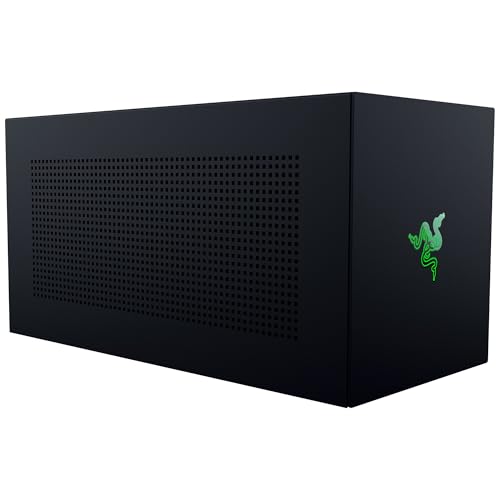
Razer Core X V2 External Graphics Enclosure (eGPU): Compatible with Windows 11 Thunderbolt 4/5 and USB 4 Laptops & Devices - 4 Slot Wide NVIDIA/AMD Graphics Cards PCIe 4.0 Support - 140W PD via USB C
One of the home product options compared in this guide.
View on Amazon
BOSGAME eGPU Graphic Card Dock Expansion Card, Radeon RX 7600M XT 8GB GDDR6 RDNA3 Architecture M.2 2280 Oculink, Support Thunderbolt 3 AndThunderbolt 4
One of the home product options compared in this guide.
View on Amazon
NIMO External Graphics Card Enclosure, AMD Radeon RX 7600M XT for Laptop | USB4 80Gbps /OCuLink eGPU, 240W PSU, 65W PD, 8K HDMI/DP, Boost gaming, 3D rendering & local LLM AI on laptop/Mini PC/handheld
One of the home product options compared in this guide.
View on AmazonKhadas Mind Graphics 2 eGPU External Graphics Card with NVIDIA RTX 5060 Ti 16GB GDDR7, Desktop GPU for Thunderbolt 4 Laptops, 4K & 8K Output via HDMI 2.1b / DP 2.1b, PCIe 4.0 x8, Built-in Speakers
One of the home product options compared in this guide.
View on Amazon
PCIe 4.0 x4 64Gbps Compatible eGPU DOCK, with OCuLink SFF-8612 8311 to PCIe x16 and SFF-8611 Male Cable, Enclosure supports Standard ATX Power and External Graphics Cards GPU for Laptop Mini PC
One of the home product options compared in this guide.
View on AmazonKhadas Mind Graphics Card RTX 4060 Ti Desktop GPU, 16GB GDDR6, External GPU Dock with Speakers for Laptop, Up to PCIe 4.0 x8,128 GT/s, HDMI 2.1a×2, USB4×1, Supports 4K & 8K Display via Thunderbolt 4/3
One of the home product options compared in this guide.
View on Amazon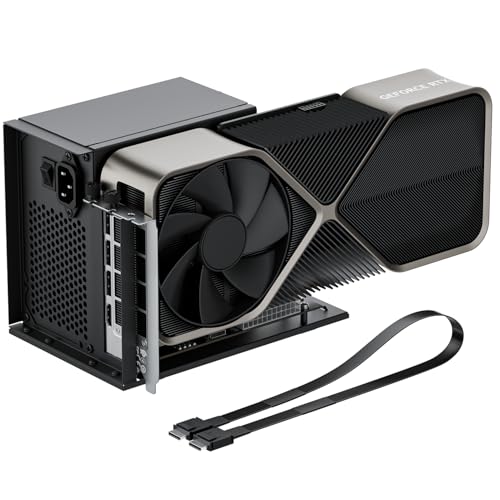
OwlTree PCIe 4.0 x4 64Gbps eGPU External Graphics Cards Dock, with OCuLink SFF-8612 8311 to PCIe x16 and SFF-8611 Male Cable 50cm, Supports GPU Laptop MIni PC Standard ATX Power Supply
One of the home product options compared in this guide.
View on Amazon
OCuLink eGPU Extrenal Graphics Cards DOCK, PCIe 4.0 x4 64Gbps Bandwidth | OCuLink SFF-8612 to PCIe x16 and SFF-8611 Male Cable, External GPU Enclosure for Laptop Mini PC, Support ATX Power
One of the home product options compared in this guide.
View on Amazon
msi Gaming RTX 3050 Ventus 2X 6G OC Graphics Card (NVIDIA RTX 3050, 96-Bit, Boost Clock: 1492 MHz, 6GB GDDR6 14 Gbps, HDMI/DP, Ampere Architecture)
One of the home product options compared in this guide.
View on Amazon| Model | Key point from the title | Price tier | Best for |
|---|---|---|---|
| Khadas Mind Graphics 2 | RTX 5060 Ti 16GB GDDR7, Thunderbolt 4 laptops, HDMI 2.1b and DP 2.1b | Premium | Plug-and-play desk upgrade |
| Khadas Mind Graphics (RTX 4060 Ti) | RTX 4060 Ti 16GB GDDR6, Thunderbolt 4/3, dual HDMI 2.1a | Mid to Premium | Older Thunderbolt laptops |
| Razer Core X V2 | Enclosure only, Thunderbolt 4/5 and USB4, 4-slot cards, 140W USB-C charging | Mid | Choosing your own card |
| NIMO external enclosure | RX 7600M XT, USB4 80Gbps or OCuLink, 240W PSU, 65W PD | Mid | Dual-port flexibility |
| BOSGAME eGPU dock | RX 7600M XT 8GB, OCuLink, Thunderbolt 3 and 4 support | Mid | Compact AMD option |
| OwlTree OCuLink dock (two listings) | PCIe 4.0 x4 64Gbps, OCuLink cable, ATX power | Budget | DIY builders |
| RGEEK OCuLink dock | Same style of bare dock, SFF-8611 cable | Budget | DIY builders |
| MSI RTX 3050 Ventus 2X 6G OC | Internal desktop card, 6GB, 96-bit, no enclosure | Budget | Not an eGPU |
What is changing with external graphics
A few years ago, “eGPU” mostly meant a Thunderbolt 3 case with a fan and a power supply. The category is now split into three styles. The first is the classic enclosure, where you add a desktop graphics card. The second is the all-in-one box, where the maker puts a card (or a mobile-class chip) inside and sells it as a unit, often with extra ports and sometimes speakers. The third is the bare OCuLink dock, which is little more than a PCIe slot on a board with a cable.
Connection standards drive most of the change. Thunderbolt 4 and USB4 are widely available, but they tunnel PCI Express over a link that is narrower than a desktop slot. OCuLink exposes PCIe lanes more directly, which is why docks advertise “PCIe 4.0 x4 64Gbps” figures. The trade-off is that few laptops include an OCuLink port, so OCuLink is more common on mini PCs and handhelds, and some laptops need an adapter that uses an M.2 slot. Treat the headline numbers on a listing as the theoretical ceiling of the connector, not the speed you will see in games.
Graphics-card generations also matter. Listings now mention newer cards with GDDR7 memory and DisplayPort 2.1 outputs, while others still ship older chips. A newer card does not help if the link is the bottleneck, so the cable and port deserve as much thought as the GPU. Finally, laptop makers have not standardised support, so firmware and driver notes in buyer reviews carry real weight. This guide stays with what each title states and tells you where to verify the rest.
How these listings were picked
Listings were chosen from the external graphics category and sorted by connection style, what is included in the box and what the title actually promises. The basis is published specifications, manufacturer documentation and buyer reviews. Nobody on the team used or measured these units. Where a title is vague, contains a typo or repeats another listing, we say so and point you to the item to confirm on the product page. Price tiers are relative inside this set, not quotes.
The nine listings
Khadas Mind Graphics 2 (RTX 5060 Ti 16GB)
This is the most complete package in the set. The title lists an RTX 5060 Ti with 16GB of GDDR7, output through HDMI 2.1b and DisplayPort 2.1b, support for 4K and 8K displays, a PCIe 4.0 x8 card interface and built-in speakers, aimed at Thunderbolt 4 laptops. The 16GB memory pool is a real advantage for texture-heavy games and some creative software, and the all-in-one design means no compatibility hunt between enclosure and card.
It suits a thin-and-light laptop owner who wants a single box on the desk, connected to an external monitor. The x8 figure describes the card’s own interface; over Thunderbolt 4 the usable link is narrower, so expect the card to be held back by the connection. The box is the most expensive here.
- Pros: card included; 16GB memory; modern display outputs; fewer parts to match.
- Pros: speakers built in for a tidy desk.
- Cons: Premium price; fixed GPU that you cannot swap; the Thunderbolt 4 link limits the card.
Ask before buying: does your laptop’s Thunderbolt 4 port support external graphics, and does the listing say how much charging power reaches the laptop?
Khadas Mind Graphics (RTX 4060 Ti 16GB)
The earlier Khadas design uses an RTX 4060 Ti with 16GB of GDDR6, up to PCIe 4.0 x8, two HDMI 2.1a ports, one USB4 port and speakers, and the title says it works with Thunderbolt 4 or 3 laptops. That wider mention of Thunderbolt 3 is its main selling point over the newer unit, since many older machines stop at Thunderbolt 3.
It fits someone with an older ultrabook that stops at Thunderbolt 3 and who wants a desk-side graphics upgrade without choosing a case, power supply and card separately. The “128 GT/s” wording in the title is the card interface’s raw rate, so it is not what a Thunderbolt laptop will see. The box is smaller in ambition than the newer one but still sits at a high price compared with enclosures.
- Pros: Thunderbolt 4 and 3 compatibility stated; two HDMI 2.1a outputs; 16GB memory.
- Cons: older GPU generation; high price for the class; fixed card and no upgrade path.
Ask before buying: is your laptop’s Thunderbolt port certified for external graphics, and is the older generation worth the saving over the newer box?
Razer Core X V2 external graphics enclosure
The Razer is an enclosure, not a card. The title lists Thunderbolt 4/5 and USB4 compatibility for Windows 11 laptops, space for four-slot-wide NVIDIA or AMD cards, PCIe 4.0 support and 140W of power delivery over USB-C, so it can charge a laptop while it runs. That charging figure makes it attractive for a single-cable desk setup.
It suits the buyer who already owns a desktop card, or wants to pick a specific model. Because the graphics card is not included, total cost depends on what you pair with it, and you need to check the supported card length, power connectors and maximum board power on the listing before ordering.
- Pros: choose your own card; wide-card support; 140W laptop charging; newer Thunderbolt and USB4 wording.
- Cons: no graphics card included; enclosure size and card clearance need checking; still limited by the Thunderbolt link.
Ask before buying: what is the PSU rating, and which card lengths and power connectors does the listing allow?
NIMO external graphics enclosure (RX 7600M XT)
NIMO’s box includes an AMD Radeon RX 7600M XT and offers two connections: USB4 at 80Gbps or OCuLink. The title also lists a 240W power supply, 65W of power delivery, 8K HDMI and DisplayPort outputs, and mentions gaming, 3D rendering and running local language models on laptops, mini PCs and handhelds.
Having both USB4 and OCuLink is helpful if you own a laptop now and may buy a mini PC later. The 65W charging figure is enough for many ultrabooks but not for high-power laptops, so check your charger rating. The “80Gbps” number is the USB4 link speed, and PCIe tunneling over it is generally narrower, so do not equate it with OCuLink’s PCIe 4.0 x4.
- Pros: card included; two connection options; 240W internal supply; several video outputs.
- Cons: mobile-class chip rather than a desktop card; 65W charging may be too low; check the warranty and support terms on the listing.
Ask before buying: which cable is in the box, and does the OCuLink cable need a matching port or adapter on your laptop?
BOSGAME eGPU dock (RX 7600M XT 8GB)
BOSGAME pairs the same RX 7600M XT with 8GB of GDDR6 and RDNA 3 architecture in a compact dock. The title mentions “M.2 2280 Oculink” and support for Thunderbolt 3 and Thunderbolt 4. That phrasing is ambiguous: it could mean an M.2-to-OCuLink adapter path, a native OCuLink port, or both. Read the product page and any manual before you assume it fits your laptop.
It suits buyers who want a smaller, simpler AMD option and have a clear connection route. The 8GB of video memory is adequate for 1080p and many 1440p games at moderate settings, but newer titles at high texture settings can strain it. This is a good time to compare against the NIMO box, which uses the same chip.
- Pros: card included; compact; supports Thunderbolt 3 and 4 per the title.
- Cons: ambiguous connection wording; 8GB memory; price sits above the DIY docks.
Ask before buying: which port does the dock use natively, and what power supply is built in?
OwlTree OCuLink eGPU dock (first listing)
This is a bare dock: PCIe 4.0 x4 at 64Gbps, an OCuLink SFF-8612/8611 connection to a PCIe x16 slot, and support for standard ATX power. There is no graphics card and no power supply in the listing, so your total adds both. The title describes it as suited to laptops and mini PCs.
It is the cheapest way into eGPU use for someone who already has a spare desktop card and PSU. The catch is practical: the laptop must expose OCuLink, or you must buy an adapter, and OCuLink is generally not designed for hot-plugging, so power the system down when connecting. Follow the manufacturer’s instructions.
- Pros: lowest entry cost; PCIe 4.0 x4 link; uses parts you may own.
- Cons: no case, card or PSU; needs OCuLink on the host; more setup risk.
Ask before buying: do you have the ATX supply and the right power cables for your card?
OwlTree OCuLink eGPU dock with 50cm cable (second listing)
The second OwlTree listing is nearly identical to the first, with the same price tier, the same PCIe 4.0 x4 64Gbps wording and the same ATX-power support. The visible difference is that the title names a 50cm cable. If the cable is the only difference, the choice is simply about length, so confirm what each listing includes.
A 50cm lead is workable for a laptop sitting beside the dock, though a shorter cable generally helps signal quality. Treat this listing as a duplicate, not a separate product line, and read the buyer reviews of both before choosing one.
- Pros: same low cost; cable length stated; standard ATX support.
- Cons: near-duplicate of the first listing; no card or power supply; setup demands care.
Ask before buying: is the cable length the only difference between the two OwlTree listings?
RGEEK OCuLink eGPU dock
RGEEK’s title uses the same recipe: PCIe 4.0 x4 64Gbps, OCuLink SFF-8612 to a PCIe x16 slot, an SFF-8611 male cable and ATX power support, for laptops and mini PCs. It also has a typo (“Extrenal”) in the title, which is a small warning sign about listing care.
Functionally it sits with the OwlTree docks, so choose between the three on reviews, return policy and what ships in the box. A PCIe x16 slot on these boards generally runs at x4 electrically, which is acceptable for mid-range cards but throttles faster ones.
- Pros: low entry cost; same bandwidth class as peers; works with ATX supplies.
- Cons: typo-ridden title; no GPU or PSU included; little to separate it from the OwlTree docks.
Ask before buying: what is the return window if your laptop’s OCuLink or adapter does not work?
MSI RTX 3050 Ventus 2X 6G OC (not an eGPU)
This listing is a standalone desktop graphics card: RTX 3050 with 6GB of GDDR6, a 96-bit memory bus, a 1492 MHz boost clock and HDMI and DisplayPort outputs. It is not an enclosure or a dock, and it will not work with a laptop by itself. It belongs in this set only as something you could place inside a bare dock.
As a card it is entry-level, and the 6GB memory and narrow bus are limiting for newer games. Paired with a Thunderbolt or OCuLink link, the gains over a modern integrated GPU may be modest. If you must pair a card with a bare dock, you can find stronger cards in the same budget class.
- Pros: low cost; standard HDMI and DP; small enough for compact docks.
- Cons: not an eGPU on its own; 6GB and 96-bit bus; weaker class than the other cards here.
Ask before buying: will you pair it with a dock, and would a different card give more for the same spend?
How to choose an external graphics card for a laptop
Start with the port, not the GPU
Look up your laptop’s specification page. If it lists Thunderbolt 4, Thunderbolt 3 or USB4, you can use enclosures and all-in-one boxes. If it lists OCuLink, or you can fit an M.2-to-OCuLink adapter, bare docks open up. If it lists only USB-C without Thunderbolt or USB4, stop: an eGPU will not work. Some USB4 ports do not tunnel PCIe, and some laptops restrict external graphics in firmware, so the maker’s documentation matters more than the connector shape.
| Spec concept | What to look for | Why it matters |
|---|---|---|
| Host connection | Thunderbolt 4/3, USB4 with PCIe, or OCuLink | Decides which products work at all |
| Link bandwidth | OCuLink PCIe 4.0 x4 is wider than Thunderbolt in theory | Limits how much of the card’s speed you reach |
| Power supply | Built-in wattage, or an ATX supply you provide | Must cover card power plus headroom |
| Laptop charging (PD) | 65W, 140W or none | Single-cable setups need enough watts |
| Card size | Slot width and length clearance | Large cards will not fit small cases |
| Outputs | HDMI 2.1, DisplayPort 2.1 on the card | Needed for high refresh rate monitors |
Decide: enclosure, dock or all-in-one
An all-in-one is the least work and the least flexible. An enclosure such as the Razer Core X V2 costs more up front than a bare dock but includes the case, power supply and Thunderbolt controller, so the build is simpler. A bare dock is the cheapest and the most demanding, because you supply the card, ATX supply and cable routing. Pick the style that matches your comfort with PC parts, and remember the cost of the card is separate for two of the three.
Think about the screen
An eGPU performs better when the monitor is plugged into the card, since the frames do not have to travel back through the link to the laptop’s panel. If you plan to play on the laptop screen, expect a bigger penalty. Our guide on what size external monitor suits a gaming laptop helps with the desk side, and the same logic applies to ultrabooks used with an eGPU.
Worked example: sizing power for a dock build
The example below is an estimate based on stated assumptions, not a measurement. Use your own card’s rated figures.
| Assumption | Value | Note |
|---|---|---|
| Card rated board power | 115W | Assumed mid-range card |
| Dock, fans and cable losses | 20W | Rough allowance |
| Sub-total | 135W | Card plus overhead |
| Headroom for power spikes | 40 percent | Rule of thumb, hedged |
| Suggested ATX supply | about 190W minimum, round up | A 450W unit gives margin and the right connectors |
The rounded-up supply matters more for connectors than watts: confirm the card needs one 8-pin lead, then buy a supply with that cable. A bare dock plus a modest card and supply can still land in the Mid range once everything is added.
Decision flow in four questions
- Does the laptop list Thunderbolt 4/3, USB4 with PCIe or OCuLink? If no, skip eGPUs.
- Do you already own a desktop card and PSU? If yes, consider the Razer enclosure or a bare dock.
- Do you want zero parts matching? If yes, choose an all-in-one box.
- Will you use an external monitor on the card? If no, expect larger performance loss.
If you are still deciding between this route and a new machine, our look at the graphics card options for gaming laptops explains what is built in and what cannot be upgraded.
Mistakes buyers make
| Mistake | Why it hurts | Fix |
|---|---|---|
| Buying before checking the port | Many USB-C ports cannot carry PCIe | Read the laptop maker’s documentation first |
| Assuming the link speed equals the card speed | Thunderbolt and USB4 tunnel PCIe at a lower rate | Treat headline Gbps as a ceiling |
| Forgetting the card or PSU on bare docks | The listing price excludes both | Budget for card, supply and cables |
| Hot-plugging OCuLink | Many setups are not designed for it | Follow the manufacturer’s instructions |
| Ignoring laptop charging watts | 65W will not run power-hungry machines | Compare PD output with your charger |
| Buying a standalone card for a laptop | Internal cards need a dock or enclosure | Pair it with a compatible box |
One more error is treating near-duplicate listings as different products. Two of the OwlTree docks look the same and share a price tier, so compare cable length, return terms and buyer reports before choosing. A listing with a typo in its title deserves a closer read of the product page.
Verdict by use case
| If you are | Choose | Reason |
|---|---|---|
| A Thunderbolt 4 laptop owner who wants it simple | Khadas Mind Graphics 2 | Card, ports and speakers in one box |
| On Thunderbolt 3 with a mid budget | Khadas Mind Graphics (RTX 4060 Ti) | States Thunderbolt 4 and 3 support |
| Already owning a desktop card | Razer Core X V2 | Bring your own card; 140W charging |
| With both USB4 and OCuLink options | NIMO enclosure | Card included and two connection types |
| A DIY builder with OCuLink and spare parts | OwlTree or RGEEK dock | Lowest entry price |
For most readers who want the least friction, the Khadas boxes are the safest picks, with the enclosure route best for people who care about upgrading the card later. Bare docks are for those who enjoy building and have the right port.
Related guides
- Aio Liquid Coolers For High Performance Gaming
- Budget Graphics Cards For 4K Video Editing
- Camera Backpacks With Laptop Compartment
Frequently asked questions
Can any laptop use an external graphics card?
No. The laptop needs a fast external connection that can carry PCI Express traffic, usually Thunderbolt 3 or 4, USB4 with PCIe tunneling, or an OCuLink port. A plain USB-C port that only carries data and video will not work. Check the laptop maker’s specification page for the exact wording, and confirm that the enclosure or dock lists the same connection type before you order anything.
Is an eGPU as fast as the same graphics card inside a desktop?
No. The link between laptop and card is much narrower than a desktop slot, so some performance is lost. Thunderbolt-class links tend to lose more than OCuLink, and driving the laptop’s own screen through the eGPU usually loses more than using an external monitor plugged into the card. Expect a real but smaller gain than the card’s name suggests, and check buyer reviews for your laptop model.
What is the difference between an enclosure, a dock and an all-in-one eGPU?
An enclosure is a case with a power supply and a slot where you add your own graphics card. A bare OCuLink dock is a board and cable that expects you to supply both the card and an ATX power supply. An all-in-one eGPU ships with the graphics chip already installed, which is simpler but locks you to that chip. Each style trades flexibility against setup effort.
Do I need a separate power supply for an eGPU?
It depends on the product. Enclosures such as the Razer Core X V2 and the NIMO box list built-in power, while the three bare OCuLink docks in this guide say they support a standard ATX power supply, which you buy separately. Size the supply for the card’s rated power plus headroom, and use the connectors the card actually needs. Check the listing for what is included.
Is an eGPU worth it compared with buying a gaming laptop?
Sometimes. If you already own a capable thin laptop with the right port and want better graphics at a desk, an eGPU can be cheaper than replacing the machine. If you have not bought a laptop yet, a gaming laptop with a built-in GPU is usually simpler and portable. The extra cost of the box, the card and a monitor adds up quickly, so total it before you commit.
Will an eGPU work with a handheld or mini PC?
Possibly. Several listings mention mini PCs and handhelds, and OCuLink is more common on those devices than on mainstream laptops. The same rules apply: confirm the port, the power arrangement and driver support for your exact model. Some handhelds need an adapter that uses an internal M.2 slot, which can void warranties or change how the device is stored, so read the maker’s guidance first.