Our Top Picks
If you want speed and durability for game libraries and work files, a portable SSD such as the Samsung T7 or T7 Shield is the better external drive; if you want the most storage for backups and archives at the lowest cost per terabyte, a WD Elements, WD My Book or Seagate hard drive is the sensible pick. The real question is whether you are moving files you use daily or parking files you rarely touch.
SSD or Hard Drive: The First Decision
A portable SSD has no moving parts, starts instantly and transfers large files far faster than a mechanical drive. Roundups report that the Samsung T7 is roughly seven times faster than a portable Seagate hard drive on large transfers. A hard drive spins platters, is slower and more sensitive to drops while running, but offers much more capacity for the money. Many PC builders keep both: an SSD for active projects and a large hard drive for backups.

Seagate 2TB Portable Hard Drive | USB 3.0 (STGX2000400) | Everyday HDD storage. Plug-and-play backup. Windows & macOS. Adobe CC trial included. 1-Year Warranty
Chosen because it specifies USB 3.0 (STGX2000400).
View on AmazonSeagate Portable 5TB External Hard Drive HDD – USB 3.0 for PC, Mac, PS4, & Xbox - 1-Year Rescue Service (STGX5000400), Black
Chosen because it specifies USB 3.0 for PC and Mac.
View on AmazonSeagate Portable 1TB External Hard Drive HDD – USB 3.0 for PC, Mac, PlayStation, & Xbox, 1-Year Rescue Service (STGX1000400) , Black
Chosen because it specifies USB 3.0 for PC and Mac.
View on Amazon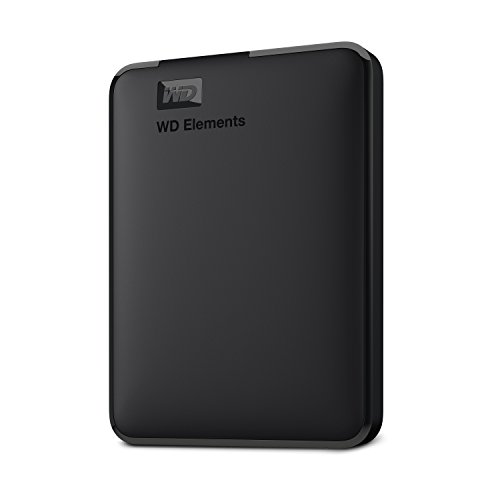
WD 6TB Elements Portable External Hard Drive for Windows, USB 3.2 Gen 1/USB 3.0 for PC & Mac, Plug and Play Ready - WDBHJS0060BBK-WESN
Chosen because it specifies USB 3.2 Gen 1/USB 3.0 for PC & Mac and Plug and Play Ready.
View on AmazonAt a Glance: External Drive Options
| Drive | Best for | Key stated specs | Limits |
|---|---|---|---|
| Samsung T7 Portable SSD | Fast everyday portable storage | USB 3.2 Gen 2, read speeds up to 1,050 MB/s as the maker lists | Not rugged-rated; costs more per terabyte than hard drives |
| Samsung T7 Shield | Travel, outdoor and rough handling | The maker lists up to 1,050 MB/s read and 1,000 MB/s write, IP65 water and dust rating, drop resistance up to 9.8 feet | Slightly pricier than the standard T7 |
| SanDisk Extreme Portable SSD | Rugged SSD alternative | Reviewers report sustained reads above 1,040 MB/s and an IP65 rating | Speeds vary by capacity and model generation |
| SanDisk Portable SSD (800 MB/s class) | Budget SSD speed | The maker lists up to 800 MB/s reads | Slower than T7-class drives |
| WD My Passport / Elements | Reliable portable hard-drive storage | Portable 2.5-inch drives, USB 3.x, capacities into the multi-terabyte range | Mechanical speeds; vulnerable to drops during use |
| WD Elements Desktop / My Book | Large desktop backups | 3.5-inch drives, high capacity, external power adapter | Not portable; needs a wall outlet |
| Seagate Portable / Expansion | Budget everyday backup | USB 3.0 class portable drives in several capacities | Basic features; slower than any SSD |
Key Specs Explained
Interface and cable
Most current portable SSDs use USB 3.2 Gen 2 over a USB-C port, which delivers up to about 10 Gbps. To reach advertised speeds, the drive must connect to a matching port; plugging into a slower USB-A 5 Gbps port limits throughput. Faster drives using USB4 or Thunderbolt exist for professional workloads, but are overkill for most gaming and office use.
Capacity
Modern AAA games run from tens to well over a hundred gigabytes each. A 1TB SSD suits a handful of games, 2TB covers a decent library and 4TB suits creators. Hard drives in the 4TB to 8TB range are common for backups.
Durability
The T7 Shield and SanDisk Extreme list IP65 ratings, meaning protection against dust and water jets, plus drop resistance claims from the makers. Hard drives should not be moved while spinning, so treat them as stationary storage during use.
Console and device compatibility
Many portable SSDs work with PCs, Macs, Android phones and recent consoles. For PlayStation 5 or Xbox, check the console maker’s external storage rules. Often, external USB drives are suitable for storing older-generation games or for archiving, while current-generation titles may need to run from internal NVMe storage.
Budget Tiers
| Tier | Choice | Trade-off |
|---|---|---|
| Budget | Seagate Portable or WD Elements hard drive | Low cost per terabyte, but slow and fragile when moved |
| Mid-range | SanDisk Portable SSD or Samsung T7 (1TB to 2TB) | Fast and compact, with less capacity for the money |
| Premium | Samsung T7 Shield or SanDisk Extreme in 2TB or 4TB | Rugged and quick, but costly at higher capacities |
Pick X If… Decision Table
| Pick | If you… |
|---|---|
| Samsung T7 | Want fast portable storage for games, video and work files |
| Samsung T7 Shield | Carry the drive in a bag, travel often or work outdoors |
| SanDisk Extreme | Want a rugged SSD with similar speed from another maker |
| SanDisk Portable SSD | Want SSD speed at a lower tier |
| WD My Passport or Seagate Portable | Need cheap, pocketable backup space |
| WD My Book or Elements Desktop | Need large capacity for a full-system backup at the desk |
Backup Advice
A single external drive is a copy, not a backup strategy. A common guideline is the 3-2-1 approach: three copies of important data, on two different media, with one stored offsite or in the cloud. Drives can fail without warning, so keep important files in at least two places. Use the operating system’s built-in backup tool or the maker’s software, and test restoring a file occasionally.
Setup and Care
- Format as exFAT if the drive will move between Windows, Mac and some consoles; use NTFS for Windows-only use.
- Eject the drive from the operating system before unplugging it to avoid file corruption.
- Use the supplied cable or a quality replacement; a worn or low-grade cable can cut speeds.
- Keep SSDs cool; sustained writes can cause throttling on some models.
- Keep a hard drive on a stable surface and avoid bumping it while running.
- Review the warranty; WD and Seagate list multi-year warranties on many models, and Samsung lists a multi-year warranty on the T7 line.
Alternatives
- NVMe enclosure with your own SSD. Pair a bare M.2 drive with a USB 3.2 Gen 2 or USB4 enclosure for flexible capacity and potentially better value.
- Network-attached storage (NAS). A better home solution for multiple devices and automatic backups, though it costs more and takes setup.
- Cloud storage. Useful as an offsite copy of key files, but slow for full game libraries and carries subscription costs.
Real-World Speed Expectations
The speeds printed on the box are peak sequential figures. Copying thousands of small files, such as a game folder or a photo library, is slower than moving one large video. Hard drives manage a fraction of an SSD’s rate and slow further as the drive fills up. Portable SSDs hold their rated speeds for a while, then may slow if a long write fills their cache or they get hot. For most users, even the slower SSD tiers feel far snappier than a hard drive for loading games and opening projects.
Security and Privacy
If a drive holds personal or work documents, use the operating system’s drive encryption, such as BitLocker on Windows or FileVault on a Mac, or the maker’s password software. Keep your recovery key somewhere separate from the drive. Treat lost or stolen portable drives as a data exposure risk and encrypt before you travel.
Choosing Capacity Without Overbuying
Start with what you will store now, then add roughly half again for growth. A gamer moving six large titles needs well over 500GB; a video editor archiving projects needs several terabytes. Buying one larger drive costs less per terabyte than buying two small ones, but splitting data across two drives gives you a built-in second copy. If the budget is tight, a 1TB SSD for active files plus a larger hard drive for backups is a balanced pair.
Portable Hard Drive Warning Signs
Clicking sounds, repeated disconnects, very slow transfers and files that fail to open are signs a drive may be failing. Copy your data to another device straight away, stop using the drive and consult the maker’s support. Do not run repair tools on a failing drive before backing up, and consider a professional recovery service only for irreplaceable data.
Who Should Skip an External Drive
If your PC has a free M.2 or SATA bay, an internal drive is faster and cheaper per terabyte, and it does not clutter the desk. External drives make sense when you need to move files between machines, back up a laptop, or add storage to a system with no open bays, such as a mini PC or a console.
Frequently Asked Questions
Is a portable SSD worth it over a hard drive?
For active use, yes. SSDs transfer large files far faster, start instantly and handle bumps better. For cheap, large backups that sit on a shelf, a hard drive is more economical.
Can I play games from an external SSD?
On a PC, yes; many games run well from a fast USB 3.2 Gen 2 SSD, although loading may be slower than from an internal NVMe drive. On consoles, check the maker’s rules, since some titles must run from internal storage.
How long do external hard drives last?
There is no guaranteed lifespan. Drives can fail from age, shock or wear, so rely on the warranty term as a rough guide and always keep a second copy of important files.
Which format should I use?
exFAT works across Windows, Mac and many consoles. NTFS suits Windows-only drives, and APFS suits Mac-only use.
Why is my SSD slower than advertised?
Makers list peak speeds under ideal conditions. A slower USB port, a poor cable, a nearly full drive or thermal throttling can reduce real-world results.
Are rugged drives necessary?
Not for a desk setup. If the drive travels in a backpack, goes to events or is used outdoors, a rated model like the T7 Shield or SanDisk Extreme offers extra peace of mind.