Key takeaways
- The right laptop for animation depends on what kind of animation you make.
The right laptop for animation depends on what kind of animation you make, but three specs decide most outcomes: a GPU with at least 8GB of dedicated video memory for 3D and rendering, 32GB of system RAM so scenes and caches stay out of the page file, and a processor with eight or more cores for simulations and exports. For 2D and frame-by-frame work, you can lean on a good display and a fast SSD instead.
This guide is for students building a reel, freelancers cutting motion graphics, and indie creators working in 3D packages. In 2026, even midrange laptops can run viewport playback well, but sustained rendering exposes weak cooling quickly. Below is a spec-by-spec breakdown so you can match hardware to your pipeline instead of paying for features you will not use.
Know Your Animation Pipeline First
Animation is not one workload. Traditional 2D and frame-by-frame software is light on the GPU and heavy on the display and pen input. Motion graphics and compositing tools lean on RAM and the GPU for previews. Full 3D work in a modeling and animation suite combines viewport playback, physics simulation, and offline rendering, and each of those stresses a different part of the machine.
Ask three questions before shopping. Do you render on the laptop or send jobs to a farm or cloud service? Do you need real-time viewport shading with high-polygon characters? Will you also draw with a pen? The answers tell you whether to spend on the GPU, the processor, the screen, or all three.
Specs That Decide Animation Performance
GPU: Video Memory Is the Gate
Modern renderers and game-engine-based workflows store textures and geometry in video memory. A GPU with 6GB is a floor for light 3D, 8GB handles most character and environment scenes, and 12GB or more helps with dense scenes, high-resolution textures, and simulation caches. Look for a dedicated GPU from a recent generation with hardware ray tracing if your renderer supports it, and check the software’s listed GPU requirements.
CPU: Cores for Simulation and Export
Cloth, fluid, and particle simulations, plus video encoding and CPU rendering, scale with core count. Eight performance cores is a comfortable target, and higher counts shorten exports. Single-core speed still matters for interactive rigging and viewport responsiveness, so prefer a chip that balances both.
RAM: 32GB Is the Practical Baseline
Sixteen gigabytes works for 2D and simple motion graphics, but compositing layers, caching frames, and running a 3D suite alongside a browser and reference video call for 32GB. Heavy compositors and simulation artists can use 64GB. Choose a laptop with user-accessible memory slots so you can upgrade later.
Storage: Speed and Capacity
Image sequences and cache files grow fast. A 1TB NVMe drive is a minimum for working projects, and a second slot or fast external drive over USB4 or Thunderbolt keeps archives off the main drive. Look for sustained write speeds, not just peak read numbers, since renders write thousands of frames.
Display: Color and Refresh
Color accuracy matters because animators grade and review frames. Aim for a panel covering close to the full sRGB range at minimum, and look for wider coverage of a larger gamut if your work is for broadcast or film. A resolution of 1920×1200 or higher gives room for timelines and toolbars, and a 120Hz or faster refresh makes scrubbing and drawing feel smoother.
Spec Targets by Budget Tier
| Spec | Budget | Mid-range | Premium |
|---|---|---|---|
| GPU memory | 6GB, entry dedicated GPU | 8GB, midrange GPU with ray tracing | 12GB or more, high-end GPU |
| Processor | 6 cores | 8 cores | 12 to 16 cores |
| RAM | 16GB, upgradeable | 32GB | 64GB |
| Storage | 512GB NVMe | 1TB NVMe | 2TB NVMe, second slot |
| Display | 1080p, near-full sRGB | 1200p or higher, 120Hz | High-resolution, wide gamut, 120Hz or faster |
| Ports | USB-A, HDMI | USB4 or Thunderbolt, HDMI | Multiple Thunderbolt, SD reader |
The budget tier suits 2D and learning. Mid-range covers most students and freelancers working in 3D. Premium is for people rendering on the laptop daily or handling heavy simulation.
Cooling, Power, and Portability
Animation exports and renders run at full load for minutes or hours. Laptops with thin chassis often reduce clock speeds to stay cool, so the same GPU can perform very differently between models. Check the rated graphics power in watts, the number of fans and heat pipes, and whether the vents are on the sides and rear rather than blocked by the lid.
A large power adapter is a good sign, not a flaw, because it supports full GPU and CPU power together. Battery life drops sharply under load, so plan to work plugged in for rendering. If you commute or move between classrooms, weigh a lighter chassis against thermal headroom, and consider a cooling stand for long sessions.
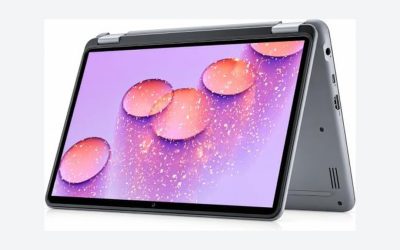
Pen input is worth considering for animators who draw. A touchscreen with an active pen supports onion-skinning and sketching directly on the display, but convertible designs typically carry less cooling capacity than traditional clamshells. If you draw only occasionally, an external drawing tablet can pair with a more powerful clamshell.
Which Setup Fits Which Animator
The Student Building a Reel
Aim for the budget-to-mid tier with 16GB upgradable to 32GB, a GPU with 6 to 8GB, and a 1TB drive. Check whether your school provides licenses and render lab access, which reduces how much you need to render locally.
The Motion Graphics Freelancer
Compositing and effects rely on RAM and GPU acceleration. A mid-range laptop with 32GB, an 8GB GPU, and a color-accurate display covers most client work. Fast storage and a Thunderbolt connection for external drives help with large footage files.
The 3D Character Animator
Viewport playback of rigged characters rewards a strong GPU and good single-core speed. Target a GPU with 8 to 12GB, 32GB of RAM, and a high-refresh panel to judge motion timing. A numeric keypad and a comfortable keyboard help during long sessions.
The 2D Frame-by-Frame Artist
You can spend less on the GPU and more on the display. A color-accurate screen with pen support, 16 to 32GB of RAM, and a fast SSD are the priorities. Check pen pressure levels and latency specifications on the product page.
Rendering Strategy, Software Support, and Workflow
Where you render changes what you should buy. If you send final frames to a render farm or a cloud service, the laptop only needs to handle viewport playback and test renders, which lowers the bar for the processor and lets you spend more on the display and RAM. If you render final frames locally, sustained GPU and CPU performance becomes the priority, and you should favor a thicker chassis with proven cooling over a slim design.
Check which renderers and engines your software uses. GPU renderers scale with video memory and shader count, while CPU renderers scale with cores and memory bandwidth. Some real-time engines used for animated shorts depend heavily on the GPU and its driver. Read the system requirements page for each tool and match the highest figure across the programs you run at once, since animators rarely use one application at a time.
Driver stability matters as well. Studio-oriented driver branches exist for some GPUs and are tuned for creative software, so confirm that your laptop can use them rather than only a gaming driver. Keep a stable driver version during a project and update between projects, not mid-production.
Finally, build a sensible file workflow. Keep active scenes on the internal drive, write render output to a second fast drive, and back up finished sequences to external or cloud storage. A laptop with Thunderbolt or USB4 can connect a fast external SSD, which is often cheaper than paying for a higher internal capacity. If you collaborate, fast networking and a webcam for review calls add practical value.
Common Mistakes
- Choosing a GPU by brand name alone and ignoring its video memory, which limits scene size.
- Buying 16GB of soldered memory that cannot grow when compositing and simulation demands rise.
- Ignoring thermal design and discovering that renders slow down after ten minutes of heat buildup.
- Picking a high-refresh gaming panel with weak color coverage when you need accurate color for grading.
- Relying on a single internal drive for projects, cache, and archives instead of planning for external storage.
Before You Buy
- List the software you use and read its published GPU, RAM, and driver requirements.
- Confirm the GPU memory size and its rated wattage, not just the model family.
- Check that RAM and SSD slots are accessible for later upgrades.
- Look at panel specs for color gamut coverage and refresh rate.
- Verify ports for external drives, displays, and a drawing tablet.
- Confirm the return window so you can run your own heaviest scene.
Related guides
- Aio Liquid Coolers For High Performance Gaming
- Outdoor Security Cameras Without Subscription
- Budget Graphics Cards For 4K Video Editing
Frequently Asked Questions
How much video memory do I need for 3D animation?
Eight gigabytes is a good target for character and environment scenes at moderate texture sizes. Twelve gigabytes or more helps with dense scenes, high-resolution textures, and simulation caches.
Is a gaming laptop good enough for animation?
Often yes, since gaming laptops pair strong GPUs with good cooling. Just verify the color accuracy of the display and the amount of RAM, because those are areas where gaming models sometimes cut corners.
Do I need a touchscreen with a pen?
Only if you draw directly on the screen, as in frame-by-frame work. For 3D and compositing, a standard clamshell with better cooling is usually a stronger choice, and a separate tablet can cover occasional drawing.
Can a laptop replace a desktop for animation?
For learning, freelance work, and moderate projects, a mid-range or premium laptop can do the job. Long sustained renders and large simulations still run faster and cooler on a desktop, so many animators use a laptop for portability and send heavy jobs elsewhere.