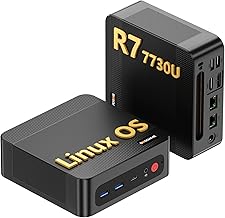
Installing Linux for gaming used to feel like a leap of faith, but in 2026 the process is far friendlier than its reputation suggests. With the right preparation you can move from a Windows machine to a fully playable Linux setup in an afternoon, complete with Steam, Proton, and your favorite launchers. The key is understanding each stage before you begin, so nothing catches you off guard when you reach the partitioning or driver steps.
This guide breaks the whole journey into clear, manageable phases: choosing a distro, preparing bootable media, installing the system, and configuring it for gaming. Along the way we point to trusted step-by-step handbooks that make the transition even smoother, especially if you are coming straight from Windows 10 or 11 and want a calm, confidence-building path.
Our top picks


As an Amazon Associate we earn from qualifying purchases at no extra cost to you.
⚡ Save on Your Next PC — Amazon Prime
Prime members get fast free shipping on the systems above, plus early access to Prime Day & Black Friday PC deals. New members get a 30-day free trial.
Watch: How To Install Linux For Gaming — Video Review
Prepare Your Hardware and Backup
Before touching any installer, back up everything important. A Linux install can coexist with Windows in a dual-boot setup, but partitioning always carries some risk, so an external backup removes the worst-case scenario. Confirm your GPU model, check that your CPU supports the virtualization features some anti-cheat systems expect, and note your storage layout so you know exactly where the new system will live.
Choose the Right Distro and Create Bootable Media
Beginners are best served by a Cinnamon-based distro such as Linux Mint 22.3, which pairs a familiar desktop with strong hardware support. Gaming-focused options like Bazzite come pre-tuned for controllers and Steam. Once chosen, write the ISO to a USB stick using a tool like Ventoy or balenaEtcher, then reboot and select the drive from your BIOS boot menu.
- Mint 22.3: Ideal for Windows switchers wanting a smooth first experience.
- Bazzite: Purpose-built for gaming with Steam and controller support baked in.
- Fedora: A good middle ground with fresh drivers for newer GPUs.
Run the Installer and Set Up Dual Boot
Boot into the live environment and try the desktop before committing. When ready, launch the installer and choose whether to erase the disk or install alongside Windows. Dual boot is the safest way to keep a fallback while you learn. Follow the prompts to set your timezone, create a user, and let the installer handle the bootloader so both systems appear at startup.
Install Steam, Proton, and GPU Drivers
After the first boot, update the system, then install your GPU drivers if they are not already active. AMD users usually need nothing extra, while NVIDIA users install the proprietary driver from the software manager. Add Steam, enable Steam Play with Proton in the settings, and optionally install Lutris for non-Steam titles. Most games then run with a single click.
Frequently Asked Questions
Will all my games work on Linux?
Most single-player and many multiplayer titles run well through Proton, but some competitive games with kernel-level anti-cheat still block Linux. Check ProtonDB for your specific library before switching fully.
Is dual booting safe for beginners?
Yes, as long as you back up first and let the installer manage partitions. Dual boot keeps Windows intact so you can return to it anytime while you get comfortable with Linux.
Do I need to use the terminal?
Not for basic gaming. Modern distros like Mint handle updates, drivers, and app installs through graphical tools, though the terminal remains handy for troubleshooting.
How long does the whole install take?
Creating the USB and installing the system typically takes under an hour. Configuring drivers, Steam, and Proton adds another 30 minutes or so depending on your download speed.
Conclusion
Installing Linux for gaming in 2026 is a well-documented, low-stress process once you break it into stages. Back up your data, pick a beginner-friendly distro, create your bootable media, and take advantage of the step-by-step guides written for Windows refugees. With Steam and Proton configured, you will have a capable gaming system that costs nothing to run and keeps improving with every kernel update.