Key takeaways
- Look for a horizontal slot near the CPU, usually hidden under a heatsink cover labeled M2_1 or M.2 Socket 1.
- The top slot almost always runs at the fastest speed (PCIe 5.0 or the CPU-direct PCIe 4.0 lanes); use it for your boot and gaming drive.
- Check the manual: on many boards, populating a lower M.2 slot disables some SATA ports because they share lanes.
- A PCIe 5.0 drive like the WD_Black SN8100 belongs in a PCIe 5.0 slot to reach its full 14,900MB/s read speed.
An M.2 NVMe SSD is the single most satisfying upgrade you can add to a gaming PC. Games that took 45 seconds to load off an old SATA drive drop to under 10 seconds, Windows boots in a blink, and with DirectStorage now standard in 2026 titles, a fast NVMe drive feeds textures straight to your GPU. Best of all, installing one is genuinely a five-minute job that needs nothing more than a single screwdriver.
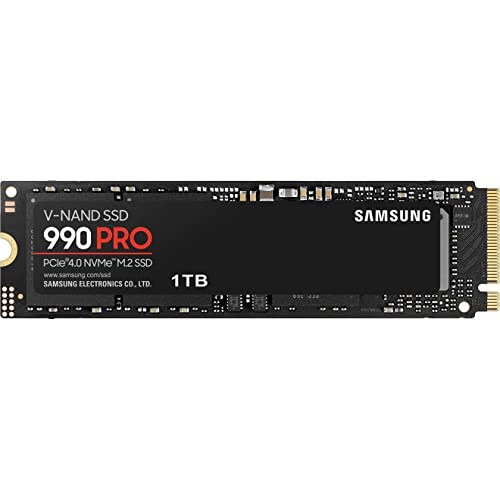
Whether you are dropping in a Samsung 990 PRO 2TB for your main game library or a blistering PCIe 5.0 WD_Black SN8100 for content work and next-gen loading, the physical process is identical. This guide covers exactly where the slot lives, how to seat the drive at the correct angle, the single screw (or tool-free latch) that holds it down, and how to format and verify the drive so it shows up ready to use in Windows.
Our top picks
 Samsung SSD 990 PRO 2TB
- Product Group: Personal Computer
- Binding: Personal Computers


As an Amazon Associate we earn from qualifying purchases at no extra cost to you. Ratings are shown as listed on Amazon.
⚡ Save on Your Next PC — Amazon Prime
Prime members get fast free shipping on the systems above, plus early access to Prime Day & Black Friday PC deals. New members get a 30-day free trial.
Watch: How to Install an M.2 NVMe SSD — Video Review
Before You Start: What You Need
You need the drive itself, a Phillips #0 screwdriver, and thirty seconds to locate the right slot. Most motherboards ship the tiny M.2 standoff screw pre-installed, but if yours is missing one, a cheap kit like the ASTARON M.2 SSD Screws Kit or a 46-piece mounting screw set covers every board brand. Power the system fully off and unplug it from the wall before opening the case.
Finding the Right M.2 Slot
- Look for a horizontal slot near the CPU, usually hidden under a heatsink cover labeled M2_1 or M.2 Socket 1.
- The top slot almost always runs at the fastest speed (PCIe 5.0 or the CPU-direct PCIe 4.0 lanes); use it for your boot and gaming drive.
- Check the manual: on many boards, populating a lower M.2 slot disables some SATA ports because they share lanes.
- A PCIe 5.0 drive like the WD_Black SN8100 belongs in a PCIe 5.0 slot to reach its full 14,900MB/s read speed.
Physically Installing the Drive
Remove the heatsink cover and peel the plastic film off the thermal pad underneath. Insert the SSD into the slot at roughly a 30-degree angle, gold contacts down, until the connector is fully seated. The far end of the drive will spring up slightly. Press it flat and secure it with the standoff screw, or click the tool-free latch closed if your board has one. Do not overtighten; the screw only needs to be snug. Refit the heatsink cover to keep the drive cool under sustained load.
Formatting and Verifying in Windows
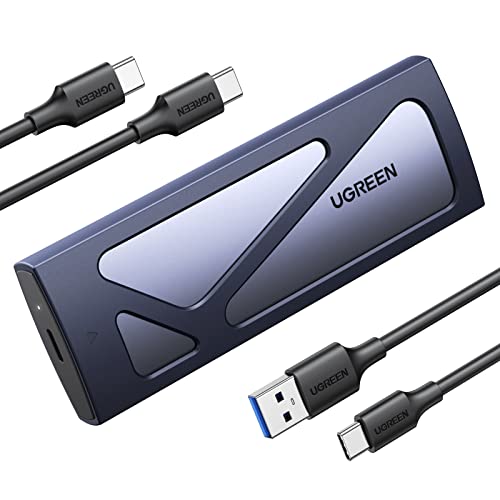
Boot into Windows, right-click the Start button, and open Disk Management. A brand-new drive appears as unallocated space and prompts you to initialize it, choose GPT. Right-click the black bar, select New Simple Volume, assign a drive letter, and format as NTFS. To confirm the drive is running at full PCIe speed, download CrystalDiskMark and run a benchmark; a Samsung 990 PRO should read around 7,450MB/s. If you plan to move your OS to a new drive, use a USB enclosure such as the UGREEN SSD Enclosure to clone first.
Tips
- Always use the top M.2 slot for your primary drive to guarantee the fastest available lanes.
- Leave 10-15% of the drive unused; NVMe SSDs maintain higher sustained write speeds with free space for wear leveling.
- Keep the motherboard heatsink installed; PCIe 4.0 and 5.0 drives throttle if they exceed roughly 70C under heavy load.
- Update your motherboard BIOS before installing a PCIe 5.0 drive so the board negotiates the correct link speed.
Frequently Asked Questions
Do I need to install drivers for an NVMe SSD?
No. Windows 10 and 11 include a native NVMe driver, so the drive works the moment you initialize it. Samsung and WD offer optional dashboard software for firmware updates and health monitoring, but it is not required to game.
Can I install an M.2 drive without removing the graphics card?
Usually yes for the top slot, but a large GPU can block a lower M.2 slot. If access is tight, unscrew and remove the graphics card first; it takes an extra two minutes and saves a lot of frustration.
What is the difference between PCIe 4.0 and PCIe 5.0 drives?
PCIe 5.0 drives roughly double the sequential read speed of PCIe 4.0, reaching nearly 15,000MB/s. For gaming the real-world load-time difference is small today, so a PCIe 4.0 drive like the 990 PRO is still an excellent value in 2026.
My new drive does not show up. What went wrong?
Almost always it just needs initializing in Disk Management. If it is completely absent there, reseat the drive, confirm it is fully inserted, and check that you have not populated a slot that disables itself in the BIOS.
Conclusion
Installing an M.2 NVMe SSD is one of the rare upgrades that is both dramatically impactful and dead simple. Locate the top slot, seat the drive at an angle, secure the single screw, and format it in Disk Management, that is the entire job. Pair a reliable drive like the Samsung 990 PRO with your game library and you will never miss those long loading screens again.