Key takeaways
- Boot into safe mode and run a full driver removal.
- Reinstall the current driver directly from the vendor, not Windows Update.
- Reboot and confirm the card appears under display adapters.
Your graphics card was working yesterday, and now Device Manager shows nothing, the second monitor is dark, or games fall back to integrated graphics. A GPU that isn’t detected is one of the most common panic-inducing faults in a gaming build, and in 2026 it usually comes down to seating, power, drivers, or a BIOS setting rather than a dead card. The trick is testing each layer in the right order instead of guessing.
This guide covers the full diagnostic path, from the physical slot and power connectors to driver cleanups and BIOS toggles. Along the way we will point out cheap tools like an anti-sag support bracket, a PCIe diagnostic post card, and a display emulator that make troubleshooting faster and prevent the problem from returning.
Our top picks


As an Amazon Associate we earn from qualifying purchases at no extra cost to you. Ratings are shown as listed on Amazon.
⚡ Save on Your Next PC — Amazon Prime
Prime members get fast free shipping on the systems above, plus early access to Prime Day & Black Friday PC deals. New members get a 30-day free trial.
Watch: Why Is My GPU Not Being Detected? (2026 Fixes) — Video Review
Reseat the Card and Check the Slot
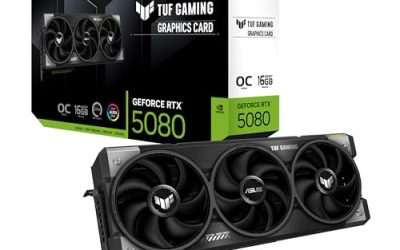
Start with the obvious. Power down, unplug, and fully remove the graphics card, then inspect the PCIe slot for dust or bent pins. Press the card back in until the retention clip snaps and the bracket sits flush against the case. Cards that sag over time can lose contact at the rear of the connector, which is exactly why a support bracket like an adjustable anti-sag holder is worth installing, especially on heavy triple-fan models.
Confirm Power Connectors Are Fully Seated
A modern GPU that gets partial power may spin its fans but never register with the system. Check that every 8-pin, 12-pin, or 12VHPWR cable is clicked all the way in at both the card and the PSU. Avoid daisy-chaining a single cable across multiple connectors on a high-wattage card; run separate leads from the supply. A half-seated 12VHPWR plug is a known cause of both no-detection and thermal issues.
Clean Up and Reinstall Drivers
If the hardware is seated and powered but Windows still won’t see the card, the driver stack is the likely villain. Use a display driver uninstaller in safe mode to strip out old and corrupt files, then install the latest package fresh. A clean driver install resolves a large share of “GPU disappeared after an update” complaints and clears conflicts left behind by switching between AMD and NVIDIA cards.
- Boot into safe mode and run a full driver removal.
- Reinstall the current driver directly from the vendor, not Windows Update.
- Reboot and confirm the card appears under display adapters.
Check BIOS and PCIe Settings
Sometimes the card is fine and the motherboard simply isn’t routing to it. Enter the BIOS and confirm the primary display output is set to PCIe rather than the integrated GPU, and that the top slot is set to run at the correct lane width. Updating the motherboard BIOS can also add support for newer cards that an older firmware refuses to initialize. A cheap PCIe post-diagnostic card helps confirm the slot itself is alive when you suspect the board.
Isolate the Card With Test Tools
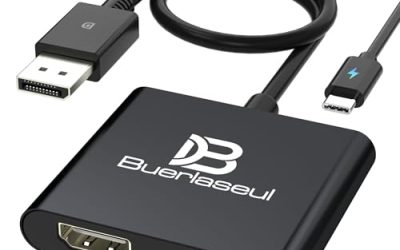
When you need to prove whether the card or the system is at fault, test tools save hours. A dedicated graphics-card tester with a built-in light powers the card outside the PC to check for fan spin and basic life, while a display emulator or headless plug tricks the system into detecting an output when no monitor is attached, which is handy for mining rigs and remote machines. Swapping the card into a second known-good PC remains the gold-standard test.
Tips
- Install an anti-sag bracket on heavy cards to prevent slow connector wear.
- Keep a PCIe riser adapter on hand to test the card in a different slot orientation.
- Always uninstall old drivers before installing new ones to avoid conflicts.
- Update the motherboard BIOS before assuming a new GPU is defective.
Frequently Asked Questions
Why does my GPU fan spin but the card isn’t detected?
Fan spin only proves the card gets some power, not that it initializes. Reseat the card, confirm all power cables are fully clicked in, and do a clean driver reinstall. If it still won’t appear, test it in another PC.
Can a weak power supply cause detection problems?
Yes. An undersized or failing PSU can deliver enough current to spin fans but not enough to bring the GPU fully online, especially under a 12VHPWR connector. Try a known-good, higher-wattage supply to rule this out.
Does BIOS need updating for a new GPU?
Often, yes. Older motherboard firmware may not recognize a newer card. Flashing the latest BIOS frequently fixes a card that spins but never posts.
What does a display emulator do?
It plugs into an HDMI or DisplayPort output and mimics a connected monitor, forcing the system to activate the GPU. It is useful for headless machines and for testing detection when no spare display is available.
Conclusion
A GPU that won’t show up is almost never a lost cause. Work the layers in order: reseat the card, verify power, wipe and reinstall drivers, and check the BIOS output setting before you condemn the hardware. Inexpensive helpers like a support bracket, a PCIe diagnostic card, and a display emulator turn a frustrating afternoon into a quick, confident fix and keep the card seated for the long haul.