Key takeaways
- Gaming on fabric: Blankets and cushions block bottom intakes quickly.
- Blasting fans with compressed air for too long: Use short bursts and avoid making the fan spin excessively.
- Ignoring a rattling or grinding fan: This can indicate a failing bearing, not simple dust.
- Assuming louder fans mean failure: High fan speed is often normal during demanding games.
- Using unstable improvised supports: Books or small objects can slip and block vents; use a purpose-built stand when possible.
- Applying thermal paste without replacing damaged pads correctly: Thermal pads have specific thickness requirements.
- Running every game uncapped at maximum settings: More GPU load means more heat, even when extra frames are not useful.
A gaming laptop that overheats can do more than make the keyboard uncomfortable. Excess heat can cause sudden frame-rate drops, loud fan noise, battery wear, random shutdowns, and long-term stress on the CPU, GPU, motherboard, and storage drive. If you “fix” it by blocking vents, using aggressive settings without monitoring temperatures, or opening the chassis without care, you can make the problem worse. The safest approach is to improve airflow first, reduce unnecessary heat next, and move to internal maintenance only when needed.
Most gaming laptops run warm during demanding games, especially in compact 15- to 17-inch designs. The goal is not to make the machine feel cold; it is to prevent sustained overheating, throttling, and shutdowns while keeping performance stable. Use the steps below in order, testing the laptop after each major change.
Our top picks
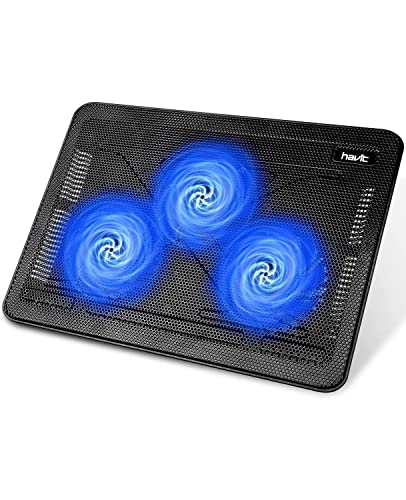 havit HV-F2056 Laptop Cooling Pad for 15.6-17
- Ultra-Portable: Slim, portable, and light weight allowing you…
- Ergonomic Comfort: Doubles as an ergonomic stand with…
- Optimized for Laptop Carrying: The metal mesh provides…
 ChillCore Laptop Cooling Pad
- 9 Super Cooling Fans: The 9-core laptop cooling…
- Ergonomic comfort: The gaming laptop cooling pad provides…
- LCD Display: The LCD of cooler pad readout…
As an Amazon Associate we earn from qualifying purchases at no extra cost to you.
🛒 Best Price Today on Amazon
Check today’s deals on the products above before you buy. Prices change often, so compare the live price on Amazon.
What You Need
| Item | Why | Optional? |
|---|---|---|
| Microfiber cloth | Removes dust from the exterior, vents, screen area, and work surface without scratching. | No |
| Compressed air or electric air duster | Clears dust from intake and exhaust vents. Use short bursts rather than a continuous blast. | No |
| Small soft brush | Loosens lint around vent grilles and fan openings. | Yes |
| Temperature-monitoring software | Helps confirm whether heat is actually causing throttling or shutdowns. | Yes |
| Laptop stand or cooling pad | Raises the rear edge for better intake airflow and can help on soft or warm surfaces. | Yes |
| Precision screwdriver set | Needed only if you are comfortable removing the bottom panel for internal cleaning. | Yes |
| High-quality thermal paste | For an advanced repair when old thermal compound has dried out or internal service is overdue. | Yes |
Step-by-Step
1. Shut down and check the laptop’s position (5 minutes)
Turn the laptop fully off, unplug the charger, and let it cool for at least 10 minutes if it has been gaming. Put it on a hard, flat surface such as a desk, table, or lap desk. Avoid beds, couches, blankets, carpet, and your lap during gaming sessions. Soft materials can seal the bottom intake vents and trap heat inside the chassis.
Look underneath the laptop for vent openings. Many gaming models pull cool air through the bottom and push hot air out the rear or sides. Leave at least 2 to 3 inches of open space behind the exhaust vents. If the rear edge sits completely flat on the desk, prop it up with a stable laptop stand or the built-in rear feet if your model has them.
2. Clean the exterior vents safely (10 to 15 minutes)
Use a microfiber cloth and soft brush to remove visible dust from the intake and exhaust grilles. Then use compressed air in short, controlled bursts. Hold the can upright and keep the nozzle a few inches from the vent; tilting the can can release cold liquid propellant. Work from several angles rather than forcing air into one spot for a long time.
Do not use a household vacuum directly on the laptop. Strong suction and static electricity can be risky around electronics, and a large vacuum nozzle can damage delicate vent fins. If you can see a dense gray layer of lint behind the grille, exterior cleaning may not be enough, but it is still the right first step.
3. Update the BIOS, graphics driver, and laptop control software (15 to 30 minutes)
Install updates from your laptop manufacturer for the BIOS or firmware, chipset, power-management tools, and fan-control utility. Then update the graphics driver through the GPU manufacturer or the laptop maker’s recommended software. These updates can improve fan behavior, power delivery, stability, and game compatibility.
Restart after updating. Do not interrupt a BIOS update, and make sure the laptop is connected to its original charger during the process. Gaming laptops often need their full-rated power adapter to maintain normal performance; using an undersized USB-C charger or a generic adapter can create charging and performance problems.
4. Switch to a balanced performance profile (5 minutes)
Open the laptop’s gaming or performance-control app and select a balanced, standard, or performance mode rather than an extreme “turbo” profile for everyday gaming. Turbo modes can increase fan speed and power limits, but they can also push the CPU and GPU closer to their thermal ceiling.
In the operating system’s power settings, avoid an unrestricted maximum-performance mode when you do not need it. For many games, capping the frame rate to match your display’s refresh rate reduces wasted GPU work. For example, if your display is 120 Hz, a 120 fps cap is often more sensible than allowing 220 fps in a menu or older game where the additional frames provide little benefit.
5. Reduce the heaviest in-game heat sources (10 minutes per game)
Lower settings that disproportionately load the GPU: ray tracing, ultra shadows, high-resolution ambient occlusion, maximum draw distance, and uncapped frame rates. Start by dropping one or two settings from Ultra to High. The visual difference is often modest, while the reduction in heat and fan noise can be meaningful.
Also close background tasks before launching a game. Browser tabs with video, cloud-sync programs, game launchers downloading updates, and recording software can add CPU, GPU, memory, or storage load. Check Task Manager for processes using unusually high CPU or GPU resources while the laptop is idle.
6. Raise the laptop or add a cooling pad (5 minutes)
If the bottom vents are clear but the laptop still runs hot, elevate it. A simple stand can improve airflow by creating a larger gap beneath the chassis. Choose a stable model wide enough for your laptop and avoid stands that cover bottom vent areas.
A cooling pad is most useful when the laptop’s intakes are on the underside. For a 15.6- to 17-inch laptop, the Havit HV-F2056 is a straightforward cooling-pad option priced around $28. For larger machines, the ChillCore A21 is designed for 15.6- to 19.3-inch laptops and costs about $35. Its adjustable height positions can also improve typing angle and rear clearance. A cooling pad cannot fix a failed fan or clogged internal heatsink, but it can support better airflow during long sessions.
7. Test temperatures and watch for throttling (20 to 30 minutes)
After making changes, play the game that usually causes the problem for 20 to 30 minutes. Monitor temperatures, clock speeds, and frame-rate consistency with a reputable hardware-monitoring tool. Brief temperature spikes are normal; sustained high temperatures accompanied by sharply falling clock speeds, stuttering, or shutdowns are not.
Pay attention to behavior, not only one number. A laptop may run warm but remain stable with consistent performance. Conversely, a lower reported temperature is not helpful if the fan constantly surges or the system freezes. Record the room temperature, game settings, power mode, and whether the laptop is raised so you can compare results accurately.
8. Consider internal cleaning or thermal service (45 to 90 minutes)
If exterior cleaning does not help and the laptop is out of warranty, internal dust buildup may be blocking the fans or heatsink fins. Remove the bottom panel only if you have the correct tools, a clean work area, and confidence following your manufacturer’s service guidance. Disconnect the battery if the design allows it, and avoid touching circuitry unnecessarily.
Thermal paste replacement is more advanced. It may help on an older laptop with dried compound, but it requires removing the cooling assembly and reinstalling it evenly. Incorrect paste application, stripped screws, misplaced thermal pads, or uneven heatsink pressure can worsen temperatures. When in doubt, have a repair shop perform this step.
Mistakes to Avoid
- Gaming on fabric: Blankets and cushions block bottom intakes quickly.
- Blasting fans with compressed air for too long: Use short bursts and avoid making the fan spin excessively.
- Ignoring a rattling or grinding fan: This can indicate a failing bearing, not simple dust.
- Assuming louder fans mean failure: High fan speed is often normal during demanding games.
- Using unstable improvised supports: Books or small objects can slip and block vents; use a purpose-built stand when possible.
- Applying thermal paste without replacing damaged pads correctly: Thermal pads have specific thickness requirements.
- Running every game uncapped at maximum settings: More GPU load means more heat, even when extra frames are not useful.
How Often
Wipe exterior vents and check the desk surface every 2 to 4 weeks if you game regularly. Use compressed air on accessible vents every 3 to 6 months, sooner if you have pets, smoke indoors, or live in a dusty area. For internal cleaning, once every 12 to 18 months is a reasonable starting point for heavily used gaming laptops, though clean homes may need less frequent service.
Thermal paste does not need annual replacement by default. Consider it only when cleaning, airflow improvements, software updates, and sensible game settings do not resolve persistent thermal throttling.
When to Call a Pro or Replace
Seek professional repair if the laptop shuts off under load, shows a burning smell, has a swollen battery, reports a fan error, or makes clicking, grinding, or rattling noises. Also get help if you cannot remove the bottom cover without force, the device is still under warranty, or temperatures remain problematic after cleaning and airflow improvements.
Replacement may be more practical when repair costs approach a substantial portion of a newer equivalent laptop, especially if the machine also has a weak battery, repeated motherboard issues, inadequate memory, or outdated graphics hardware. In 2026, a replacement should be chosen based on cooling design, port placement, serviceability, and performance—not just the highest advertised CPU or GPU tier.
FAQ
Is it normal for a gaming laptop to get hot?
Yes. Gaming laptops pack powerful components into a small chassis, so warm exhaust air, a warm keyboard deck, and active fans are expected during demanding games. It becomes a concern when performance drops severely, the system crashes, or it shuts down.
Do cooling pads actually work?
They can help when the laptop pulls air through bottom vents, particularly if the pad also raises the rear edge. Results vary by laptop design. A cooling pad is best treated as an airflow aid, not a substitute for cleaning clogged fans or repairing faulty hardware.
Can I use my gaming laptop on a desk without a cooling pad?
Absolutely. A clean, hard desk with clear vents is usually sufficient. A stand or cooling pad becomes more useful during long gaming sessions, in warm rooms, or when the laptop’s underside sits very close to the desk.
Should I undervolt my gaming laptop?
Undervolting can reduce heat on some models, but support varies by processor and manufacturer firmware. It can also cause instability if configured incorrectly. Try airflow, cleaning, frame caps, and power-profile changes first; use undervolting only if you understand the settings and can test stability carefully.