Key takeaways
- Do not game on bedding, cushions, carpet, or any surface that blocks the bottom intake vents.
- Do not spray liquid cleaner, lubricant, or water into vents. Most laptop fans are sealed components and should not be oiled.
- Do not run compressed air continuously or allow fans to spin wildly from air pressure.
- Do not disable fans in software to reduce noise. This can lead to overheating and abrupt shutdowns.
- Do not remove the heatsink just to “look around.” Reinstalling it improperly can create poor thermal contact.
- Do not assume louder fans always mean failure. High settings, uncapped frame rates, and hot room temperatures can all be legitimate causes.
A gaming laptop can sound like a small vacuum cleaner when its cooling system is working hard, but constant or suddenly louder fan noise can also signal a problem. If you clean it carelessly, block its vents, or use the wrong settings, you can make temperatures worse, strip small screws, damage fan blades, or shorten the life of the processor and graphics chip. The goal is not to make a gaming laptop completely silent—high-performance parts create heat—but to reduce unnecessary noise while keeping temperatures safely under control.
In 2026, most gaming laptops include performance profiles and fan controls that can solve a surprising amount of fan noise without opening the chassis. Start with the simplest fixes, then move to cleaning and hardware inspection only if the noise persists.
Our top picks
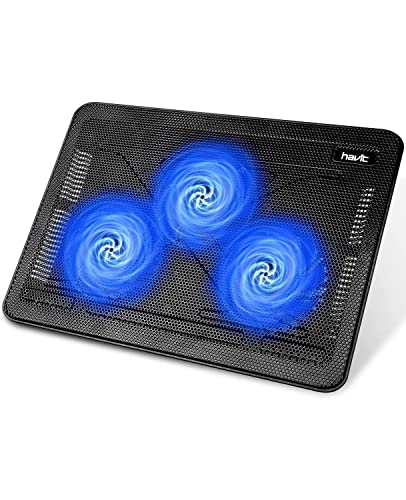 havit HV-F2056 Laptop Cooling Pad for 15.6-17
- Ultra-Portable: Slim, portable, and light weight allowing you…
- Ergonomic Comfort: Doubles as an ergonomic stand with…
- Optimized for Laptop Carrying: The metal mesh provides…
 Kootek Laptop Cooling Pad Cooler Stand with
- Dual USB Hub: With a built-in dual USB…
- Whisper-Quiet Operation: Enjoy a noise-free and interference-free environment…
- Enhanced Cooling Performance: The laptop cooling pad features…
As an Amazon Associate we earn from qualifying purchases at no extra cost to you.
🛒 Best Price Today on Amazon
Check today’s deals on the products above before you buy. Prices change often, so compare the live price on Amazon.
What You Need
| Item | Why | Optional? |
|---|---|---|
| Microfiber cloth | Wipes dust from exterior vents, keyboard grilles, and the underside without scratching finishes. | No |
| Compressed air or electric air duster | Removes loose dust from intake and exhaust vents. Use short bursts rather than a continuous blast. | No |
| Small Phillips screwdriver set | Needed only if your laptop manual permits bottom-panel removal for internal cleaning. | Yes |
| Soft anti-static brush | Helps lift packed dust from fan housings and heatsink fins after opening the laptop. | Yes |
| Laptop cooling pad or raised stand | Improves airflow below the laptop, especially on desks, blankets, or carpeted surfaces. | Yes |
| Temperature-monitoring or manufacturer control software | Lets you check whether high fan speed matches high CPU or GPU temperatures. | Yes |
A cooling pad is most useful for laptops with bottom intake vents. For example, the Havit HV-F2056 cooling pad supports 15.6- to 17-inch laptops and is commonly priced around $28. The Kootek cooling pad cooler stand fits 12- to 17-inch laptops, uses five fans, and typically costs about $30. These accessories cannot repair a failing fan, but they may reduce the need for the built-in fans to run at maximum speed.
Step-by-Step
1. Identify the kind of noise you are hearing (5 minutes)
First, distinguish normal airflow noise from a mechanical problem. A steady “whoosh” that rises while gaming, rendering video, or installing a large game update is usually normal fan behavior. A rattling, clicking, grinding, scraping, or high-pitched squeal is not normal and may mean a fan bearing is worn, a blade is rubbing a cable, or debris is trapped inside.
Notice when the sound occurs. If it starts only during demanding games, the issue may be heat load or an aggressive performance profile. If it continues loudly while the laptop is idle on a cool desk, check for background tasks, blocked vents, dust buildup, or a failing fan.
2. Move the laptop to a hard, open surface (2 minutes)
Place the laptop on a flat desk, table, or laptop stand. Keep at least 2 to 3 inches of clear space behind the rear exhaust vents and avoid pressing the underside against fabric. Beds, couches, rugs, and laps can seal off bottom air intakes, causing temperatures to rise quickly and forcing the fans to compensate.
If your desk is crowded, move papers, cables, speakers, and wall décor away from the exhaust path. Heated air needs somewhere to go. Never cover side or rear vents with decorative skins, tape, or cable bundles.
3. Close unnecessary programs and check background activity (5 to 10 minutes)
Open your operating system’s task manager and sort running processes by CPU and GPU use. Close apps you do not need, especially browser tabs playing video, launchers downloading updates, cloud-sync tools, recording software, and background game installers. A single process using 20% to 40% of CPU capacity while you are not gaming can keep fans running long after you expect them to quiet down.
Also check whether your game is running without a frame-rate limit. When a menu screen renders hundreds of frames per second, the GPU may work harder than necessary. Set a reasonable frame cap based on your display—often 60, 120, 144, or 165 frames per second—and see whether fan noise drops.
4. Choose a balanced or quiet thermal profile (3 minutes)
Open the laptop maker’s control app or BIOS-supported performance utility. Look for modes such as Quiet, Silent, Balanced, Auto, Performance, or Turbo. For web browsing, schoolwork, streaming, and older games, use Quiet or Balanced mode. Reserve Turbo or Performance mode for demanding games, rendering, or other heavy workloads.
Do not force an ultra-quiet fan curve if it causes high temperatures or performance throttling. A good setting allows fans to ramp up gradually under load, then settle down once the workload ends. If your software offers custom fan controls, make small adjustments and test one game at a time.
5. Clean the exterior vents safely (10 minutes)
Shut down the laptop completely, unplug the charger, and allow the machine to cool for at least 10 minutes. Wipe the vent areas with a dry microfiber cloth. Then use compressed air in short, controlled bursts aimed across—not deeply into—the intake and exhaust openings.
Hold the can upright and keep the nozzle several inches away from the vent. Long blasts can push dust farther inside, while a tilted can may release moisture. Avoid using a household vacuum directly on the vents; static electricity and excessive suction are not ideal around delicate electronics.
6. Raise the laptop or add a cooling pad (5 minutes)
If the bottom intakes sit close to the desk, elevate the rear edge slightly with a stable stand or cooling pad. Even a small lift can improve the amount of air reaching the underside. Choose a pad sized for your laptop rather than one that leaves the intake areas unsupported. A 15.6- to 17-inch laptop generally needs a platform wide enough to support its full base without wobbling.
Plug-in cooling pads usually draw power from USB, so use a port that is not already needed for a high-wattage external device. If pad noise becomes noticeable, lower its fan setting or use it only during long gaming sessions.
7. Inspect and clean inside only if permitted (20 to 45 minutes)
If exterior cleaning does not help and your warranty terms allow access, consult the manufacturer’s service instructions for your exact model. Remove the bottom cover on a clean, well-lit table, keeping screws organized by location. Some gaming laptops use multiple screw lengths; putting a long screw in the wrong hole can damage the case or internal components.
Before blowing out dust, prevent each fan from spinning freely by gently holding the fan hub or blades in place with a nonmetal tool. Then use short air bursts and a soft brush to clear dust from the fan blades, fan housing, and heatsink fins. Do not bend copper heat pipes, pull on cables, or remove heatsinks unless you are prepared to replace thermal paste correctly.
8. Test temperatures and sound after reassembly (10 to 20 minutes)
Reassemble the laptop, reconnect power, and run a familiar game for 15 to 20 minutes. Listen for changes and monitor temperatures with your manufacturer’s software or a trusted system-monitoring tool. Fans should rise during a demanding scene and reduce speed during menus or idle periods.
If fan noise is lower but temperatures are much higher than before, revisit your fan profile and airflow setup. Quiet operation is not a success if the laptop is overheating.
Mistakes to Avoid
- Do not game on bedding, cushions, carpet, or any surface that blocks the bottom intake vents.
- Do not spray liquid cleaner, lubricant, or water into vents. Most laptop fans are sealed components and should not be oiled.
- Do not run compressed air continuously or allow fans to spin wildly from air pressure.
- Do not disable fans in software to reduce noise. This can lead to overheating and abrupt shutdowns.
- Do not remove the heatsink just to “look around.” Reinstalling it improperly can create poor thermal contact.
- Do not assume louder fans always mean failure. High settings, uncapped frame rates, and hot room temperatures can all be legitimate causes.
How Often
Wipe exterior vents and check for blocked airflow every 1 to 2 months. Use compressed air on exterior vents about every 3 to 6 months, depending on pets, carpeting, smoking, and dust levels in your home. For many households, internal cleaning once every 12 months is sufficient. Consider cleaning every 6 months if you have shedding pets, use the laptop near carpet, or regularly game in a dusty room.
Check fan behavior after major game updates, graphics-driver changes, or software updates that alter performance profiles. A sudden change in noise can be software-related, not just a cleaning issue.
When to Call a Pro or Replace
Contact a qualified repair technician if you hear grinding, repeated clicking, scraping, or a fan that stops and starts unpredictably. Seek service promptly if the laptop shuts down under load, shows overheating warnings, emits a burning smell, or reaches unusually high temperatures during light tasks.
A fan replacement is often more sensible than trying to repair a damaged fan bearing. Replacement cost varies by model because many gaming laptops use custom dual-fan assemblies. Expect parts and labor to vary widely, but a basic fan repair is generally far less expensive than replacing a motherboard or GPU damaged by chronic heat. If the laptop is several years old, has multiple failing components, and needs costly proprietary parts, compare the repair quote with the cost of a newer system before proceeding.
FAQ
Why is my gaming laptop fan so loud when I am not gaming?
Background processes, operating system updates, browser tabs, cloud backups, malware scans, or a stuck game launcher can use CPU or GPU resources while the laptop appears idle. Check task manager, restart the computer, and make sure the laptop is sitting on a hard surface with open vents.
Is it safe to use a cooling pad every day?
Yes, provided the pad is stable, its USB cable is in good condition, and it does not block the laptop’s own vents. A cooling pad is best viewed as an airflow helper, not a substitute for cleaning dust or repairing a faulty internal fan.
Can I make my gaming laptop silent?
No gaming laptop will be silent during demanding play because the CPU and GPU generate substantial heat in a compact chassis. You can reduce unnecessary noise with a balanced profile, capped frame rates, clean vents, and better airflow, but fans will still become audible under heavy load.
Does replacing thermal paste fix fan noise?
It can help only when old or poorly applied thermal paste is causing higher temperatures. It will not fix clicking, grinding, or rattling from a worn fan. Because repasting requires heatsink removal and careful reinstallation, it is usually best handled by an experienced technician unless your laptop manufacturer provides clear service instructions.