Key takeaways
- Budget laptops and upgrades: $700-$1,000. Expect 16GB, often DDR4 or entry-level DDR5, a 512GB SSD, and a mainstream graphics processor. A complete system such as the $846 HP Victus example shows the typical configuration.
- Midrange: $1,000-$1,700. This tier commonly includes 16GB or 32GB DDR5, a 1TB SSD, stronger cooling, and a more capable graphics card. Paying roughly $50-$150 to move from 16GB to 32GB can be worthwhile if the laptop permits it.
- Premium: $1,700-$2,500 or more. Expect 32GB, high-speed DDR5, large SSD storage, better displays, and high-end processors and GPUs. The $2,399 Lenovo Legion example includes 32GB DDR5 and a 1TB NVMe SSD.
Choosing memory for a gaming laptop sounds simple: pick the largest number of gigabytes and move on. That approach can waste money, however. A 32GB module may not fit your laptop, DDR5 memory cannot replace DDR4, and a high-speed kit can run below its advertised rating if the laptop’s processor or BIOS does not support it. Some gaming laptops also use soldered memory that cannot be upgraded at all.
The right choice depends on how you play, what software you run, and whether you are buying a complete laptop or upgrading an existing one. In 2026, 16GB remains workable for mainstream gaming, while 32GB is the more comfortable target for new releases, streaming, creative work, and long-term ownership. The guide below focuses on the specifications that make a real difference rather than numbers that merely look impressive on a product page.
Our top picks
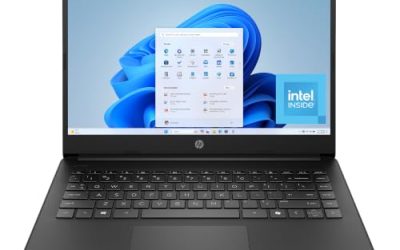
 HP Victus 15.6" Full HD 144Hz Gaming
- Powered by an Intel Core i5 12th Gen…
- Equipped with an NVIDIA GeForce RTX 3050 6GB…
- Includes Up to 64GB of DDR4-3200 RAM for…
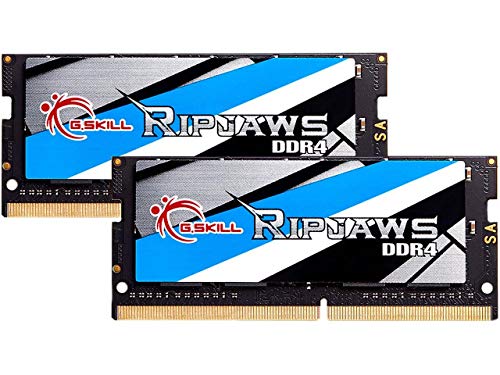 G.SKILL Ripjaws DDR4 SO-DIMM Series DDR4 RAM
- G.SKILL Ripjaws DDR4 SO-DIMM Series DDR4 SO-DIMM Memory…
- Non-ECC, DDR4 SO-DIMM, 260-pin, for Laptop/Notebook
- Do not mix memory kits
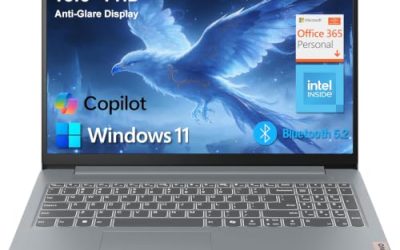
 Lenovo Legion 5 15IRX10 15.1" WQXGA OLED
- Intel Core i9 14th Gen 14900HX 1.6GHz Processor,…
- 1TB PCIe Gen4 x4 NVMe M.2 SSD
- 15.1" WQXGA OLED Glossy Display
As an Amazon Associate we earn from qualifying purchases at no extra cost to you.
🛒 Best Price Today on Amazon
Check today’s deals on the products above before you buy. Prices change often, so compare the live price on Amazon.
Decide These 3 Things First
- Set your capacity target. Choose 16GB for a budget gaming laptop and ordinary 1080p play, 32GB for demanding games, multitasking, and better longevity, or 64GB for heavy video editing, virtual machines, large creative projects, and specialized work. More than 64GB is rarely useful for gaming alone.
- Find out whether the laptop is upgradeable. Check the manufacturer’s service manual or specifications for the words “2 x SO-DIMM,” “one available slot,” or “soldered.” A laptop with two slots is easier to expand than one with 8GB soldered plus one open slot. Some thin systems have no removable memory.
- Match the memory type exactly. DDR4 SO-DIMM and DDR5 SO-DIMM are physically and electrically different. They are not interchangeable. Confirm the generation, maximum supported capacity, speed, and whether the laptop requires a particular module arrangement before ordering.
Size: Capacity and Physical Fit
For gaming laptops, “size” has two meanings: capacity in gigabytes and the physical format of the module. Laptop memory is generally SO-DIMM, which is shorter than desktop DIMM memory. Never buy standard desktop RAM for a notebook.
16GB is a sensible minimum for a new gaming laptop. It is enough for most games, a browser with several tabs, voice chat, and basic background applications. If the laptop has two 8GB modules, it can also use dual-channel memory.
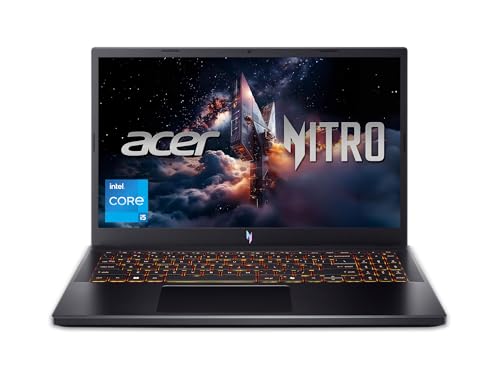
32GB is the best all-around target. It gives modern games more breathing room and helps when you keep a browser, recording software, Discord, and launchers open while playing. A laptop such as the NIMO model with 32GB DDR5 is aimed at buyers who want that extra headroom without upgrading immediately.
64GB makes sense only when your workload justifies it. Consider it for 4K video projects, 3D work, software development, multiple virtual machines, or unusually heavy modding. Capacity alone does not increase frame rates once the game already has enough memory.
Also check module dimensions and slot clearance in the service documentation. Most SO-DIMMs are approximately 69 millimeters long, but compatibility depends more on the laptop slot and electrical standard than on a small dimensional difference.
Material: DDR4 or DDR5 and Module Quality
Memory modules are not selected by casing material in the way furniture is. The meaningful “material” decision is the memory generation and component quality. DDR4 commonly runs at 3,200 MT/s in compatible laptops, while DDR5 gaming laptops often support speeds from 4,800 MT/s upward. A faster generation is not automatically a worthwhile upgrade if the laptop cannot use it.
DDR5 generally offers higher bandwidth and improved power management, but a DDR5 laptop needs DDR5 modules. For example, the G.SKILL Ripjaws kit listed at 32GB, DDR4-3200, 1.20 volts is appropriate only for a compatible DDR4 notebook. It cannot be installed in a DDR5 machine such as a newer premium gaming laptop.
Look for reputable memory manufacturers, clear specifications, and a lifetime limited warranty where available. “Gaming” branding, metal heat spreaders, and colorful lighting are not useful in most laptops. SO-DIMMs usually operate under a laptop’s internal thermal limits, so dependable compatibility is more important than decorative features.
Construction: Single-Channel, Dual-Channel, and Upgrade Layout
How the modules are arranged can affect performance. Two matching modules, such as 2 x 8GB or 2 x 16GB, typically enable dual-channel operation. That gives the processor access to more memory bandwidth than one module of the same total capacity.
This matters especially in laptops that rely on integrated graphics. Integrated graphics use system memory as video memory, so bandwidth can have a larger effect than it would in a laptop with a separate graphics card. A 16GB laptop with two 8GB modules may perform better in some situations than a 16GB laptop using one 16GB module.
Discrete-GPU systems still benefit from a matched configuration, although the effect varies by game, processor, and graphics card. Avoid mixing modules with different speeds or timings when possible. The system will generally operate at the speed of the slower module, and unusual combinations can create stability problems.
Before buying an upgrade, identify the current layout. Replacing one 8GB module with a 16GB module may produce 24GB total, but it may not provide the same balanced arrangement as a matched 2 x 16GB kit. Also verify whether the laptop has one or two accessible slots.
Comfort and Performance: Speed, Timings, and Real-World Use
RAM speed is measured in MT/s, not technically megahertz, although product listings often use both terms. A DDR4-3200 kit transfers at 3,200 MT/s; common DDR5 options may be rated at 4,800, 5,200, 5,600, or higher. Your laptop may reduce that speed based on its processor, motherboard, BIOS, or power settings.
Timings, such as CL22, describe latency. Lower latency can help, but it should be considered alongside data rate rather than judged alone. For most laptop buyers, capacity, dual-channel operation, and confirmed compatibility are more important than paying a premium for a small timing difference.
Do not expect a memory upgrade to fix every performance problem. If a laptop has an entry-level graphics processor, installing 64GB will not turn it into a high-end gaming system. A complete configuration such as the HP Victus with 16GB RAM, an RTX 3050, and a 512GB SSD may be balanced for 1080p gaming, while a premium Lenovo Legion configuration pairs 32GB DDR5 with a much more powerful RTX 5070. The graphics processor, cooling system, and processor still determine most gaming performance.
Price Tiers: What Your Budget Buys
Prices change with sales and capacity, but these ranges are useful starting points:
- Budget laptops and upgrades: $700-$1,000. Expect 16GB, often DDR4 or entry-level DDR5, a 512GB SSD, and a mainstream graphics processor. A complete system such as the $846 HP Victus example shows the typical configuration.
- Midrange: $1,000-$1,700. This tier commonly includes 16GB or 32GB DDR5, a 1TB SSD, stronger cooling, and a more capable graphics card. Paying roughly $50-$150 to move from 16GB to 32GB can be worthwhile if the laptop permits it.
- Premium: $1,700-$2,500 or more. Expect 32GB, high-speed DDR5, large SSD storage, better displays, and high-end processors and GPUs. The $2,399 Lenovo Legion example includes 32GB DDR5 and a 1TB NVMe SSD.
For standalone upgrades, a compatible 32GB DDR4 kit may cost approximately $45-$100, while 32GB DDR5 kits commonly range from $60-$150. A listed $199.99 DDR4 kit is therefore a premium-priced example, and its compatibility should be verified carefully before purchase.
Warranty: Protection and Compatibility
Memory is relatively simple to replace, but compatibility problems can be difficult to diagnose. Choose a retailer with a clear return window, ideally at least 30 days, and check whether the memory carries a lifetime limited warranty. Keep the packaging until the laptop boots reliably and passes several hours of ordinary use.
Upgrading RAM normally does not void a laptop warranty in the United States, but damage caused during installation may not be covered. Follow the service manual, disconnect the charger, shut down completely, and avoid forcing a module into the slot. Some manufacturers restrict user access or use warranty seals, so review the laptop’s warranty terms first.
Delivery and Installation: Avoiding Costly Mistakes
For a complete laptop, confirm that the advertised memory is installed rather than merely supported. For an upgrade, budget about $20-$75 for professional installation if you are uncomfortable removing the bottom panel. Delivery should include sealed retail packaging, an exact model number, and a return policy for incompatibility.
After installation, check the BIOS or Windows system information to confirm the full capacity. If the laptop reports less memory than expected, reseat the modules and confirm that both slots are recognized. Do not rely only on a seller’s title; compare the module label with the laptop’s required DDR generation and speed.
Spec Checklist
| Spec | Budget | Mid | Premium |
|---|---|---|---|
| Capacity | 16GB | 32GB | 32GB-64GB |
| Memory type | DDR4 or entry-level DDR5 | DDR5 preferred | High-speed DDR5 |
| Configuration | 2 x 8GB when possible | 2 x 16GB preferred | 2 x 16GB or 2 x 32GB |
| Typical speed | DDR4-3200 or DDR5-4800 | DDR5-4800 to 5600 | DDR5-5600 or manufacturer-supported maximum |
| Upgrade target | Two accessible SO-DIMM slots | Two slots or 16GB soldered plus open slot | Confirm capacity before buying; some are fully soldered |
| Typical upgrade price | $40-$100 | $60-$150 | $100-$250 |
Red Flags
- A listing does not state DDR4 or DDR5.
- The product is desktop DIMM rather than laptop SO-DIMM.
- The seller advertises an extreme speed without confirming laptop support.
- A 16GB system uses one 16GB module but has an empty slot and no explanation.
- The laptop’s memory is soldered, but the listing implies it can be upgraded.
- The advertised capacity differs between the title, specifications, and photos.
- The price is much higher than comparable kits without a clear compatibility benefit.
FAQ
Is 16GB enough for a gaming laptop?
Yes, for mainstream gaming and ordinary multitasking. Choose 32GB if you stream, record gameplay, use many background applications, play heavily modded games, or want more long-term headroom.
Does more RAM increase gaming FPS?
Only when the laptop was running short of memory or using a weaker single-channel arrangement. Once the game has enough RAM, upgrading capacity usually improves smoothness and multitasking more than average frame rate.
Can I mix two different RAM brands?
Sometimes, but matching capacity, generation, speed, voltage, and timings is safer. Mixed modules may run at the slower module’s settings or fail to operate reliably.
Should I buy a laptop with soldered RAM?
Only if the installed capacity meets your expected needs for the laptop’s entire useful life. Choose at least 16GB for basic gaming and preferably 32GB if the memory cannot be replaced.