Key takeaways
- Always enable your rated XMP or EXPO profile first, as it delivers most of the available gains with almost no effort or risk.
- Change only one setting at a time and test after each, so you always know exactly which adjustment caused instability.
- Keep memory voltage within the safe range for your kit, and never chase extreme speeds by pushing voltage recklessly.
- Save a screenshot or note of your stable BIOS settings so you can quickly restore them if a future change fails.
Overclocking your RAM is one of the easiest ways to squeeze free performance out of a gaming or editing PC, and in 2026 it is far safer and simpler than its reputation suggests. Enabling a faster memory profile can boost frame rates in CPU-bound games and speed up memory-heavy work, often with a single toggle in your motherboard’s BIOS. Done carefully, the risk to your hardware is minimal.
This guide walks you through overclocking your RAM the smart way, from understanding XMP and EXPO profiles to manual tuning and stability testing. Whether you want a quick, safe boost or you are ready to tweak timings by hand, you will find the steps and the safety checks you need to do it confidently.
Our top picks
 CORSAIR Vengeance LPX DDR4 RAM 32GB
- Product Group: Personal Computer
- Binding: Personal Computers


As an Amazon Associate we earn from qualifying purchases at no extra cost to you. Ratings are shown as listed on Amazon.
⚡ Save on Your Next PC — Amazon Prime
Prime members get fast free shipping on the systems above, plus early access to Prime Day & Black Friday PC deals. New members get a 30-day free trial.
Watch: How to Overclock Your RAM Safely — Video Review
Understanding RAM Overclocking: XMP and EXPO
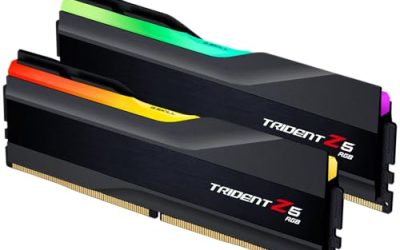
Your RAM ships rated for a certain speed, but it usually runs slower by default until you enable an overclocking profile. Intel’s XMP and AMD’s EXPO are pre-tested profiles stored on the memory itself, like on kits such as the CORSAIR Vengeance DDR5 6000MHz with both AMD EXPO and Intel XMP support. Enabling one tells your motherboard to run the RAM at its rated speed and timings automatically. This is technically an overclock, but because the profile is validated by the manufacturer, it is the safest and easiest boost available.
Enabling XMP or EXPO in Your BIOS
Restart your PC and press the BIOS key, usually Delete or F2, as it boots. Look for a memory or overclocking section and find the XMP or EXPO option, then select the rated profile, for example the 3200MHz profile on a CORSAIR Vengeance LPX DDR4 kit or a higher speed on a DDR5 kit. Save and exit, and your system will restart running the faster profile. Verify the new speed in a tool like CPU-Z or Task Manager to confirm it applied.
Manual Tuning: Frequency, Timings, and Voltage
For extra performance beyond the rated profile, you can manually raise the frequency, tighten the primary timings, and adjust voltage. Increase frequency in small steps, testing stability after each change, and only nudge voltage within safe limits for your memory type, typically around 1.35V to 1.45V for DDR4 and lower base voltages for DDR5. Tightening timings like CL, tRCD, and tRP can improve latency even at the same frequency. Go slowly, change one variable at a time, and note what you changed so you can revert if the system becomes unstable.
Stability Testing and Cooling
An overclock is only good if it is stable. After any change, run a memory stress test such as MemTest86 or the built-in Windows Memory Diagnostic, and watch for errors, crashes, or failure to boot. Test for at least a few passes, and ideally an hour or more, before trusting the settings for daily use. Because faster memory generates more heat, a kit with a heatspreader or an add-on cooler like the Thermalright MC-2 ARGB RAM cooler helps maintain stability during long stress tests and heavy workloads.
Recovering From a Failed Overclock
If your PC will not boot after a change, do not panic. Most motherboards automatically revert to safe defaults after a few failed boot attempts, or you can clear the CMOS by using the reset button or jumper, or by briefly removing the motherboard battery. Once back in the BIOS, dial the settings back to the last stable configuration. This safety net is why RAM overclocking is low-risk: a bad setting costs you a reboot, not your hardware.
Tips
- Always enable your rated XMP or EXPO profile first, as it delivers most of the available gains with almost no effort or risk.
- Change only one setting at a time and test after each, so you always know exactly which adjustment caused instability.
- Keep memory voltage within the safe range for your kit, and never chase extreme speeds by pushing voltage recklessly.
- Save a screenshot or note of your stable BIOS settings so you can quickly restore them if a future change fails.
Frequently Asked Questions
Is overclocking RAM safe for my computer?
Yes, when done sensibly. Enabling an XMP or EXPO profile is manufacturer-validated and very low-risk. Manual tuning carries slightly more risk, but keeping voltage in safe ranges and testing stability means the worst outcome is usually a failed boot that resets automatically, not damaged hardware.
Will overclocking RAM improve my gaming performance?
It can, especially in CPU-bound games and on AMD systems, where faster memory noticeably improves frame rates and 1% lows. The gains vary by game and resolution, but enabling your rated profile is essentially free performance that is always worth doing.
What is the difference between XMP and EXPO?
They are the same idea for different platforms. XMP is Intel’s memory profile standard, while EXPO is AMD’s. Both store pre-tested overclock settings on the RAM so your motherboard can apply the rated speed and timings automatically. Many modern kits include profiles for both.
How do I know if my RAM overclock is stable?
Run a memory stress test like MemTest86 or Windows Memory Diagnostic for at least several passes, ideally an hour or more. If it completes without errors and your system runs normally under load without crashing, the overclock is stable enough for daily use.
Conclusion
Overclocking your RAM is one of the best value upgrades you can make, and for most people it starts and ends with enabling the XMP or EXPO profile your kit already includes. If you want to push further, tune frequency and timings in small steps, test stability thoroughly, and keep voltage in safe ranges. With the safety nets built into modern motherboards, you can chase free performance confidently, knowing a mistake costs only a quick reboot.