Key takeaways
- Unplug or power off first. Always disconnect the board, especially wireless models like the AULA F75 Pro, before touching it.
- Shake and blast. Turn the keyboard upside down and give it a gentle shake, then use compressed air in short bursts between the keys to lift crumbs and dust.
- Brush the surface. Sweep a soft brush across and between the keys to loosen anything stuck.
- Wipe the caps. Run a barely damp microfiber cloth with a little isopropyl alcohol over the keycaps and case to cut through oils and grime.
A mechanical keyboard is built to last for years, but only if you look after it. Crumbs, dust, skin oils, and the occasional drink spill work their way under the keycaps and between the switches, where they cause sticky keys, muffled sound, and eventually failed inputs at the worst possible moment. The good news is that cleaning one is easy, cheap, and oddly satisfying once you know the right steps and, just as importantly, the mistakes that can ruin a board.
This guide walks you through cleaning a mechanical keyboard properly, from a quick weekly tidy to a deep clean with the keycaps off. You will learn what tools to use, how to safely remove and wash keycaps, how to handle spills, and how often to do all of it so your board stays crisp and responsive for the long haul.
Our top picks




As an Amazon Associate we earn from qualifying purchases at no extra cost to you. Ratings are shown as listed on Amazon.
⚡ Save on Your Next PC — Amazon Prime
Prime members get fast free shipping on the systems above, plus early access to Prime Day & Black Friday PC deals. New members get a 30-day free trial.
Watch: How to Clean a Mechanical Keyboard — Video Review
Gather the Right Tools First
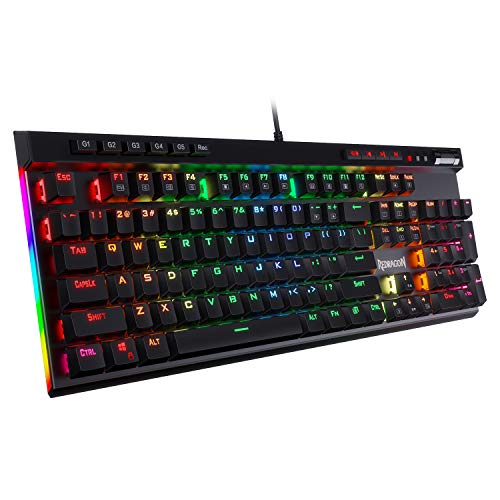
You do not need much, and using the wrong thing causes more harm than dirt. A keycap puller (often included with hot-swappable boards like the Redragon Mechanical Gaming Keyboard or the AULA F75 Pro) lets you lift caps without bending them. Add a can of compressed air, a soft brush, isopropyl alcohol of 70% or higher, cotton swabs, and a microfiber cloth. Avoid household cleaners, paper towels that shed lint, and anything abrasive. Having everything ready before you start means you clean once, thoroughly, instead of stopping halfway to hunt for supplies.
The Quick Weekly Clean
- Unplug or power off first. Always disconnect the board, especially wireless models like the AULA F75 Pro, before touching it.
- Shake and blast. Turn the keyboard upside down and give it a gentle shake, then use compressed air in short bursts between the keys to lift crumbs and dust.
- Brush the surface. Sweep a soft brush across and between the keys to loosen anything stuck.
- Wipe the caps. Run a barely damp microfiber cloth with a little isopropyl alcohol over the keycaps and case to cut through oils and grime.
The Deep Clean: Removing Keycaps
Every month or two, go deeper. Take a photo of your layout first so you know where each cap returns, which is essential on boards with unusual legends. Use the keycap puller to lift each cap straight up; boards with standard caps like the Redragon K580 or Logitech G413 SE come off easily. Soak the removed caps in warm water with a drop of mild dish soap, never in a dishwasher, then rinse and let them dry completely for several hours. While they dry, clean the exposed plate with compressed air and cotton swabs dipped lightly in isopropyl alcohol. Only reinstall caps once they are bone dry.
Handling Spills and Sticky Switches
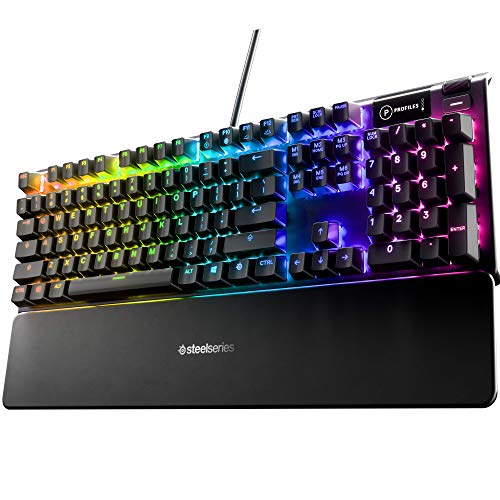
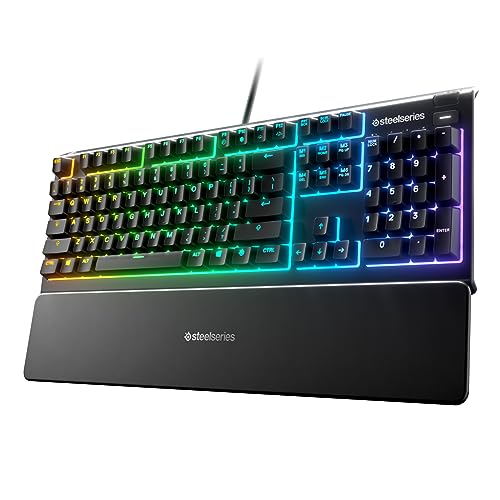
Liquid is the real danger. If you spill, unplug the board immediately, turn it upside down to drain, and do not power it back on until it is fully dry, which can take a day or more. Sugary or sticky drinks are worst because they leave residue that gums up switches. On boards with hot-swappable switches like the Redragon Mechanical Gaming Keyboard or AULA F75 Pro, you can pull an affected switch and clean or replace it. On sealed designs such as the SteelSeries Apex 3, which carries an IP32 water-resistant rating, minor splashes are more forgiving, but you should still dry the board thoroughly before use.
Caring for Your Specific Switch Type
Different switches ask for slightly different care. Loud, tactile boards and quieter linear ones alike benefit from keeping debris out of the switch housing, since grit is what causes scratchiness. Keyboards marketed as whisper-quiet, like the SteelSeries Apex 3, or with premium switches like the SteelSeries Apex 5 hybrid, keep their smooth feel longest when dust is blown out regularly. Pre-lubed switches, such as the Reaper switches in the AULA F75 Pro, should never be washed with alcohol inside the housing, as that strips the factory lubricant. When in doubt, clean around switches, not inside them.
Tips
- Photograph your keyboard layout before pulling any caps so you can put every key back in the right place.
- Let washed keycaps dry completely for several hours before reinstalling; trapped moisture can corrode contacts.
- Keep food and open drinks away from the desk, the single most effective way to avoid the spills that damage switches.
- Never wash the board’s circuit board or submerge a keyboard; clean the base with compressed air and lightly dampened swabs only.
Frequently Asked Questions
How often should I clean my mechanical keyboard?
Do a quick surface clean weekly with compressed air and a wipe-down, and a deep clean with the keycaps removed every one to two months, or sooner if you eat at your desk or notice keys starting to stick.
Can I use water to clean my keycaps?
Yes, warm water with a drop of mild dish soap is ideal for soaking removed keycaps. Just rinse them well and let them dry completely for several hours before putting them back, and never put the keyboard’s electronics in water.
What should I do if I spill a drink on my keyboard?
Unplug it at once, turn it upside down to drain, and leave it to dry fully before powering on. Sticky drinks may require pulling and cleaning individual switches on hot-swappable boards like the Redragon or AULA models.
Is isopropyl alcohol safe on keycaps and switches?
It is safe for wiping keycaps and cleaning the plate, but keep it out of the switch housing, especially on pre-lubed switches like those in the AULA F75 Pro, since it dissolves the factory lubricant that keeps them smooth.
Conclusion
Cleaning a mechanical keyboard is simple maintenance that pays off in crisp keystrokes and a board that lasts for years. Keep a quick weekly routine of compressed air and a wipe-down, deep clean the keycaps every month or two, act fast on spills, and respect the needs of your specific switches, especially pre-lubed ones. Do this and your keyboard, whether a budget Logitech G213 or a premium SteelSeries Apex 5, will feel and sound as good as the day you unboxed it.