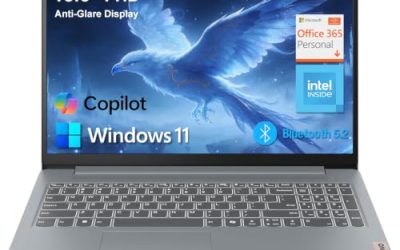
Our Top Picks
 ASUS ROG Strix G16 Gaming Laptop16GB DDR5 | 1TB SSD13.94 x 0.89 x 10.39 inches5.51 poundsCheck on Amazon
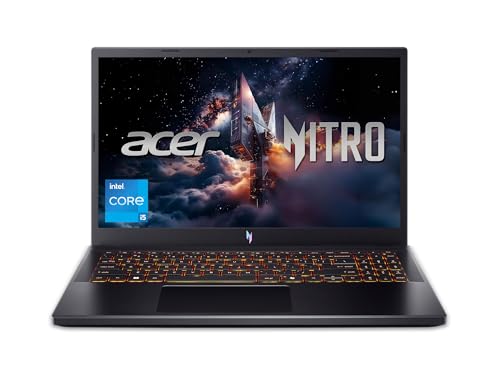
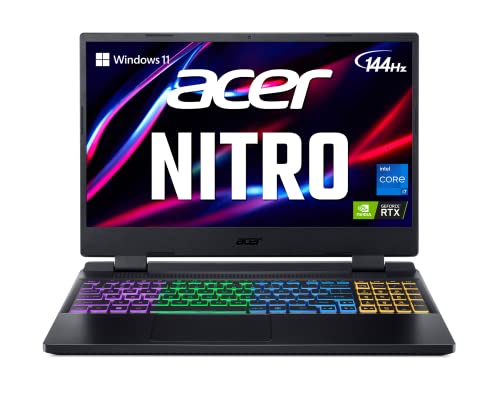 acer Nitro 5 AN515-58-725A Gaming Laptop16GB DDR4 | 512GB14.19 x 10.67 x 1.06 inches5.51 poundsCheck on Amazon
 HP Victus 15.6 inch FHD 144Hz Gaming Laptop16 GB RAM | 512 GB SSD | 13420H11.6 x 9.4 x 0.83 inches5.1 poundsCheck on Amazon
The best gaming laptop for VR has a dedicated NVIDIA RTX GPU (an RTX 3060 or better is the safe floor), 16GB of RAM, a modern H-series processor and a USB-C or video-out port wired to that GPU. Entry RTX 3050 laptops fall short of Meta’s guidance, so the picks below start at the RTX 3060 and RTX 4050 class and climb from there.
Answer Box: What a VR-Ready Gaming Laptop Needs
- GPU: RTX 3060, RTX 4050 or better. Meta says the laptop RTX 3050 and 3050 Ti are not recommended for Link.
- CPU: Intel Core i7 or AMD Ryzen 7 recommended; i5 and Ryzen 5 are the minimum class.
- RAM: 16GB recommended.
- Ports: a USB-C or USB 3 port for a Quest headset, or HDMI/DisplayPort for a PC headset.
- Cooling: a thick chassis with two fans helps because VR pushes the GPU hard for long periods.
Picks at a Glance
| Laptop | GPU | CPU | RAM | Best for |
|---|---|---|---|---|
| HP Omen 16 AI (VR Ready listing) | RTX 5070 | Core Ultra 9 285H | 32GB | Top performance |
| ASUS ROG Strix G16 | RTX 4060 | Core i7-13650HX | 16GB DDR5 | Balanced power |
| Acer Nitro V ANV16-71 | RTX 4060 | Core i7-14650HX | 16GB DDR5 | Sharp 16-inch screen |
| Acer Nitro 5 AN515-58 | RTX 3060 | Core i7-12700H | 16GB DDR4 | Value pick |
| ASUS TUF Dash 15 (2022) | RTX 3060 | Core i7-12650H | 16GB DDR5 | Thunderbolt 4 port |
| MSI Katana GF66 | RTX 3060 | Core i7-11800H | 16GB | Budget RTX 3060 |
| HP Victus 15 (2024) | RTX 4050 6GB | Core i5-13420H | 16GB DDR4 | Entry VR |
Gaming Laptop That Can Run VR: The Real Requirements
A gaming laptop can run VR when its GPU is on the headset maker’s supported list and it has the right port. Ordinary laptops with integrated graphics cannot.
Here is what the Meta Quest Link guidance says, which applies if you use a Quest headset with a laptop:
- Minimum: Intel Core i5-4590 or AMD Ryzen 5 1500X or better, 8GB of RAM, Windows 10 or 11 and one USB port, plus a supported GPU.
- Recommended: Intel Core i7 or AMD Ryzen 7, an NVIDIA RTX 20 series or AMD Radeon RX 6000 series GPU, 16GB of RAM and a USB-C port.
- Laptop-specific notes: Meta lists the RTX 3050 laptop and RTX 3050 Ti as not recommended. Third-party guides also warn about the GTX 1650 and RTX 2050.
- Cable: use a USB-C 3.2 cable that supports at least 5 Gbps. Meta’s older guidance asks for a good-quality data and power cable of around 3 meters.
These requirements change when Meta updates its software, so check the maker’s page for the current GPU table before buying.
Why Laptop VR Is Harder Than Desktop VR
VR renders two images at once at a high refresh rate, so it asks more of the GPU than the same game on a flat screen. Laptops add three extra problems.
- Power limits. The same GPU name runs at different wattage in different laptops. A thin laptop may throttle after twenty minutes.
- Port wiring. On many laptops the HDMI or USB-C video port connects to the integrated graphics, not the NVIDIA GPU. For PC VR headsets that need a video output, this can cause problems. Check the maker’s spec sheet or reviews for the exact model.
- Heat and noise. VR sessions run the GPU near its limit. Plan for audible fans and a warm chassis.
For wireless streaming, such as Air Link on a Quest headset, you also need a strong Wi-Fi connection. A dedicated Wi-Fi 6 router close to the play area makes a large difference.
1. HP Omen 16 AI: Best Overall for VR
The Omen 16 listing is labeled VR Ready and pairs a 16.1-inch WQXGA IPS 240Hz screen with an Intel Core Ultra 9 285H, an NVIDIA GeForce RTX 5070, 32GB of RAM and a 1TB SSD. It also has an RGB backlit keyboard and ships with Windows 11 Pro. This is the most capable laptop in the group and leaves room for high-resolution headsets and demanding VR games.
- Specs: Core Ultra 9 285H, RTX 5070, 32GB RAM, 1TB SSD, 16.1 in WQXGA 240Hz
- Best for: players who want the strongest GPU and headroom for years.
- Skip if: your budget is tight, since it is the highest price tier here.
Pros: strongest GPU in the group, 32GB RAM, VR Ready listing, sharp 240Hz screen, large SSD.
Cons: highest price tier, fans get loud under VR load, power brick adds weight.
2. ASUS ROG Strix G16: Best Balance of Power and Value
ASUS ROG Strix G16 Gaming Laptop, 165Hz Display, NVIDIA® GeForce RTX™ 4060, Intel Core i7-13650HX, 16GB DDR5, 1TB PCIe Gen4 SSD, Wi-Fi 6E, Windows 11, G614JV-AS74
Chosen because it specifies 165Hz Display and NVIDIA® GeForce RTX™ 4060.
View on AmazonThe ROG Strix G16 G614JV combines an Intel Core i7-13650HX with an NVIDIA GeForce RTX 4060, 16GB of DDR5 memory and a 1TB PCIe Gen 4 SSD. The 16-inch display runs at 165Hz, and the laptop has Wi-Fi 6E for wireless VR streaming. The HX-class processor has many cores, which helps in games that pair heavy physics with VR rendering.
- Specs: Core i7-13650HX, RTX 4060, 16GB DDR5, 1TB SSD, 165Hz screen
- Best for: most VR players, including Quest Link and wireless use.
- Skip if: you want a thin, quiet laptop.
Pros: strong CPU and GPU pairing, Wi-Fi 6E, 1TB SSD, DDR5 memory.
Cons: RTX 4060 has 8GB of video memory, large chassis, loud under load.
3. Acer Nitro V ANV16-71: Best 16-Inch Screen at This Tier

Acer Nitro V Gaming Laptop | Intel Core i7-14650HX | NVIDIA GeForce RTX 4060 Laptop GPU (233 AI Tops) | 16" WQXGA 180Hz Display | 16GB DDR5 | 512GB Gen 4 SSD | Wi-Fi 6 | Backlit KB | ANV16-71-75MW
Chosen because it specifies Intel Core i7-14650HX and NVIDIA GeForce RTX 4060 Laptop GPU (233 AI Tops).
View on AmazonThe Nitro V ANV16-71-75MW uses an Intel Core i7-14650HX, an NVIDIA GeForce RTX 4060 Laptop GPU, 16GB of DDR5, a 512GB Gen 4 SSD and a 16-inch WQXGA 180Hz display. It also has Wi-Fi 6 and a backlit keyboard. The sharper screen helps outside VR, when you use the laptop for flat-screen play.
- Specs: Core i7-14650HX, RTX 4060, 16GB DDR5, 512GB SSD, 16 in WQXGA 180Hz
- Best for: mixed VR and flat gaming with a sharper display.
- Skip if: you need more than 512GB of storage out of the box.
Pros: 14th-generation HX processor, WQXGA 180Hz display, DDR5 memory.
Cons: 512GB fills quickly with VR games, plastic build, Wi-Fi 6 rather than 6E.
4. Acer Nitro 5 AN515-58: Best Value RTX 3060
acer Nitro 5 AN515-58-725A Gaming Laptop | Intel Core i7-12700H | NVIDIA GeForce RTX 3060 Laptop GPU | 15.6" FHD 144Hz 3ms IPS Display | 16GB DDR4 | 512GB Gen 4 SSD | Killer Wi-Fi 6 | RGB Keyboard
Chosen because it specifies Intel Core i7-12700H and NVIDIA GeForce RTX 3060 Laptop GPU.
View on AmazonThis Nitro 5 pairs an Intel Core i7-12700H with an NVIDIA GeForce RTX 3060 Laptop GPU, a 15.6-inch Full HD 144Hz IPS display with 3ms response, 16GB of DDR4 and a 512GB Gen 4 SSD. It has Killer Wi-Fi 6 and an RGB keyboard. RTX 3060 is the lowest GPU tier we would suggest for everyday VR.
- Specs: Core i7-12700H, RTX 3060, 16GB DDR4, 512GB Gen 4 SSD, 15.6 in 144Hz
- Best for: value-focused players who want a reliable VR entry point.
- Skip if: you want a newer GPU generation.
Pros: strong value, fast Gen 4 SSD, Wi-Fi 6, upgradeable memory on most models.
Cons: DDR4 memory, 512GB storage, plastic chassis.
5. ASUS TUF Dash 15 (2022): Best for Thunderbolt 4
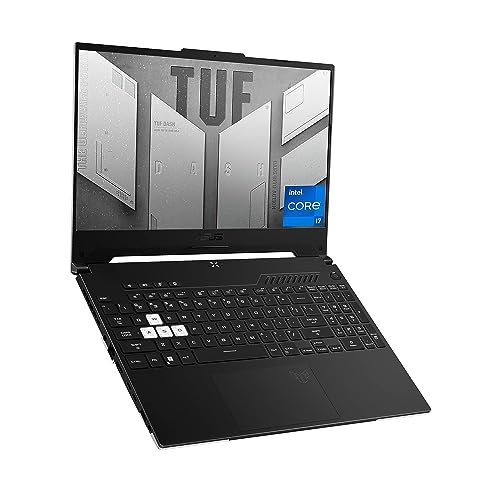
ASUS TUF Dash 15 (2022) Gaming Laptop, 15.6" 144Hz FHD Display, Intel Core i7-12650H, GeForce RTX 3060, 16GB DDR5, 512GB SSD, Thunderbolt 4, Windows 11 Home, Off Black, FX517ZM-AS73
Chosen because it specifies 15.6" 144Hz FHD Display and Intel Core i7-12650H.
View on AmazonThe TUF Dash 15 FX517ZM uses an Intel Core i7-12650H, an NVIDIA GeForce RTX 3060, 16GB of DDR5 and a 512GB SSD behind a 15.6-inch Full HD 144Hz display. The listing mentions Thunderbolt 4, which is useful for USB-C Link cables and external accessories. It is slimmer than many gaming laptops, which can mean tighter cooling.
- Specs: Core i7-12650H, RTX 3060, 16GB DDR5, 512GB SSD, Thunderbolt 4
- Best for: players who want a portable laptop with a fast USB-C port.
- Skip if: you expect long, cool sessions.
Pros: Thunderbolt 4, DDR5 memory, slimmer design, solid RTX 3060 performance.
Cons: 512GB storage, slim chassis can run warm, 2022 platform.
6. MSI Katana GF66: Budget RTX 3060
The Katana GF66 11UE-617 uses an Intel Core i7-11800H, an NVIDIA GeForce RTX 3060, 16GB of memory and a 512GB NVMe SSD with a 15.6-inch Full HD 144Hz 3ms display. It runs Windows 11. The eight-core processor handles VR well, and it is one of the older platforms here, so it works best when it comes in at a lower price tier.
- Specs: Core i7-11800H, RTX 3060, 16GB RAM, 512GB NVMe SSD, 144Hz
- Best for: shoppers who want RTX 3060 VR performance at a lower tier.
- Skip if: you want newer ports and Wi-Fi 6E.
Pros: eight-core CPU, RTX 3060, 16GB RAM, fast NVMe storage.
Cons: older platform, plastic chassis, modest battery life.
7. HP Victus 15 (2024): Entry VR With RTX 4050
HP Victus 15.6 inch FHD 144Hz Gaming Laptop Intel Core i5-13420H NVIDIA GeForce RTX 4050 6GB - 16GB DDR4 512GB SSD Mica Silver (2024)
Chosen because it specifies 16GB DDR4 512GB SSD Mica Silver (2024).
View on AmazonThe Victus 15 uses an Intel Core i5-13420H and an NVIDIA GeForce RTX 4050 with 6GB of video memory, plus 16GB of DDR4 and a 512GB SSD behind a 15.6-inch Full HD 144Hz display. It sits at the entry point for VR, and it will handle lighter VR titles and streamed play. Do not expect maximum settings in the most demanding games.
- Specs: Core i5-13420H, RTX 4050 6GB, 16GB DDR4, 512GB SSD, 144Hz
- Best for: casual VR on a tight budget.
- Skip if: you plan to play demanding VR titles with high settings.
Pros: lower price tier, modern RTX 40 series features, 16GB RAM.
Cons: 6GB of video memory is tight, DDR4 memory, i5 CPU rather than i7.
Also Consider
Lenovo LOQ with RTX 4050

Lenovo LOQ Gaming Laptop, GeForce RTX 4050, AMD Ryzen 5 7235HS Processor | 15.6" 144Hz FHD Display, 16GB DDR5, 512GB SSD, Wi-Fi 6, Ethernet, USB-C, HDMI, Backlit Keyboard, Windows 11 Home
Chosen because it specifies GeForce RTX 4050 and AMD Ryzen 5 7235HS Processor.
View on AmazonThe LOQ pairs an RTX 4050 with an AMD Ryzen 5 7235HS, a 15.6-inch 144Hz Full HD display, 16GB of DDR5 and a 512GB SSD. The listing mentions Wi-Fi 6, Ethernet, USB-C and HDMI, which covers the main VR connection needs. It is another entry-tier choice.
Alienware X17 R2 (VR Ready listing)
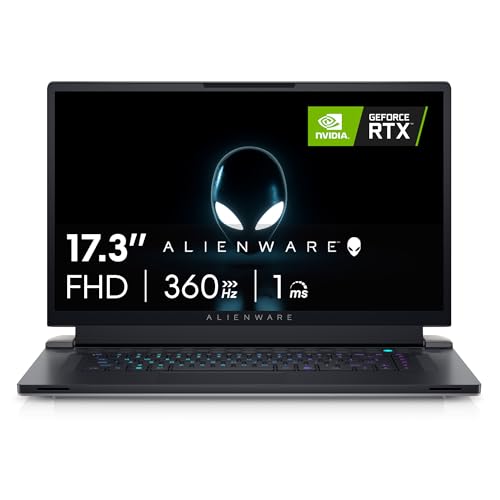
Alienware X17 R2 VR Ready Gaming Laptop - 17.3-inch FHD 360Hz 1ms Display, Core i7-12700H, 16GB RAM, 1TB SSD, NVIDIA GeForce RTX 3070Ti 8GB GDDR6, Bluetooth, Wi-Fi 6, USB-C, Windows 11 Home - White
Chosen because it specifies 17.3-inch FHD 360Hz 1ms Display and Core i7-12700H.
View on AmazonA premium 17.3-inch laptop with a Core i7-12700H, RTX 3070 Ti 8GB, 16GB of RAM, a 1TB SSD and a 360Hz 1ms display. It is labeled VR Ready and includes USB-C and Wi-Fi 6. It sits in a high price tier.
Acer Nitro V 15.6 with RTX 5050

acer Nitro V 15.6” FHD IPS 165Hz Gaming Laptop, Intel Core i5-13420H, NVIDIA GeForce RTX 5050 with 8GB GDDR7 VRAM, Win11H, w/Mouse pad (16GB RAM, 512GB PCIe SSD)
Chosen because it specifies Intel Core i5-13420H and NVIDIA GeForce RTX 5050 with 8GB GDDR7 VRAM.
View on AmazonA newer entry option with a Core i5-13420H, an RTX 5050 with 8GB of GDDR7 video memory, 16GB of RAM, a 512GB SSD and a 15.6-inch Full HD 165Hz screen. The extra video memory over the RTX 4050 is useful for VR textures.
How We Chose
This guide is based on desk research. We did not use these laptops ourselves. We read the listing specifications, Meta’s published PC requirements for Link, and public GPU and CPU guidance. We kept laptops with an RTX 3060 or better, or an RTX 4050 or better, and left out RTX 3050 and GTX models because of Meta’s guidance. We favored 16GB RAM, a fast SSD and a modern USB-C or video-out port. Where the listing did not state a detail, such as port wiring, we say to check the maker.
Buying Guide for a VR Laptop
GPU tiers
| GPU class | VR suitability |
|---|---|
| RTX 5070, RTX 4070 and above | Strong for high-resolution headsets and demanding games |
| RTX 4060, RTX 3070 Ti | Good for most VR titles at high settings |
| RTX 4050, RTX 3060 | Fine for most games with some setting reductions |
| RTX 3050, GTX 1650, RTX 2050 | Not recommended by Meta or third-party guides |
Ports
For a Quest headset, a USB-C 3.x port is the usual connection. For a PC headset, look at whether the HDMI or DisplayPort output is wired to the NVIDIA GPU. The maker’s spec sheet or owner reviews usually answer this.
RAM and storage
Aim for 16GB of RAM and at least 512GB of storage. VR games are large, and 1TB is more comfortable.
Cooling
VR is a long, steady load. Thicker laptops with a rear vent tend to hold performance better than thin ones. A laptop stand helps airflow.
Wi-Fi
If you plan to stream wirelessly, Wi-Fi 6 or 6E and a dedicated router near the play space make a big difference in latency.
Which Headset Are You Pairing With the Laptop?
The right laptop depends partly on the headset, because different headsets connect in different ways.
| Headset type | How it connects | What to check on the laptop |
|---|---|---|
| Standalone headset used as a PC display (Quest family) | USB-C cable through Link, or Wi-Fi through Air Link | Supported GPU, USB-C or USB 3 port, strong Wi-Fi 6 router |
| PC headset with its own display cable | HDMI or DisplayPort plus USB | Video output wired to the NVIDIA GPU, enough USB ports |
| Older Windows mixed-reality headsets | HDMI and USB 3 | Check the maker’s compatibility list, as support has narrowed over time |
The Quest route is the most flexible for laptops, because the headset compresses the video and sends it over USB or Wi-Fi. That reduces the dependence on a specific video-out port. It does not remove the need for a capable GPU: the laptop still renders the game.
How to Get Smooth VR Frame Rates on a Mid-Range Laptop
If you pick an RTX 3060 or RTX 4050 laptop, the settings you choose matter as much as the hardware. These steps help most.
- Lower the render resolution first. Most VR software has a resolution or supersampling slider. Dropping it a notch often gives a large frame-rate gain with a small visual change.
- Set the headset refresh rate to match your hardware. A steady 72Hz looks better than an unstable 90Hz.
- Turn down shadows and effects. Shadows, reflections and volumetric lighting cost the most GPU time.
- Use upscaling when the game offers it. NVIDIA’s DLSS and similar options can raise performance in supported titles.
- Keep the laptop plugged in and on its performance mode. Both settings affect the GPU’s power limit.
- Watch temperatures. If frame rates fall after 15 or 20 minutes, the laptop is probably throttling. A stand or cooling pad usually helps.
VR Laptop vs Desktop vs Standalone Headset Only
A gaming laptop is the right choice if you want one machine for work, flat-screen gaming and VR. If you only play VR at home, a desktop gives more performance per dollar and easier upgrades. If you only want casual games, a standalone headset may be enough, and you can skip the laptop entirely.
- Choose a laptop if you move between rooms, travel with your setup or have limited space.
- Choose a desktop if you want the highest VR quality and plan to upgrade the GPU later.
- Choose standalone if you mostly play games built for the headset and do not need PC titles.
How Demanding Is Your VR Library?
Not every VR game asks for the same hardware. Matching the laptop to the games you actually play can save a lot of money.
Light load: rhythm, fitness and puzzle games
Games with simple graphics run comfortably on an RTX 3060 or RTX 4050 laptop, even in a thinner chassis. These titles are also the easiest to stream wirelessly.
Medium load: action and adventure games
Action games with detailed environments benefit from an RTX 4060 or better and from 16GB of RAM. Expect to lower render resolution or shadows on an RTX 3060.
Heavy load: simulation and large open worlds
Flight and racing simulators and big PC VR games push the GPU and CPU hard. For these, the Omen 16 with the RTX 5070 or the ROG Strix G16 with its HX processor is a safer choice, and a thicker chassis matters for long sessions.
Accessories Worth Adding
- A quality USB-C 3.2 link cable if you use a Quest headset. A weak cable is a common cause of dropouts.
- A laptop stand or cooling pad to lift the rear vents and reduce throttling.
- A wireless router with Wi-Fi 6 or 6E placed near the play area for wireless streaming.
- An external SSD or a second internal drive to hold large VR game libraries.
- A battery or power-bank strap for the headset if you play long sessions wirelessly, so the headset does not run out first.
Common Mistakes When Buying a VR Laptop
- Buying an RTX 3050 laptop because it is cheap. Meta’s guidance does not recommend it, and you may run into poor performance and dropouts.
- Ignoring the power adapter. VR draws a lot of power. Always use the original charger.
- Assuming all USB-C ports are the same. Some are charge-only or run at slow speeds. Check that the port supports data at USB 3 speeds.
- Forgetting storage. VR titles are large. A 512GB drive fills quickly, so plan for an upgrade or a second drive.
- Overlooking the screen. The laptop’s own screen matters less in VR, but you will use it for everything else, so do not pay extra for refresh rate you will not use.
- Skipping the return policy. If a laptop does not work with your headset, you want an easy return.
Setup Tips for Laptop VR
- Plug in the charger. A laptop on battery drops GPU power and VR becomes choppy.
- Force the VR app onto the NVIDIA GPU. In Windows graphics settings, select the high-performance GPU for the VR software.
- Update graphics drivers. VR software often needs recent drivers.
- Close background apps. Browsers and launchers use memory and CPU that VR needs.
- Use a short, good USB-C cable. A poor cable causes dropouts that look like performance problems.
- Cool the laptop. Raise the back with a stand and keep the vents clear.
Frequently Asked Questions
Can a gaming laptop run VR?
Yes, if it has a supported dedicated GPU, enough RAM and the right port. Gaming laptops with an RTX 3060 or better handle most VR headsets well.
What GPU do I need for VR on a laptop?
An RTX 3060 or RTX 4050 is a practical minimum, and an RTX 4060 or better is more comfortable. Meta does not recommend the laptop RTX 3050 or 3050 Ti for Link.
How much RAM does a VR laptop need?
Meta’s minimum is 8GB, but 16GB is recommended. If you stream or run other apps, 32GB gives extra room.
Do I need a special port for VR?
Quest headsets use USB-C or USB 3 through Link, or Wi-Fi through Air Link. PC headsets usually need an HDMI or DisplayPort output wired to the dedicated GPU, so check your model.
Can I use a Meta Quest with a laptop?
Yes. You can use a Link cable or wireless Air Link, as long as the laptop meets Meta’s PC requirements and the GPU is supported.
Is a laptop as good as a desktop for VR?
A desktop with the same GPU name usually performs better, since it has higher power limits and cooling. A good laptop is still enough for most VR games.
Will an integrated graphics laptop work for VR?
No. Integrated graphics are not enough for PC VR. You need a dedicated NVIDIA or AMD GPU from the supported list.
Which One Should You Buy?
- Best overall: HP Omen 16 AI for the strongest GPU and VR Ready listing.
- Best balance: ASUS ROG Strix G16 with RTX 4060 and Wi-Fi 6E.
- Best 16-inch screen: Acer Nitro V ANV16-71.
- Best value: Acer Nitro 5 AN515-58 with RTX 3060.
- Best Thunderbolt port: ASUS TUF Dash 15.
- Lowest tier with RTX 3060: MSI Katana GF66.
- Entry VR: HP Victus 15 with RTX 4050.
Check the maker’s current requirements for your headset before you buy, since VR software updates can change what is supported.
Sources
- Meta: Windows PC requirements for Meta Horizon Link
- Meta Quest help pages on Link and Air Link
- Store listing specifications for the models above
Last updated: November 2026
FAQ
Which Headset Are You Pairing With the Laptop?
How Demanding Is Your VR Library?
Can a gaming laptop run VR?
What GPU do I need for VR on a laptop?
How much RAM does a VR laptop need?
Do I need a special port for VR?
Can I use a Meta Quest with a laptop?
Is a laptop as good as a desktop for VR?
More from Amazon
Programs that pair well with the guide above. Offers and eligibility are set by Amazon and may change.
A free business account with business pricing and bulk-buying tools for work, shop or home office.
Create a business accountFree shipping on eligible items, Prime Video and more. Eligible new members can start with a free trial.
Start a Prime free trialAudiobooks and podcasts to listen to on the go. Eligible new members can start with a free trial.
Try Audible freeAd-free music streaming. Eligible new subscribers can start with a free trial.
Try Music Unlimited freeAs an Amazon Associate we earn from qualifying purchases.