Key takeaways
- Vapor Chamber vs. Heat Pipes: Vapor chambers spread heat more evenly across a larger surface area than traditional heat pipes, making them preferable for high-wattage GPUs. Look for models that advertise vapor chamber cooling if you plan on running demanding titles for hours at a stretch.
- Fan Count and Blade Design: Dual-fan setups with many thin blades (often 84 or more per fan) move comparable air at lower RPMs, reducing noise without sacrificing airflow. Avoid single-fan designs on anything above an entry-level GPU.
- Exhaust Vent Placement: Rear and side exhaust vents help push hot air away from the chassis rather than recirculating it. Bottom-mounted intakes should have ample clearance, so consider a cooling pad if your desk surface restricts airflow.
- Wattage and TGP: A higher Total Graphics Power rating means more heat to dissipate. An RTX 5070 running at 140W generates significantly more thermal load than the same GPU at 85W, so match your cooling expectations to the configured wattage.
- Undervolting and Software Control: Laptops that ship with robust control software let you create custom fan curves or undervolt the CPU and GPU. This capability can drop temperatures by 5 to 10 degrees Celsius with minimal performance loss.
Heat is the silent killer of gaming performance. When a laptop’s CPU and GPU hit their thermal limits, they throttle back, frame rates crater, and that expensive graphics card you paid for becomes a liability rather than an asset. Budget and mid-range gaming laptops are especially vulnerable because manufacturers often pack high-wattage components into chassis with limited airflow, undersized heat pipes, or single-fan designs that simply cannot keep pace with sustained loads during extended gaming sessions.
This guide focuses on gaming laptops that manage heat effectively without requiring enthusiast-tier budgets. We evaluated models across price points and GPU classes, paying close attention to cooling architecture, fan design, vapor chamber usage, exhaust venting, and real-world behavior under extended gaming loads. Whether you are looking at a sub-$1,000 machine with an RTX 5060 or a higher-end model with an RTX 5070, thermal management directly determines how much of that hardware’s potential you actually get to use.
Our top picks
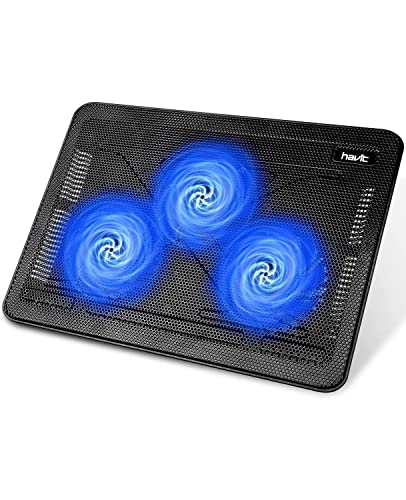 havit HV-F2056 15.6"-17" Laptop Cooler Cooling Pad
- Product Group: Personal Computer
- Binding: Personal Computers


 msi Katana 15 HX 15.6” 165Hz QHD+
- Product Group: Personal Computer
- Binding: Personal Computers

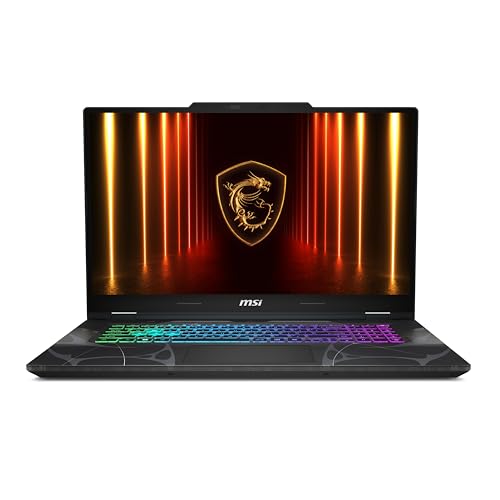 msi Cyborg 17 17.3" FHD 144Hz Gaming
- Product Group: Personal Computer
- Binding: Personal Computers


As an Amazon Associate we earn from qualifying purchases at no extra cost to you. Ratings are shown as listed on Amazon.
🛒 Best Price Today on Amazon
Prime members get fast, free shipping on everything above, plus member-only deals. New members get a 30-day free trial — cancel anytime.
Watch: Best Thermal Performance Gaming Laptops That Stay Cool Under Load — Video Review
How to Choose a Thermal Performance Gaming Laptops That Stay Cool Under Load
- Vapor Chamber vs. Heat Pipes: Vapor chambers spread heat more evenly across a larger surface area than traditional heat pipes, making them preferable for high-wattage GPUs. Look for models that advertise vapor chamber cooling if you plan on running demanding titles for hours at a stretch.
- Fan Count and Blade Design: Dual-fan setups with many thin blades (often 84 or more per fan) move comparable air at lower RPMs, reducing noise without sacrificing airflow. Avoid single-fan designs on anything above an entry-level GPU.
- Exhaust Vent Placement: Rear and side exhaust vents help push hot air away from the chassis rather than recirculating it. Bottom-mounted intakes should have ample clearance, so consider a cooling pad if your desk surface restricts airflow.
- Wattage and TGP: A higher Total Graphics Power rating means more heat to dissipate. An RTX 5070 running at 140W generates significantly more thermal load than the same GPU at 85W, so match your cooling expectations to the configured wattage.
- Undervolting and Software Control: Laptops that ship with robust control software let you create custom fan curves or undervolt the CPU and GPU. This capability can drop temperatures by 5 to 10 degrees Celsius with minimal performance loss.
The Best Thermal Performance Gaming Laptops That Stay Cool Under Loads Reviewed
ASUS ROG Strix G16 (2025)
The Strix G16 employs ASUS’s Tri-Fan 2.0 system with a second intake fan that draws air across the CPU and GPU independently, and the seven heat pipes feed a generous exhaust channel. Combined with Conductonaut Extreme liquid metal on the CPU, this chassis holds its boost clocks longer than most peers in the RTX 5060 class.
MSI Katana 15 HX
MSI pairs the Core i9-14900HX and RTX 5070 with a Cooler Boost 5 design featuring dual fans and six heat pipes, which is substantial for this price tier. The higher-wattage components do run warm under maximum load, so using the built-in MSI Center to set an aggressive fan profile is recommended for sustained gaming.
Acer Nitro V 15
The Nitro V’s dual-fan cooling design with asymmetric blade rotation reduces resonance and keeps the RTX 5060 within safe operating range during marathon sessions. It is a strong budget option that does not cut corners on thermal architecture the way some sub-$1,000 laptops do.
MSI Cyborg 17
The larger 17.3-inch chassis gives MSI room for a more expansive heatsink array, and the dual exhaust vents effectively channel heat away from the Core 7-240H and RTX 5060. This extra physical space makes it one of the cooler-running budget gaming laptops available.
KAIGERR 2026 Gaming Laptop
With its Ryzen 7 H255 and integrated Radeon RX Vega 8 graphics, this machine generates far less heat than discrete-GPU alternatives, making thermal throttling a non-issue. It is a sensible pick for casual gamers who prioritize cool, quiet operation over pushing ultra settings.
Frequently Asked Questions
Do gaming laptops overheat easily?
Not inherently, but thermal performance varies significantly by model. Laptops with dual fans, multiple heat pipes, and well-designed intake and exhaust paths manage heat well. Cheaper designs with single fans or blocked vents are more prone to throttling under sustained loads.
Should I use a cooling pad?
A cooling pad can help if your laptop’s bottom intake is restricted or if you game on a soft surface. A pad with three USB-powered fans can reduce chassis temperatures by a few degrees, which may prevent throttling on machines running close to their thermal limits.
Is undervolting safe for a gaming laptop?
Yes, undervolting reduces the voltage supplied to the CPU or GPU without cutting clock speeds, which lowers temperatures and power draw. Most modern gaming laptops support it through manufacturer software or tools like MSI Afterburner, and the performance impact is typically negligible or even positive.
How hot should a gaming laptop get?
CPU and GPU temperatures between 75 and 88 degrees Celsius under full gaming load are normal and safe. If you see sustained temperatures above 95 degrees, the laptop is likely throttling and you should check fan profiles, clean the vents, or consider a cooling pad.
Final Thoughts
For buyers who want strong thermals without overspending, the Acer Nitro V 15 and MSI Cyborg 17 both deliver well-engineered dual-fan cooling at budget-friendly prices. If you want the best thermal headroom in the mid-range tier, the ASUS ROG Strix G16 stands out with its tri-fan system and liquid metal application, making it the top pick for sustained high-performance gaming.