Key takeaways
- Match resolution to your GPU: If you’re running an entry-level or older card, 1080p at a high refresh rate will feel far better than 1440p at low frame rates. Only step up to QHD if your GPU can consistently push frames at that resolution in the games you actually play.
- Prioritise refresh rate over HDR claims: Budget monitors rarely have the brightness or local dimming to make HDR meaningful. A real 144Hz panel improves every session; a “HDR10 compatible” badge on a 250-nit screen usually does not.
- Check the ports before you buy: Some inexpensive monitors only hit their maximum refresh rate over DisplayPort, dropping to 60Hz or 75Hz on HDMI. Confirm the port you plan to use supports the speed you’re paying for.
- Look for adaptive sync support: FreeSync (and G-Sync Compatible certification) eliminates screen tearing without the input lag penalty of V-Sync. At this price it’s essentially free, so there’s little reason to skip it.
- Factor in the stand and mounting: Sub-$200 monitors often ship with tilt-only stands. If ergonomics matter to you, check for a VESA mounting pattern so you can pair the panel with an inexpensive arm later.
What's inside
Shopping for a gaming monitor under $200 is genuinely difficult in 2026, because this is the price bracket where marketing language does the heaviest lifting. Nearly every panel in this range advertises a high refresh rate, “1ms” response time, and some flavor of HDR, yet the real-world differences between them are substantial. Cheap monitors cut corners in places spec sheets never mention: panel uniformity, colour accuracy out of the box, input lag at native resolution, stand adjustability, and whether that advertised refresh rate is actually reachable over the ports included. The result is that two monitors with near-identical listings can deliver very different gaming experiences.
This guide cuts through that noise. We’ve focused on displays that stay comfortably under the $200 ceiling while delivering the things that actually matter for gaming — genuinely fast refresh rates, low input lag, adaptive sync support, and colour that doesn’t need an hour of calibration before it looks right. Below you’ll find our top picks, a short buying framework to help you match a panel to your GPU and your games, and answers to the questions we see most often from budget buyers.
As an Amazon Associate we earn from qualifying purchases at no extra cost to you. Product prices and availability are accurate as of the date shown and are subject to change.








⚡ Save on Your Next PC — Amazon Prime
Prime members get fast free shipping on the systems above, plus early access to Prime Day & Black Friday PC deals. New members get a 30-day free trial.
Watch: Best Gaming Monitor Under $200 — Video Review
How to Choose Gaming Monitor Under $200
- Match resolution to your GPU: If you’re running an entry-level or older card, 1080p at a high refresh rate will feel far better than 1440p at low frame rates. Only step up to QHD if your GPU can consistently push frames at that resolution in the games you actually play.
- Prioritise refresh rate over HDR claims: Budget monitors rarely have the brightness or local dimming to make HDR meaningful. A real 144Hz panel improves every session; a “HDR10 compatible” badge on a 250-nit screen usually does not.
- Check the ports before you buy: Some inexpensive monitors only hit their maximum refresh rate over DisplayPort, dropping to 60Hz or 75Hz on HDMI. Confirm the port you plan to use supports the speed you’re paying for.
- Look for adaptive sync support: FreeSync (and G-Sync Compatible certification) eliminates screen tearing without the input lag penalty of V-Sync. At this price it’s essentially free, so there’s little reason to skip it.
- Factor in the stand and mounting: Sub-$200 monitors often ship with tilt-only stands. If ergonomics matter to you, check for a VESA mounting pattern so you can pair the panel with an inexpensive arm later.
The Best Picks Reviewed
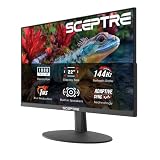
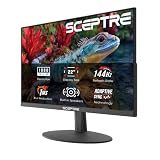
Sceptre E225W-FW144 22-Inch
A focused, no-nonsense 1080p panel that puts its budget into the two things competitive players care about: a 144Hz refresh ceiling and low input lag. The 22-inch size keeps pixel density high and your whole field of view within easy glance range, which is a genuine advantage in fast shooters.
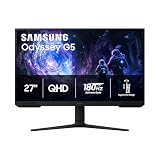
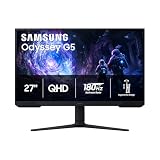
Samsung Odyssey G5 (G51F) 27″
The most ambitious pick here, delivering QHD resolution on a 27-inch panel — a combination that normally costs considerably more. It’s the right call if your GPU has headroom for 1440p, though pair it with a mid-range card or better to avoid leaving the panel underfed.
ArcticPro 22-Inch 144Hz
Strong value for anyone who wants 144Hz without paying a brand premium, and the 105% sRGB coverage means colours look considerably better than the typical entry-level panel. A sensible choice for a secondary display or a first dedicated gaming monitor.
Sceptre E275W-FW100T 27-Inch Prime
This is the pick for players who want screen real estate above all else, offering a full 27 inches with 100% sRGB coverage and dual HDMI inputs for console and PC. The 100Hz refresh rate is a step below the fastest options here, but it remains a clear upgrade over 60Hz for most single-player and mixed-genre libraries.
Philips 221V8LB 22-Inch
The VA panel gives this Philips noticeably deeper blacks than the IPS and TN competition, which pays off in atmospheric and horror titles. At 100Hz with flicker-free backlighting it’s a comfortable all-rounder for gaming plus long work sessions, though VA response times mean fast motion isn’t quite as crisp.
Frequently Asked Questions
Is 1080p still worth buying in 2026?
Absolutely, particularly under $200. At 22 to 24 inches, 1080p offers perfectly respectable sharpness, and the frame rates it enables on modest hardware are far more valuable for gaming than extra pixels you can’t drive smoothly.
Do I need 144Hz, or is 100Hz enough?
If you play competitive shooters, fighting games, or racing sims, the jump to 144Hz is worth prioritising. For story-driven, strategy, or slower-paced games, 100Hz already feels dramatically smoother than 60Hz and the difference beyond that narrows considerably.
Will these monitors work with a PS5 or Xbox Series X?
Yes, all of them will display console output over HDMI. Bear in mind that consoles typically cap out at 120Hz, and some budget panels limit HDMI to lower refresh rates, so check the specific port specification if high-refresh console play is your priority.
Is a curved monitor better for gaming?
At 24 inches the benefit is subtle — curvature becomes genuinely useful at 32 inches and above, where it reduces the viewing angle difference between the centre and edges of the screen. Buy a curved panel like the Sceptre C248W if you prefer the aesthetic and immersion, not because you expect a competitive advantage.
Final Thoughts
For most buyers, the Sceptre E225W-FW144 is the smartest use of a sub-$200 budget: real 144Hz performance at a size and resolution that almost any GPU can drive well. If your system has more headroom and you want the biggest visual upgrade available at this price, the Samsung Odyssey G5 (G51F) brings QHD to the category and is the one to stretch for. And if screen size matters more to you than raw refresh rate, the Sceptre E275W-FW100T delivers a genuinely large, colour-accurate 27-inch panel for the money — a combination that would have been unthinkable at this budget a few years ago.