Key takeaways
- Let’s be blunt: $600 is tight for graphic design. You won’t get perfect color accuracy, a powerful GPU, and a premium display in one machine. But you can get something genuinely workable for Photoshop, Illustrator, Canva, Figma, and light photo…
Let’s be blunt: $600 is tight for graphic design. You won’t get perfect color accuracy, a powerful GPU, and a premium display in one machine. But you can get something genuinely workable for Photoshop, Illustrator, Canva, Figma, and light photo editing – if you prioritize the right things and accept the right compromises.
For most students and beginners, the cheaper option is fine. You don’t need an RTX GPU to learn layout, typography, vector work, or basic photo retouching. You need enough RAM, a decent IPS screen, and an SSD that doesn’t stall every time you open a 300MB PSD.
What actually matters under $600
Forget marketing terms like “thin and light for creators.” At this price, check four specs in this order:
1. Screen: 1080p IPS, 300 nits if possible. This is the biggest failure point. Many $350-$450 laptops still ship with a washed-out TN panel or a dim 220-nit IPS panel. For design, that matters more than CPU speed. You can’t judge contrast or skin tones on a screen that crushes shadows. Look for “IPS” and “300 nits” explicitly. If a listing doesn’t say IPS, assume it’s bad.
2. RAM: 16GB preferred, 8GB only if upgradeable. Photoshop + Chrome + Illustrator on 8GB will use the SSD as overflow memory and feel laggy with more than a few layers. 16GB is the single best upgrade for design work. If you buy 8GB to save money, make sure it has an open SODIMM slot – soldered 4GB or 8GB with no upgrade path is a dead end.
3. CPU: Modern Ryzen 5 / Ryzen 7 or Core i5. Avoid N-series, Celeron, Pentium, and older Athlon chips. They will open Photoshop, but filters, blur gallery, and exporting will crawl. An AMD Ryzen 5 5500U/7530U or Intel Core i5-1235U/1335U is the sweet spot in this price range.
4. SSD: 512GB. Design files pile up fast. 256GB fills up after Adobe apps, cache, and a semester of projects. 512GB NVMe should be the baseline unless you already use an external SSD.
You will not get a dedicated GPU under $600 new, and that’s okay. Integrated Radeon 680M / Intel Iris Xe graphics handle 2D design, UI work, and light Lightroom edits fine. Where you’ll feel the limit is 4K video effects, heavy 3D, and complex Illustrator files with hundreds of artboards.
Best types to buy right now
Instead of chasing a single “winner” that goes out of stock, shop by configuration. These three configurations cover 90% of buyers under $600:
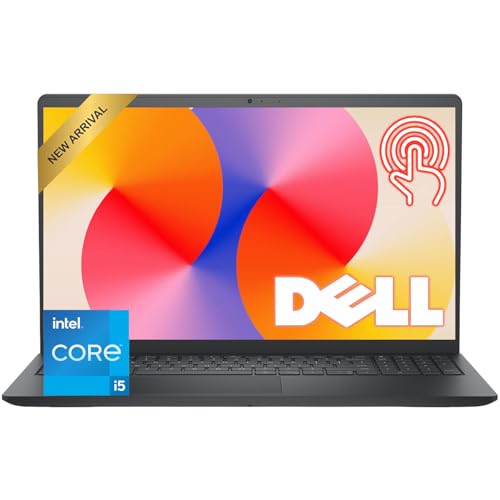
Best all-rounder: 15.6-inch Ryzen 5 or Core i5 with 16GB RAM and 512GB SSD. This is what we recommend for most design students. You get a large 1080p IPS screen for timelines and toolbars, enough RAM to keep Photoshop and a browser open, and a CPU that won’t choke on export. The trade-off is color: most hit around 60-65% sRGB, good enough to learn on but not good enough for paid print work without an external monitor. Check current prices on a budget laptop with 16GB RAM and IPS display and filter to 15.6-inch models.
Best for color on a budget: 14-inch 2-in-1 with 100% sRGB. A few 14-inch 2-in-1s dip to $550-$600 on sale with a much better screen – often listed as 100% sRGB. You give up screen size and sometimes RAM (many are fixed at 8GB), but for illustration, photo editing, and Figma, accurate color beats an extra inch. Ideal if you draw with a pen or work in coffee shops. Look through 14-inch 2-in-1 laptops with 100% sRGB coverage and verify the color spec in the details, not just the title.
Cheapest workable setup: 8GB model you upgrade yourself. If $600 is a hard ceiling including Adobe subscriptions, buy a well-built 8GB machine with an accessible RAM slot and add a second 8GB stick for $20-$25 later. This suits hobbyists doing Canva, Inkscape, GIMP, and first-year design classes. Do not do this with soldered RAM – if the specs say “soldered” or “onboard” with no slot, skip it.
| Use case | What to buy | Key trade-off | Who it suits |
|---|---|---|---|
| Photoshop + Illustrator student | 15.6-in IPS, Ryzen 5 / i5, 16GB / 512GB | Average color (~62% sRGB), bulky charger | School, freelance beginners |
| Illustration / photo color work | 14-in 2-in-1, 100% sRGB, pen support | Often only 8GB RAM, smaller canvas | Digital artists, Lightroom users |
| Tight budget / first laptop | Upgradeable 8GB model + DIY RAM upgrade | Slower out of the box, need to open chassis | Hobbyists, Canva / GIMP users |
| Print / paid client work | Any above + budget external monitor | Total over $600, not portable | Anyone delivering CMYK files |
Common failure modes to avoid
We see the same mistakes in returns and one-star reviews. First, buying a laptop with a TN display because it had “Full HD” in the title. Full HD only means resolution. Without IPS, viewing angles shift and grays turn pink when you tilt the screen. If you do client logos on one, what you send is not what they see.
Second, buying 4GB or soldered 8GB. Adobe’s minimum requirements are misleading. Minimum means it launches, not that it’s usable. With 8GB soldered, you can’t fix stutter by closing tabs forever. With 16GB, you can.
Third, expecting good out-of-box calibration. Even decent budget IPS panels tend to run cool/blue and too bright. Set brightness to 120 cd/m2 equivalent (usually 70-80%), turn off night light / eye-care modes when editing, and use Windows color management. It won’t make a 62% sRGB panel accurate, but it stops you from over-saturating everything.
Fourth, ignoring thermals and hinges. Thin budget laptops with Ryzen 7 / i7 can throttle under sustained export. If the fan screams and the keyboard gets hot during a 10-minute Photoshop filter test, that machine will age poorly. A slightly thicker office-style chassis usually lasts longer than an ultra-thin sale model.
How to shop smart at this price
Buy the screen you can verify. Retail listings are sloppy – one seller will list “IPS” and another won’t for the same configuration. Check the manufacturer’s spec PDF by serial or model number, look for nits and color gamut, and ignore “HD display” without details.
Consider refurbished business laptops only if you know what you’re doing. A two-year-old business machine can have a better keyboard and build quality, but most have dimmer 250-nit screens and 8GB RAM. For design, a new budget consumer model with a brighter IPS panel usually beats an older premium chassis with a dull screen.
Plan for a second display later. The honest upgrade path under $600 is: buy for RAM and CPU now, add color later. A 24-inch 100% sRGB IPS monitor for photo editing costs less than jumping to a $900 creator laptop, and it solves the exact weakness of budget laptop screens when you’re at your desk doing final color.
If you do video or 3D as well as graphic design, be realistic: under $600 you can cut 1080p in Premiere or DaVinci, but effects previews will lag and renders will be slow. In that case prioritize 16GB RAM and a Ryzen chip with stronger integrated graphics over a touchscreen.
FAQ
Is 8GB RAM enough for Photoshop under $600?
For light work – single files, under 20 layers, no heavy multitasking – yes. For school projects with Photoshop + Illustrator + Chrome open, 8GB will stutter. Get 16GB if you can, or only buy 8GB if you can add more RAM later.
Do I need a dedicated graphics card for graphic design?
No, not for logos, posters, UI, photo editing, or beginner motion graphics. Integrated graphics on a modern Ryzen 5 or Core i5 is enough. You need a dedicated GPU only for heavy 3D, complex After Effects, or 4K video effects, which generally means spending over $800.
What screen spec matters most for design?
IPS panel type first, then brightness (aim for 300 nits), then color gamut (100% sRGB is ideal, 60%+ is workable to learn on). Resolution should be 1920×1080 minimum. Avoid any laptop that doesn’t clearly list IPS.
Mac or Windows under $600 for design?
At this price, Windows. You won’t find a new Mac with enough RAM and storage under $600, and used Macs in this range are often too old for current Adobe apps. A new Windows laptop with 16GB RAM will run the current Creative Cloud versions more reliably.