Key takeaways
- Photo editing under $600 is doable, but you have to shop differently than most “best laptop” lists tell you to. You are not looking for the fastest processor or a gaming GPU. You are looking for a decent IPS screen,…
Photo editing under $600 is doable, but you have to shop differently than most “best laptop” lists tell you to. You are not looking for the fastest processor or a gaming GPU. You are looking for a decent IPS screen, 16GB of RAM, and a fast SSD, without getting stuck with a dim display that makes all your edits look wrong on other screens.
At this price you will not get perfect color accuracy, a high-end OLED, or silent 4K Lightroom performance. You can get a machine that handles Lightroom Classic, Capture One Express, Darktable, GIMP, and Photoshop for 24-megapixel RAW files without constant stuttering. The trick is knowing where to compromise.
What actually matters for photo editing
Screen first. Look for IPS or IPS-level, 300 nits or better, and 100% sRGB if listed. Many sub-$600 laptops ship with a 220-250 nit TN or low-quality IPS panel with about 45% NTSC coverage. That means washed-out reds and greens, crushed shadows, and edits that look oversaturated once you post to your phone. If the listing does not say IPS and does not list nits or sRGB, assume it is a bad panel.
RAM second. 16GB is the real minimum for comfortable RAW work. Lightroom will open with 8GB, but once you stack lens corrections, healing, and 200+ images in a catalog, it starts swapping to disk and brush strokes lag. Storage third: 512GB SSD is ideal. A 256GB drive fills up after two or three shoots if you keep RAWs local. CPU matters least here – a modern Ryzen 5 7530U / 7730U or Intel Core i5-1335U is plenty for stills.
What to avoid
Avoid any laptop with eMMC storage or 4GB RAM, still sold on clearance models. They cannot run current Photoshop reliably. Avoid soldered 8GB with no upgrade slot unless the screen is exceptional and you only edit JPEGs. Also avoid “15.6-inch HD” in the specs – that almost always means a 1366×768 TN panel. For photo work you want Full HD 1920×1080 at minimum.
The other failure mode is a gaming laptop with a fast CPU but terrible screen. Some older budget gaming models pair a Ryzen 5 or i5-H with a 120Hz panel that looks great for motion but only covers 55-60% sRGB. Games look fine, skin tones do not. Do not assume gaming equals good color.
The 3 types worth buying under $600
There are no perfect $600 photo-editing laptops, only good compromises. These are the three patterns I see work repeatedly:
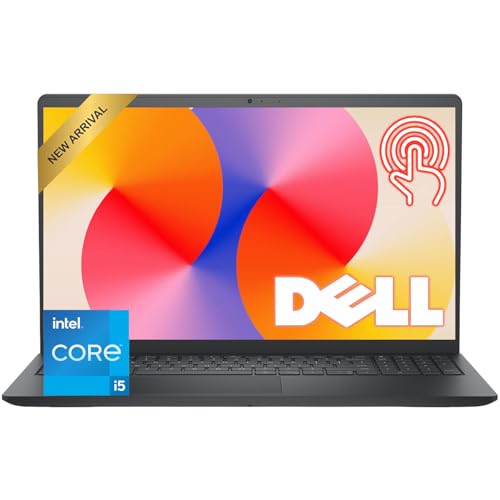
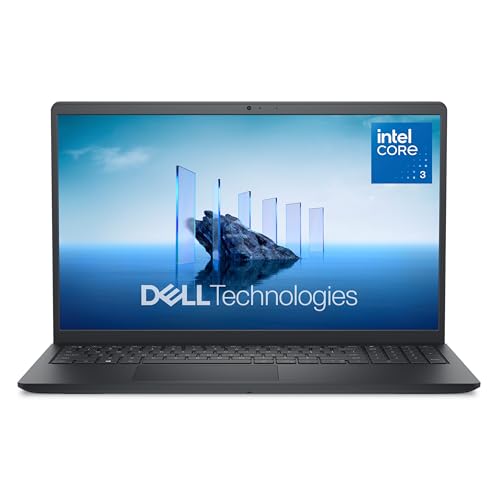
1. 15.6-inch Ryzen 5 / Core i5 with 16GB RAM and IPS. This is the safe all-rounder. Think IdeaPad Slim, Aspire, and Pavilion-class machines with a Ryzen 5 7530U or i5-1335U, 16GB RAM, 512GB SSD, and a confirmed IPS display. They are plastic, weigh around 3.7 lbs, and the speakers and trackpads are average, but Lightroom runs well and you get a number pad for shortcuts. When you shop, search specifically for Ryzen 5 16GB RAM IPS laptop configurations rather than just sorting by price, because the $399 version of the same model often drops to 8GB and a worse screen.
2. 14-inch 2-in-1 with a better screen. If you do culling on the couch or pen retouching, a 14-inch convertible with IPS touch can be worth the smaller keyboard. You usually trade upgradeability and sustained performance for a brighter, better-calibrated panel out of the box. Ideal for students and hobbyists editing 500-800 images per month. Look through current 14 inch 2-in-1 16GB RAM laptop options and check the questions section for “nits” and “sRGB” – owners will often post measurements.
3. Refurbished business laptop + external calibration. A refurbished ThinkPad T-series, Latitude, or EliteBook with 16GB RAM and a 400-nit low-power IPS screen often has better build quality and a more accurate panel than a new $550 consumer laptop. The trade-off is shorter battery life, older integrated graphics, and no warranty from the original maker. This suits someone who edits at a desk and does not mind buying a $30 colorimeter later. If you go this route, compare refurbished business laptops with 16GB and IPS and only buy renewed units with a 90-day return window.
| Option type | Typical screen | RAM / Storage | Best for | Main trade-off |
|---|---|---|---|---|
| 15.6-in Ryzen 5 / i5 clamshell | 1080p IPS, 250-300 nits, ~70-100% sRGB | 16GB / 512GB SSD | Lightroom catalogs, general use | Plastic build, average color out of box |
| 14-in 2-in-1 IPS touch | 1080p IPS touch, 300 nits | 16GB / 512GB SSD | Students, pen retouch, travel | Runs hotter, RAM often soldered |
| Refurb business 14-in | 1080p IPS 400-nit option | 16GB / 256-512GB SSD | Desk editing, calibrated workflow | Older CPU, worn battery, no factory warranty |
| Budget gaming (on sale) | 1080p 120Hz, often weak color | 16GB / 512GB SSD | Photoshop filters, light video | Heavy, loud fans, poor battery |
You will need to calibrate, even lightly
Almost every sub-$600 panel is too blue and too contrasty out of the box. You do not need a $200 calibrator on day one. Download the ICC profile from the panel maker if available, set Windows to sRGB, drop brightness to 120 cd/m2 equivalent (usually 70-80% indoor), and turn off all “vivid” or “night light” modes when editing.
If you print or do client work, a basic colorimeter pays for itself. Until then, do a phone check: export a JPEG and view it on your phone at full brightness. If skin looks orange on the laptop and normal on the phone, trust the phone and lower saturation on the laptop by eye until they match. It is crude but prevents the most common beginner mistake of over-editing on a washed-out screen.
When the cheaper option is fine
If you only edit JPEGs for social media, travel blogs, or school yearbook, an 8GB machine with a decent IPS screen is fine. Do not pay $80 extra for 16GB just for Lightroom Mobile or Snapseed-style edits. Put that money toward a 1TB external SSD for backups.
If you shoot 24MP RAW and batch-edit weddings, real estate, or sports – hundreds of files with presets and AI denoise – do not cheap out. 16GB RAM and 512GB SSD will save you hours. AI denoise in Lightroom in particular hammers both RAM and SSD space, often creating 80-100MB DNGs per image. On 8GB / 256GB machines it will stall or fail on large batches.
Also be realistic about video. These laptops can trim 1080p video for Reels, but 4K H.265 timelines will drop frames. If hybrid photo-video is your plan, you are better off saving to $750-$800 for an H-series processor or Apple Silicon refurb than forcing it at $600.
Quick checklist before you click buy
Confirm these four lines in the specs: 1) IPS, 2) 1920×1080 or higher, 3) 16GB RAM (or 8GB with an open SODIMM slot you can upgrade), 4) PCIe NVMe SSD, not eMMC or SATA-only. Check the weight and charger size if you carry it daily – budget 15-inch gaming models can push 5 lbs plus a brick. Finally, buy where you can return it. Panel lottery is real at this price, and backlight bleed varies unit to unit.
FAQ
Can I edit RAW files on a $600 laptop?
Yes, for most 20-30MP cameras. Expect smooth Library work and basic Develop adjustments. Heavy stacks, panoramas, and AI denoise will be slower than on a $1000 machine, but they complete if you have 16GB RAM.
Is 8GB RAM enough for Photoshop?
Enough for single-image JPEG retouching and light RAW work. Not enough for large Lightroom catalogs, 50+ layer PSDs, or batch AI features. If the laptop lets you add a second stick later, 8GB now is acceptable.
Do I need a dedicated graphics card?
No, for stills. Modern integrated graphics from AMD Radeon 680M / 780M or Intel Iris Xe accelerate Lightroom and Photoshop well. A dedicated GPU helps mainly for 4K video effects and 3D.
Is a refurbished MacBook Air better than a new Windows laptop at $600?
Sometimes, especially for screen quality and battery life. An M1 Air still edits photos very well. Just verify battery cycle count, 16GB vs 8GB unified memory if possible, and that 256GB storage is enough for you, since it cannot be upgraded.